Can AI Restore Old Photos? We Damaged 6 Photos and Checked
Yes, AI can restore old photos. We damaged 6 AI-made photos, ran 7 real edits and compared every result with the clean original: damage gone, faces smoother, one print colorized.
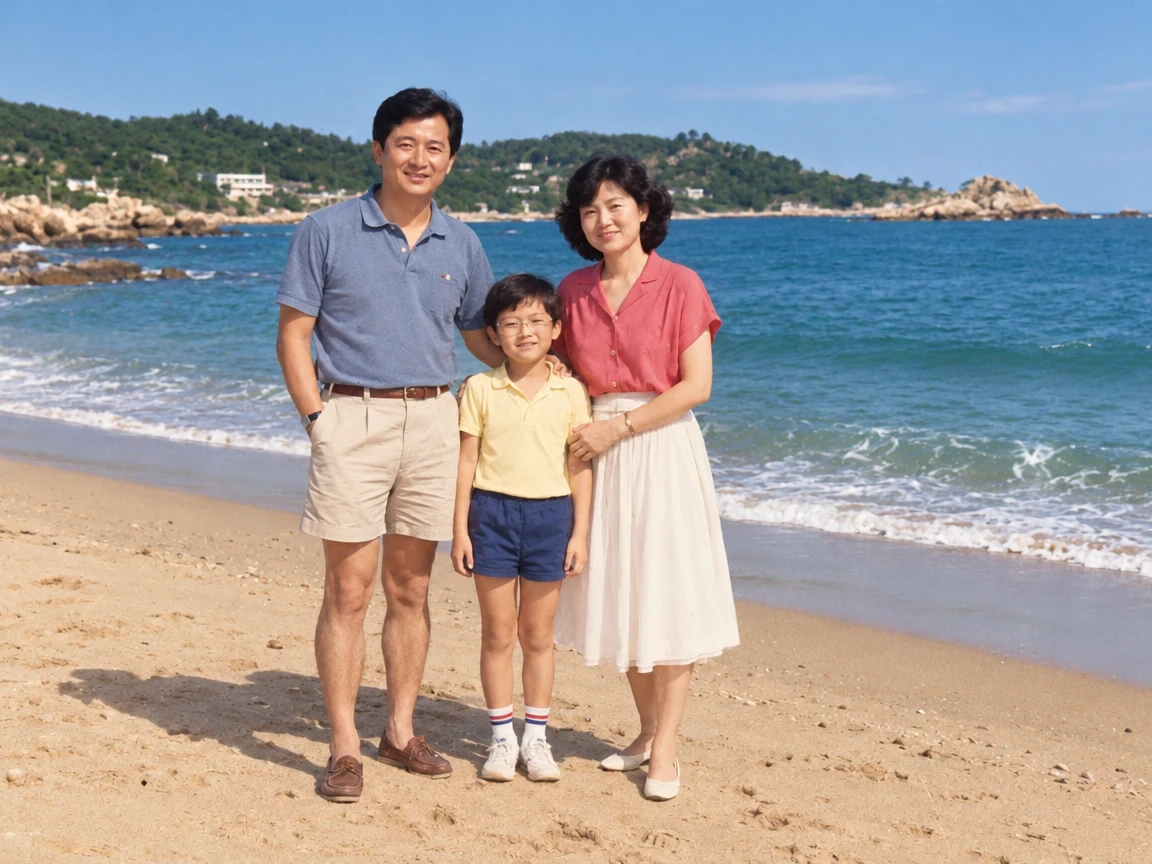
Yes, AI can restore old photos: in our test it removed the scratches, creases, stains and specks we added to 6 photos. But it also smoothed faces, shifted colors, colorized a black-and-white print and ignored a hole in a face until we named it. Check every result against your original.
Jump to the editor below these steps to try it on your own photo, or use our photo restoration tool for a one-click version. PicOnTap is a browser-based AI image editor: upload a photo and describe the change in a sentence to remove objects, replace backgrounds, recolor details or restore old photos.
How we tested: on November 14, 2026 we took 6 sharp AI-generated photos with no real people, damaged them ourselves with scratches, dust, creases, a torn corner, stains, fading and a yellow cast, and ran 7 real edits in PicOnTap with GPT Image 2.5 at 1K. Each edit ran once and cost 2 credits. Because we kept the clean originals, we could check every result against the truth. A small sample, so results can vary between runs. Facts last verified November 14, 2026.
TL;DR
- Scratches, dust, creases and stains: gone in all 7 results, even the fold that crossed two faces.
- Faces: recognizable, but smoother and sharper than the original. After one edit the woman looked a little younger.
- Black and white: a yellowed black-and-white group photo came back in full color, because our prompt said "fix the faded, yellowed color".
- A missing piece: the model left a white hole in a face untouched until we described it in the prompt, then it drew a believable eye.
- Text and small objects: every line of a chalkboard, a grandfather's glasses and a child's hair bows survived.
- A three-word prompt: "fix this old photo" removed the damage as well as our long prompt did.
Can AI restore old photos?
Yes, for damage you can see on the surface. Scratches, dust, creases and stains are patterns the model has seen millions of times, so it paints the missing area to match what surrounds it. What it cannot do is remember what was really there. Where nothing is left to work from, it guesses.
People who have tried this say the same. In a thread about free restoration tools, one commenter wrote that a tool turned grandma into someone who looked like grandpa, and another said it changed the skin tone and features of two people in a black-and-white group photo. A photographer on DPReview called an AI result a miracle but noted it was limited to about 1,024 pixels. Both reports match what we saw: the repair is impressive, and the likeness needs checking.
That is why we tested against clean originals. A restored photo that looks good is not necessarily a photo that looks like the one that was damaged.
How do I restore an old photo with AI?
- Prepare the photo. Scan a print flat, or photograph it straight on in even light with no glare. This is general advice, and we did not test scans against phone photos.
- Upload it in the editor just below these steps. PNG, JPG and WebP files up to 10 MB work.
- Describe the damage and what must stay. Name the scratches, creases or stains, and tell the model to keep faces, clothing and framing. If a piece is missing, say where. Copy one of the prompts in the next section.
- Compare and download. Put the result next to your original and check faces, hands, glasses and any text before you keep it.
Each 1K edit with GPT Image 2.5 cost 2 credits in our test and took between 40 and 74 seconds. You see the cost before you submit. Every visitor gets a free daily allowance of 2 credits that resets at 00:00 UTC, with no sign-up needed, so you can try it on one photo for free.
Which prompt restores an old photo best?
The sentence you write changes the result. These are the prompts we ran, and you can copy them as they are.
- Full restoration: "Restore this old photo. Remove the scratches, dust, creases and stains and fix the faded, yellowed color. Keep every person's face, expression, clothing and the framing exactly as in the photo, and do not add anything that is not there."
- Short version: "fix this old photo"
- A missing piece: "Restore this old black-and-white portrait. Remove the scratches, dust and the fold line, and rebuild the torn top-right corner of the background. A piece of the face over the eye on the left side of the picture is missing: fill it in as simply as you can so it matches the other eye, and keep the rest of the face unchanged. Keep it black and white."
Does a three-word prompt work?
On our family beach photo, yes. We ran the same damaged photo twice, once with the full sentence and once with "fix this old photo". Both removed both creases, the scratches, the dust and the yellow cast, and both gave a vivid, modern-looking result. The short prompt came out slightly more saturated and sharper. It did not break anything here, but it also promised nothing: it did not say to keep faces, so we cannot tell what it would do on a harder photo.
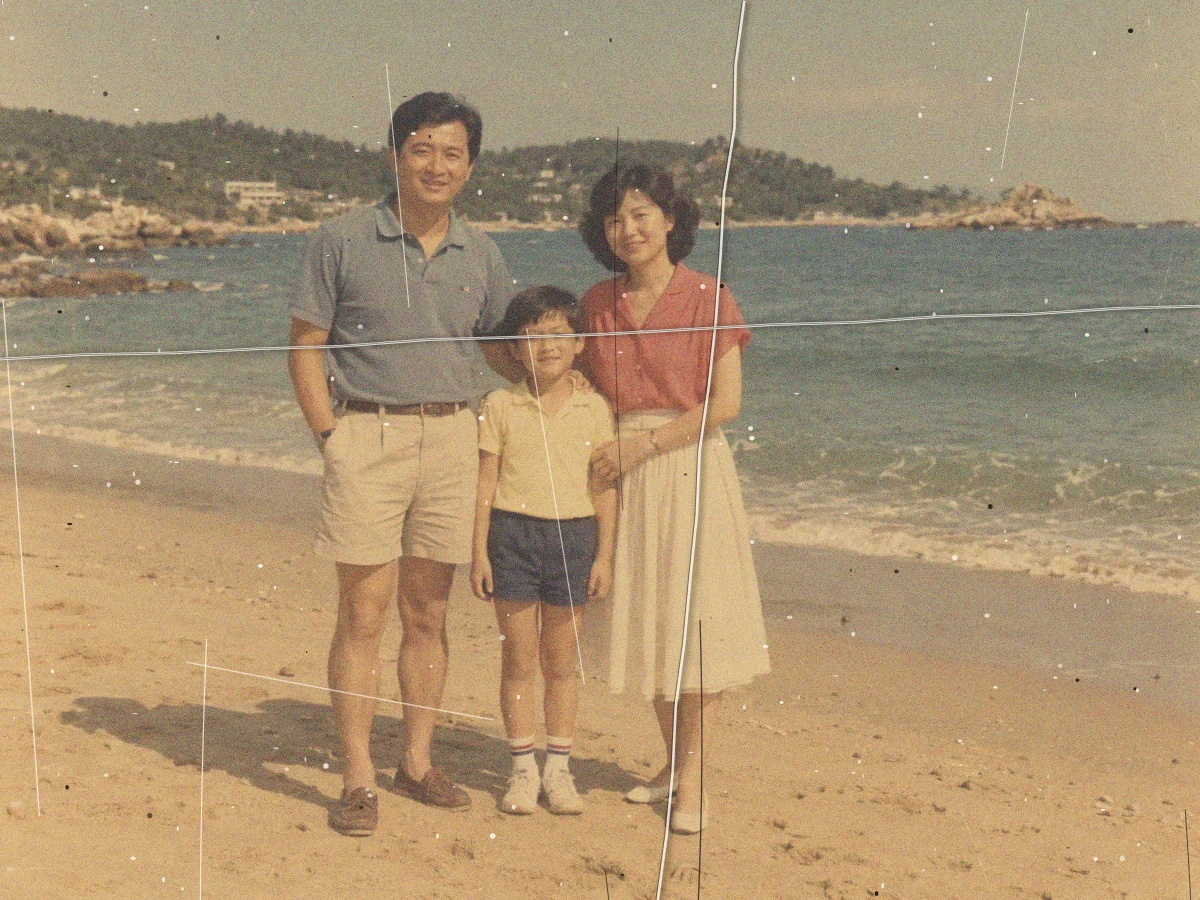 The damaged input. Original: AI-generated, damaged by us.
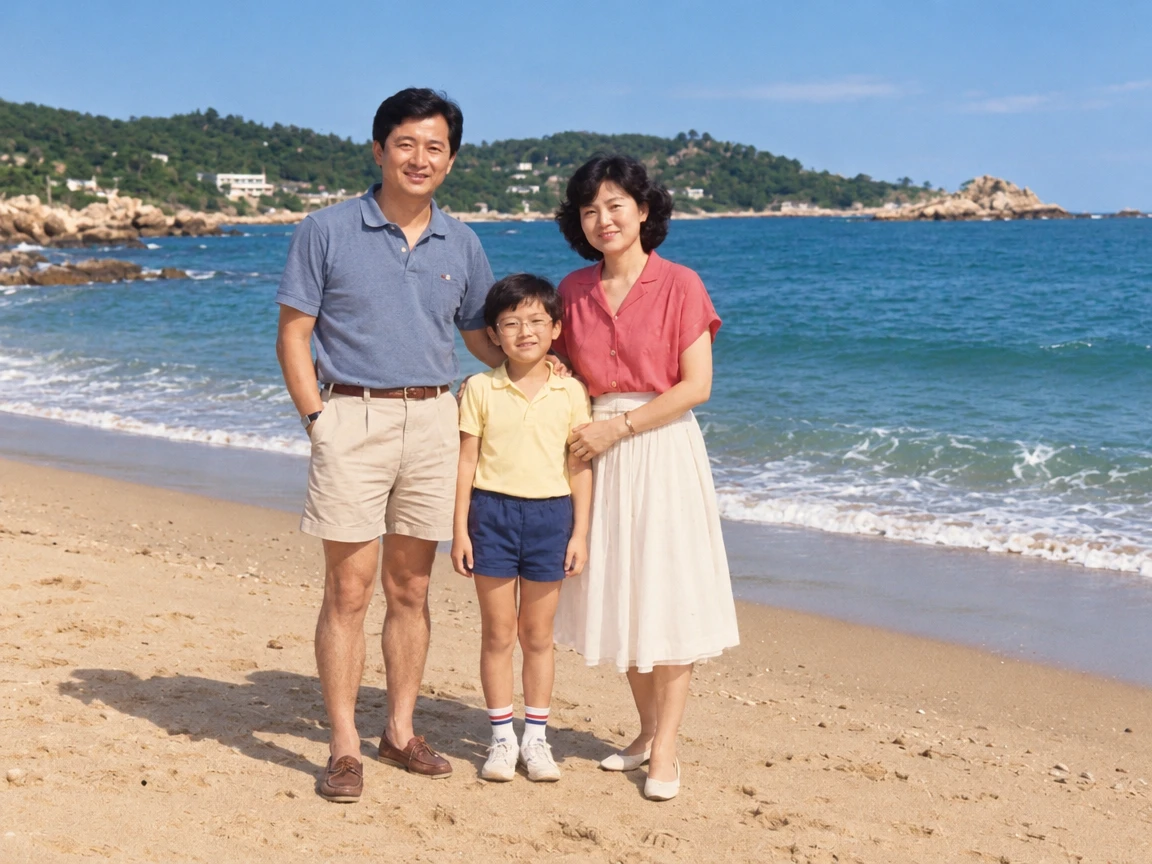 Prompt: the full restoration sentence. Result: a real GPT Image 2.5 edit in PicOnTap, November 14, 2026.
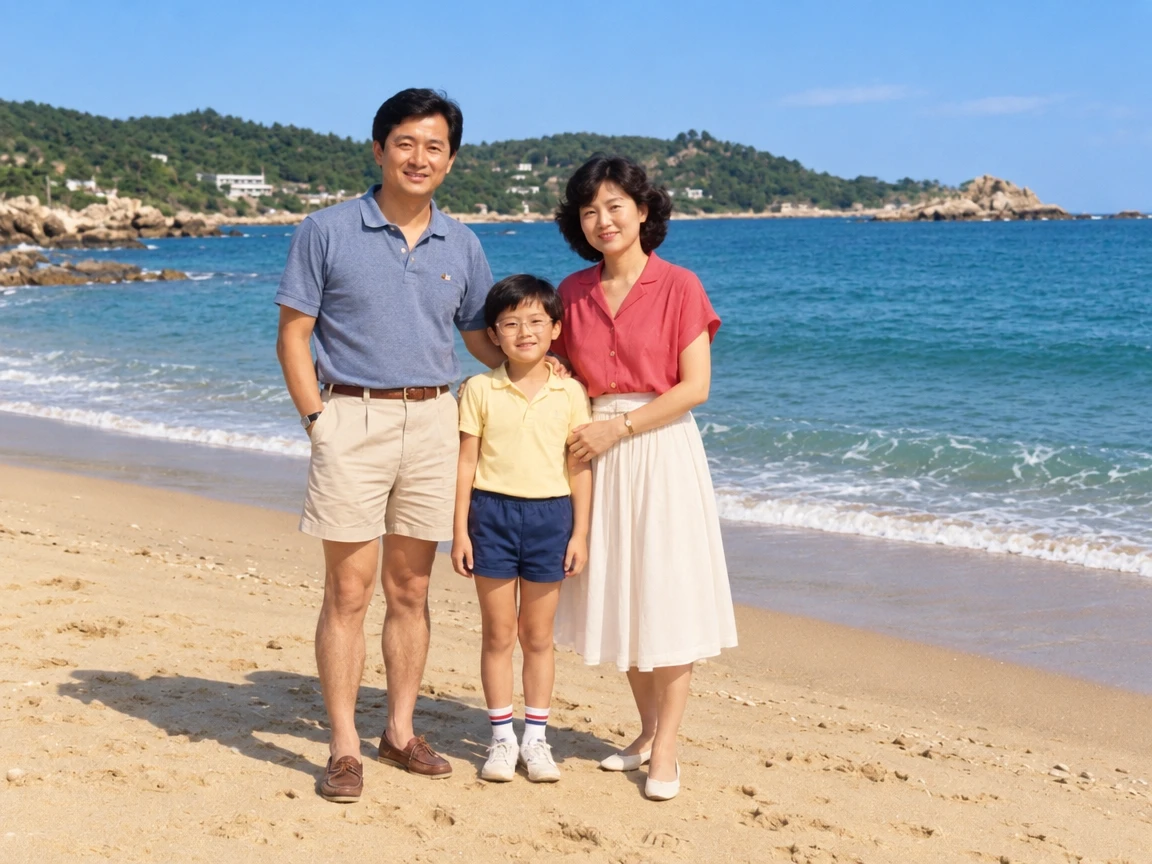 Prompt: 'fix this old photo'. Result: a real GPT Image 2.5 edit in PicOnTap, November 14, 2026.
What we found: 7 edits against the clean originals
We judged every result two ways: by eye against the original, including crops of faces and text, and with PSNR, a standard measure of how close two images are pixel by pixel, where a higher number is closer. We measured it twice: inside the areas we damaged with scratches, creases and stains, and over the whole frame.
- Inside the damaged areas: the result was closer to the original in all 7 edits.
- Over the whole frame: only 5 of 7 were closer than the damaged copy we started from. The easy traveler photo scored 28.1 damaged and 21.1 restored, and the group photo dropped from 20.2 to 17.8, because the model re-rendered colors and details everywhere, not only where the damage was.
A photo that looks restored is not always closer to what was really there. PSNR punishes small shifts in position, so treat these numbers as a rough guide.
Does it remove scratches, creases and stains?
Yes, all of them. The two creases and the scratches on the beach photo are gone, and so are the three brown stains on the group photo, including the one over a girl's dress. On the faded market photo, a crease that ran straight through a chalkboard disappeared without damaging the writing.
What changed beyond the damage was the look. The beach photo had a pale grey-blue sky; the result has a saturated blue sky and green hills. The market photo came back more vivid than the original too. If you want the faded, period look to stay, say so in the prompt.
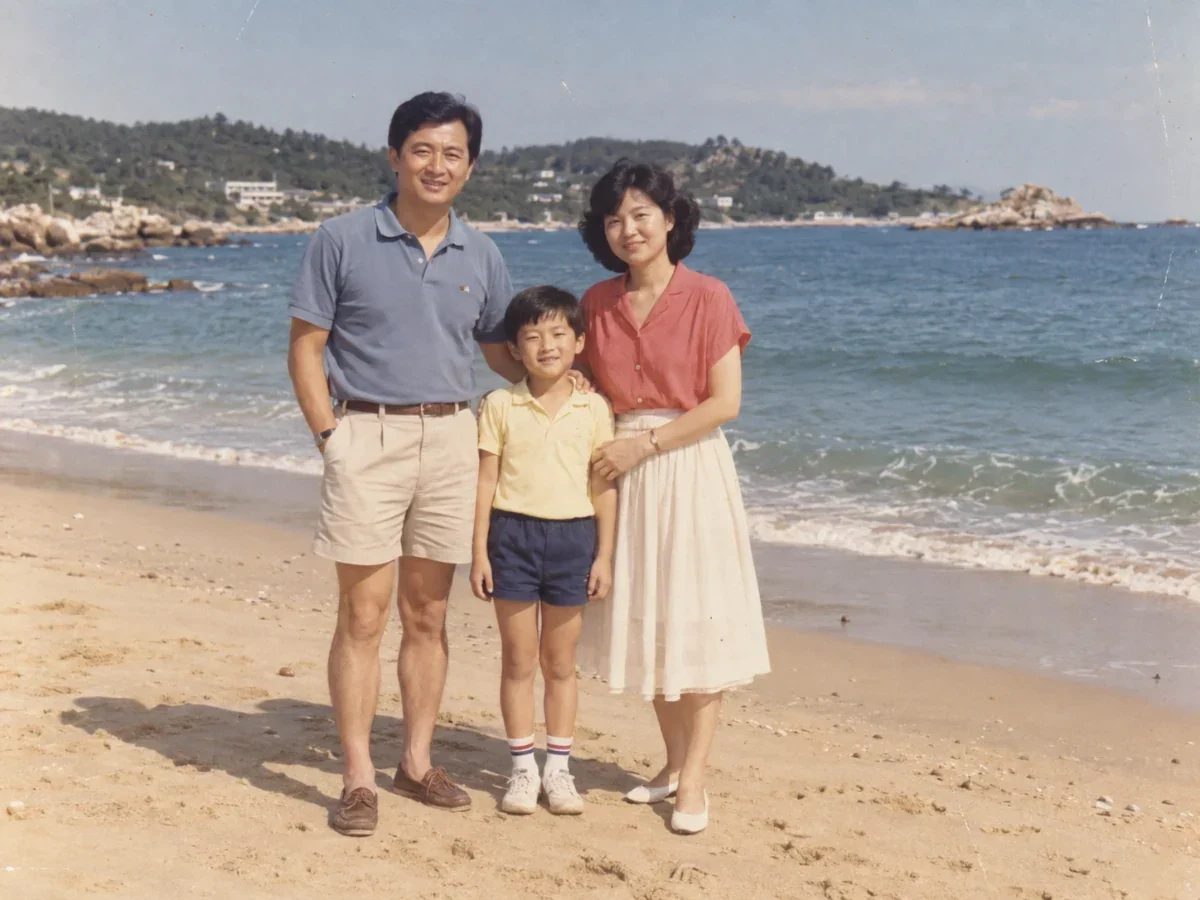 The clean original, for comparison. Original: AI-generated.
Will AI change the face?
Yes, a little, every time. In all the portraits and groups, faces stayed recognizable but came back smoother and sharper than the original. Skin texture and fine wrinkles were softened. On the portrait where we named the missing eye, the whole face looked slightly younger. We did not measure face similarity, so this is a judgment by eye on crops. For a family print, put the result next to the original and look at the eyes and the lines around them.
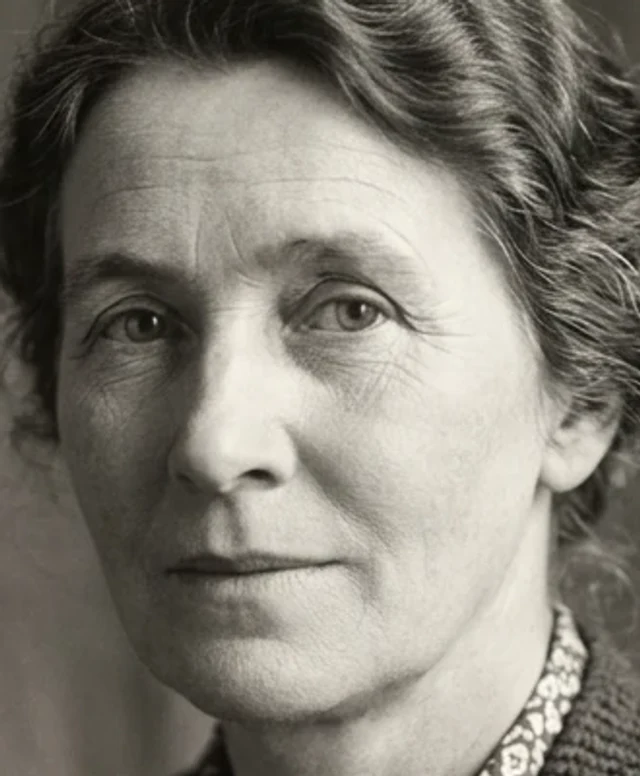 Crop of the clean original (AI-generated, not a real person).
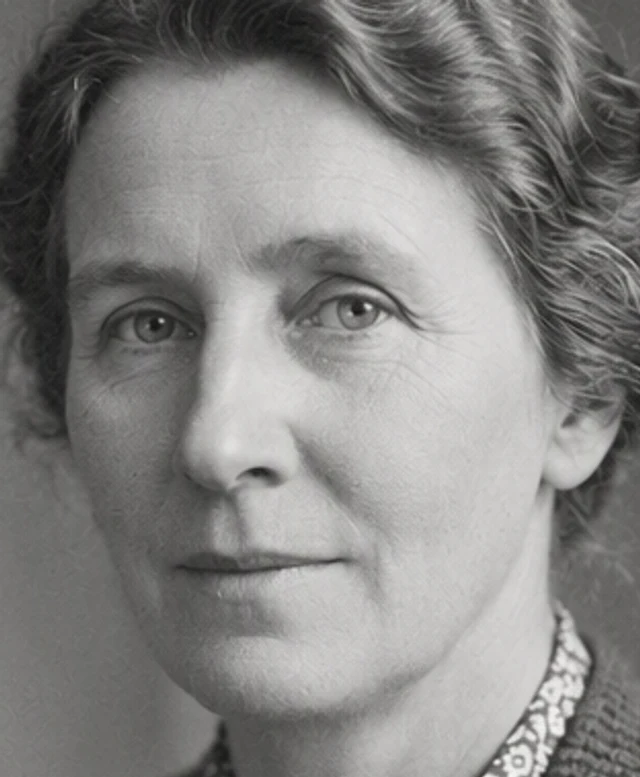 Crop of the result: recognizable, smoother, a little younger. A real GPT Image 2.5 edit in PicOnTap, November 14, 2026.
Does it colorize a black-and-white photo by itself?
It can. Our yellowed black-and-white group photo of seven people came back in full color: a blue work shirt, a teal door, green plants, red-brown hair. We never asked for color. Our prompt said "fix the faded, yellowed color", and the model read that as an invitation. Every damage mark was gone, and the grandfather's glasses and the girl's two hair bows survived, but the colors are invented.
The portrait that was already gray stayed black and white, in both of its edits. If you want a black-and-white result, write "keep it black and white", as our missing-piece prompt does.
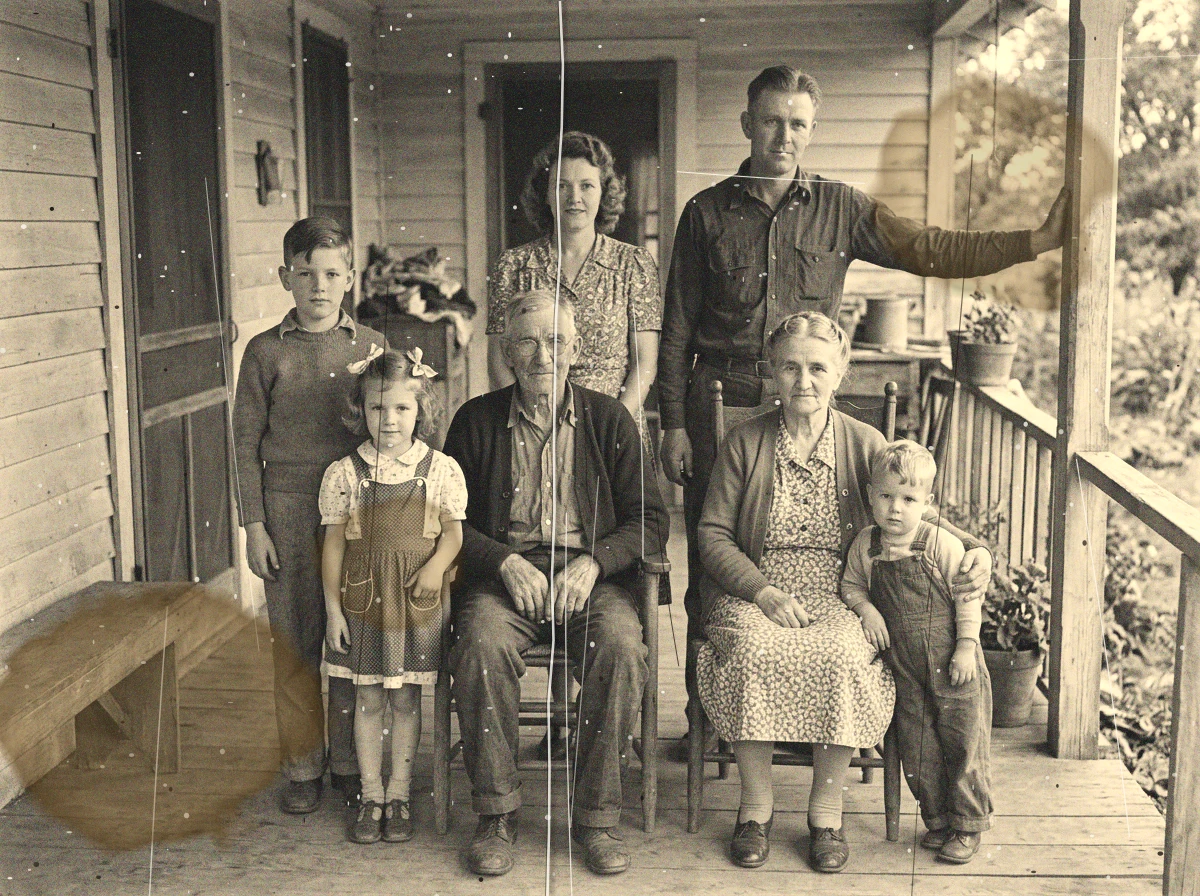 The damaged input, yellowed and creased. Original: AI-generated, damaged by us.
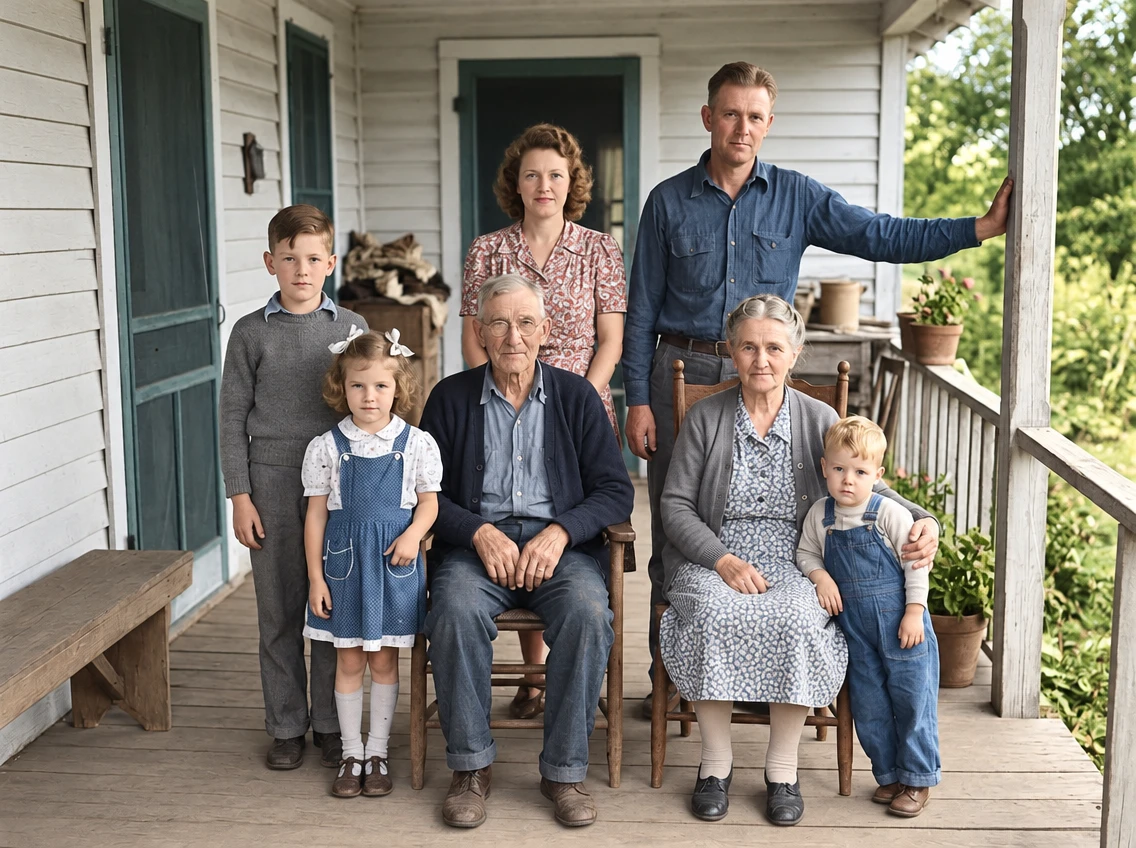 Result: damage gone, but colorized without being asked. A real GPT Image 2.5 edit in PicOnTap, November 14, 2026.
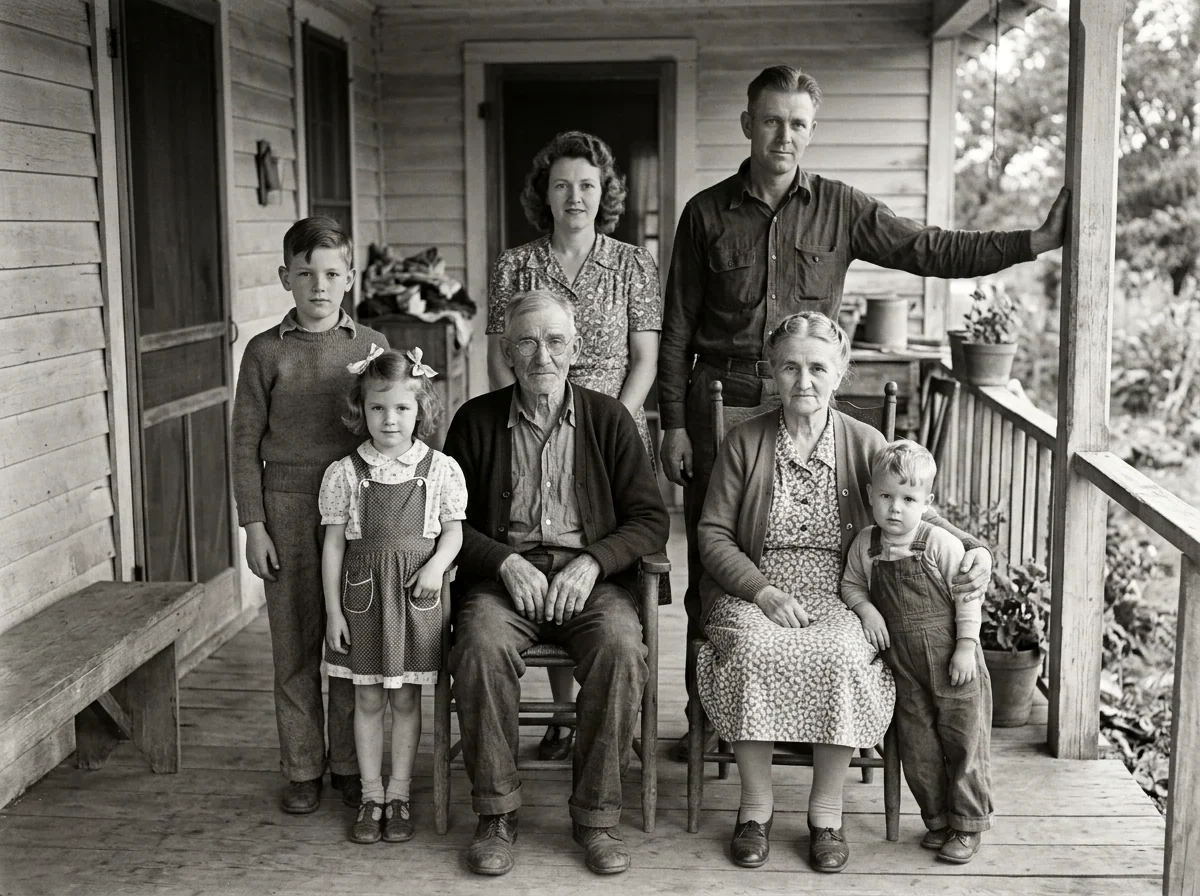 The clean original, in black and white. Original: AI-generated.
Does it change small details and text?
Mostly not. On the market photo, all four lines of the chalkboard came back correct: "Flowers", "Tulips £8 a bunch", "Eucalyptus £6" and "Dried Lavender £5", even though the faded copy had a crease through the heading. The awning stripes and the tulips stayed in place.
One small invention gave the game away. Our damaged copy had a stray white speck between "Lavender" and the price. The result turned it into a full stop. A restored photo can fix a speck by making it part of the picture, so read every number by hand.
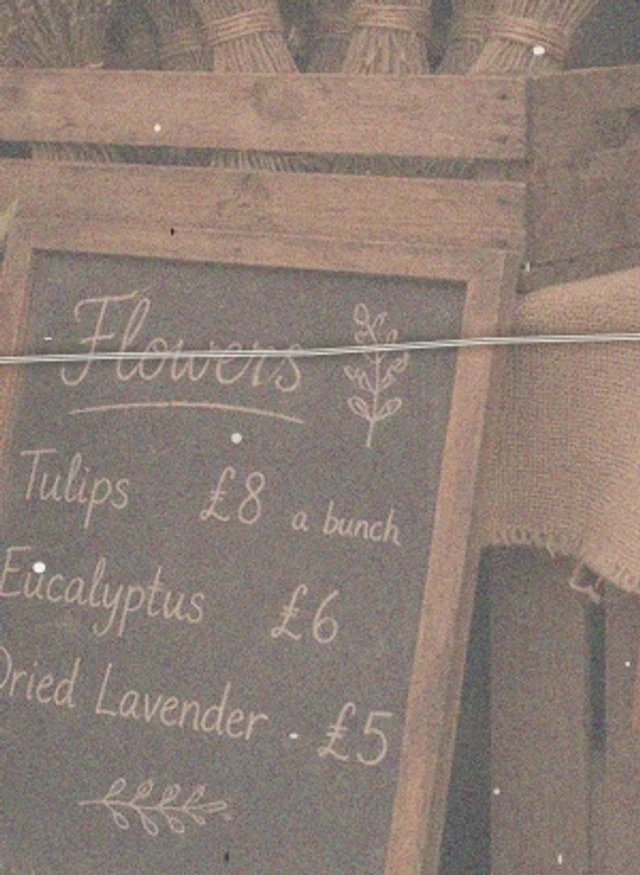 The damaged input with a crease and a speck. Original: AI-generated, damaged by us.
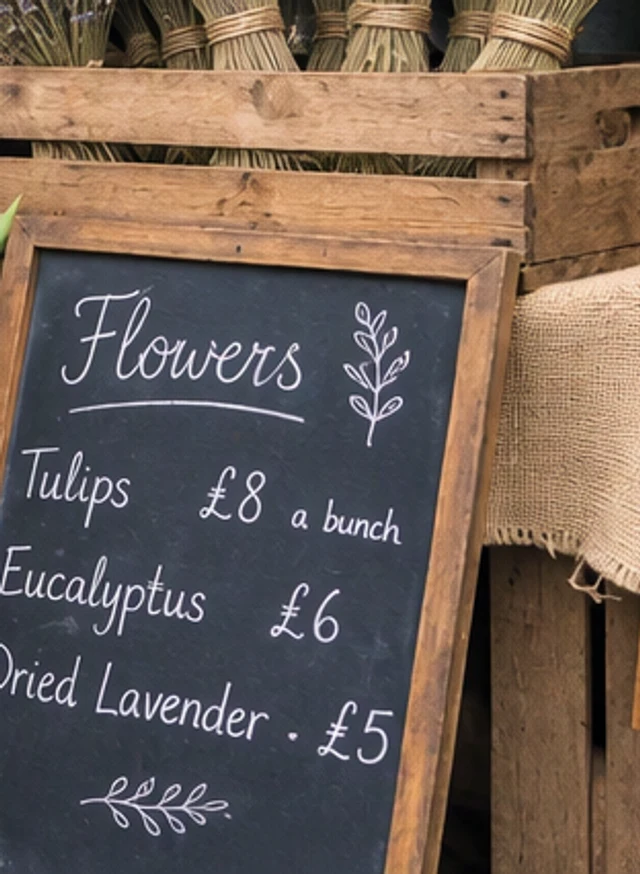 Result: the text is right, and the speck became a full stop. A real GPT Image 2.5 edit in PicOnTap, November 14, 2026.
What happens when a piece of the face is missing?
Nothing, unless you say so. On our hardest photo, a white hole covered one eye and half a cheek, and a fold ran through the face. With the full restoration prompt, every scratch, the fold and the torn corner were gone, but the white hole stayed exactly as we made it. The model treated it as part of the picture.
When we described it in the prompt, the hole disappeared and the model drew a believable eye that matches the other one. That eye is an invention, not a recovery, and the face around it came back smoother. If you restore a memorial photo, tell the model what is missing, and treat the filled-in part as a guess.
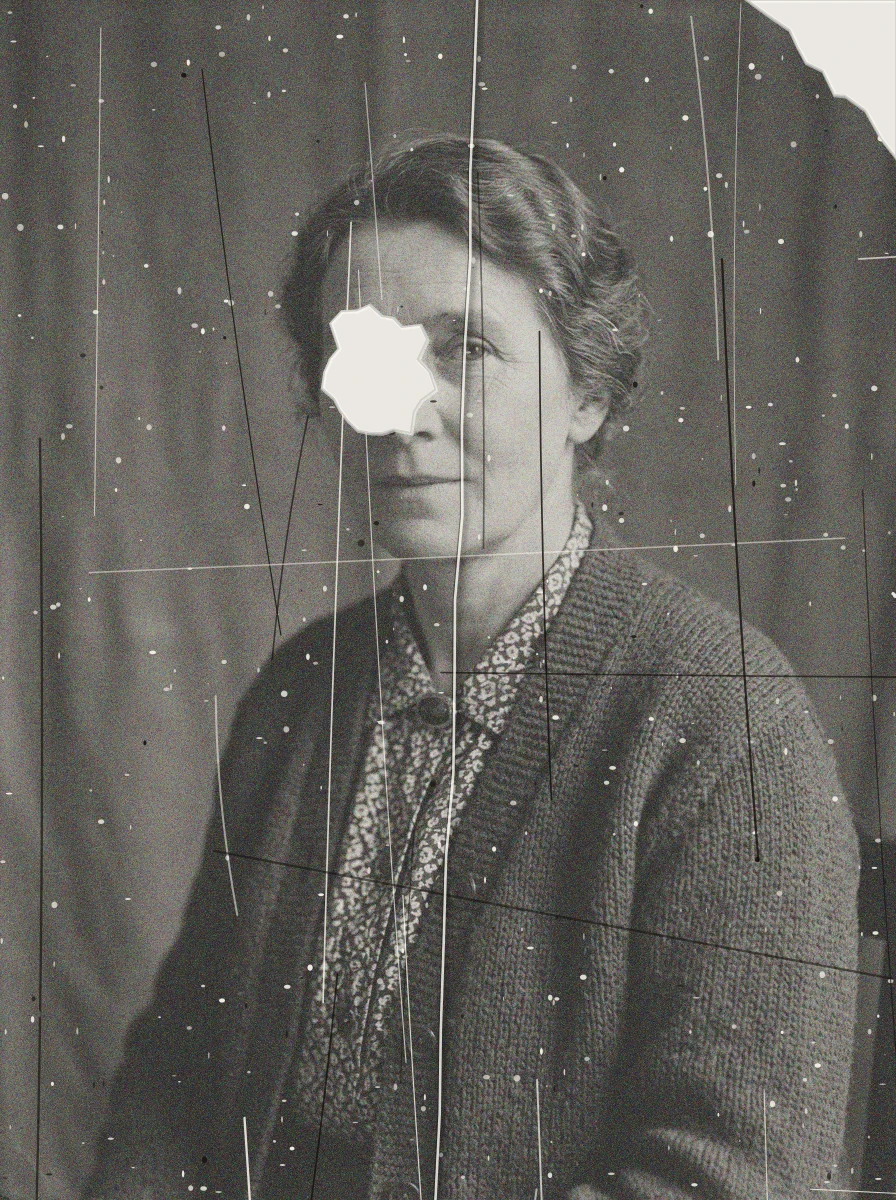 The damaged input. Original: AI-generated, damaged by us.
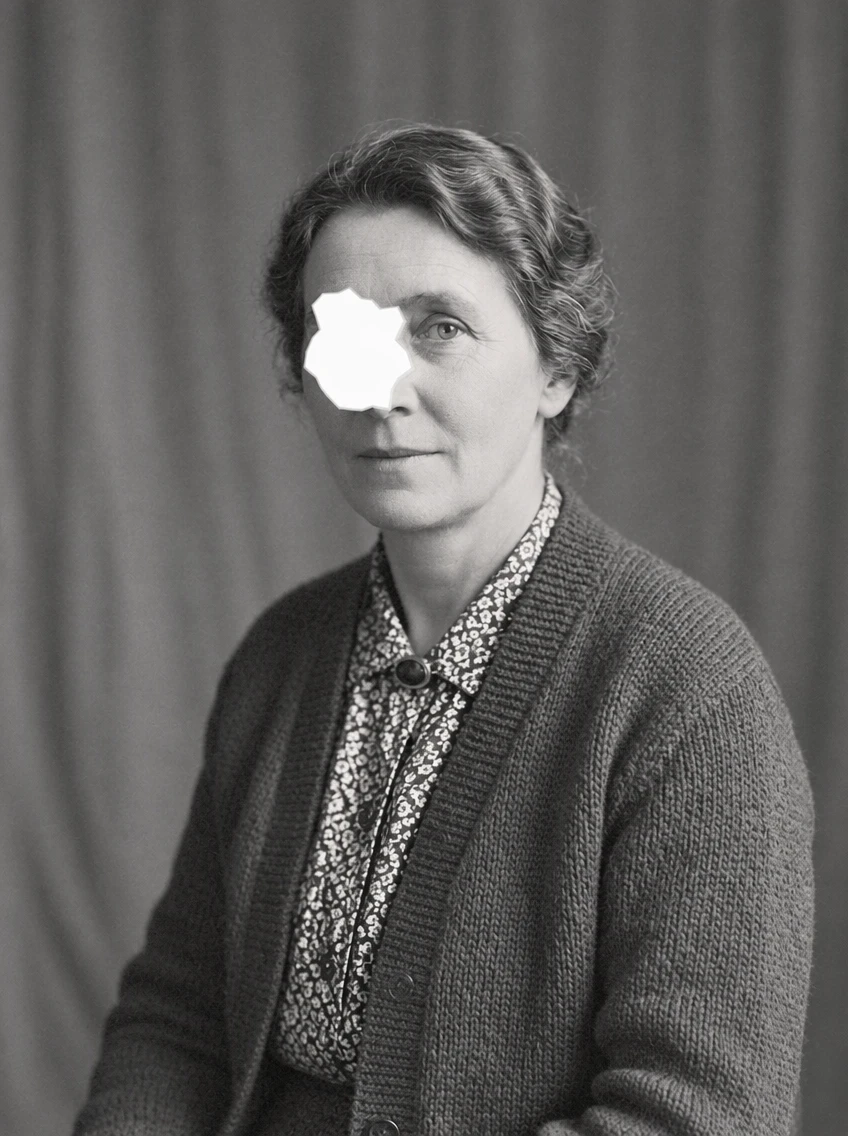 Prompt: the full restoration sentence. The hole stayed. A real GPT Image 2.5 edit in PicOnTap, November 14, 2026.
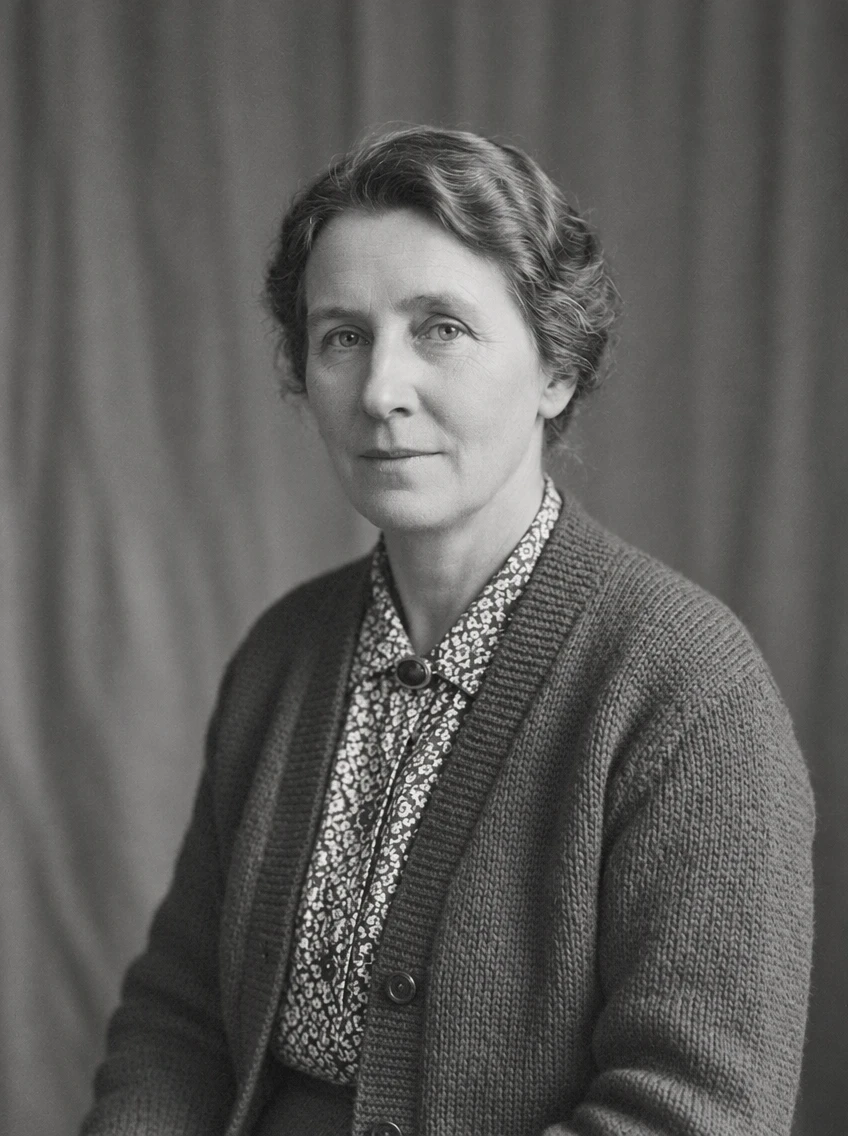 Prompt: the missing-piece prompt. A believable but invented eye. A real GPT Image 2.5 edit in PicOnTap, November 14, 2026.
When does AI restoration go wrong?
From this small test:
- Smoothed faces: expect softer skin and fewer fine lines, even when you ask to keep the face.
- A changed look: colors can come back more vivid and modern than a faded original.
- Unasked colorizing: asking to fix faded or yellowed color can turn a black-and-white print into a color photo.
- Gaps are left alone: a missing piece is filled only if you name it, and then it is invented.
- Specks can become content: a speck on a sign or a label can turn into a letter or a full stop.
- Limited size: results were between 848 and 1,248 pixels on the longest side, so large prints need upscaling.
FAQ
Can ChatGPT restore old photos?
We tested GPT Image 2.5 inside PicOnTap, not ChatGPT itself, so we cannot say how ChatGPT behaves. The prompts in this article are plain sentences that work as instructions in any image editor that accepts them.
Do AI photo restoration apps really work?
For visible damage, yes. In our test every scratch, crease and stain was removed. The risks are in what the app changes besides the damage: faces, colors and the era of the photo. Compare the result with your original.
Is it free, and do I need to sign up?
You can try the editor with free credits and no sign-up. Every visitor gets a daily allowance of 2 credits that resets at 00:00 UTC, and unused credits do not accumulate. A GPT Image 2.5 edit at 1K costs 2 credits, shown before you submit. Paid plans are listed on the pricing page.
Should I scan the photo or photograph it?
Scan a print flat if you can, or photograph it straight on in even light without glare. This is general advice and we did not test it, because our test used digital files.
Is it safe to upload family photos?
Read the privacy policy before you upload. It says uploaded originals, your instructions and the results are stored so you can keep working, that new assets expire 365 days after they are created, and that the image is sent to the AI model provider you choose and screened by a content moderation service. Whether a provider uses images for model training depends on the provider, and the policy says that trying the editor without an account does not by itself establish it.
Can I print the result?
Check the size first. Our results were 848 to 1,248 pixels on the longest side. A 4 × 6 inch print at 300 dpi needs 1,800 × 1,200 pixels, so these files are smaller than that and would need upscaling.
Is Fotor or Remini better?
We did not test Fotor or Remini, so we cannot say. A fair way to compare any tool is the way we did: damage a clean photo yourself and check the result against it.
Where can I restore a photo in one click?
Use the photo restoration tool, which applies a conservative restoration with no prompt to write. To add color to a black-and-white picture on purpose, use the colorizer.
Bottom line
So can AI restore old photos? Yes: the scratches, creases and stains went away in every test. The cost is in the details it changes on the way, so write what must stay, say what is missing, and compare the result with your original. Try it on your own photo, and judge the result with your own eyes.
Keep reading
 GuidesAI Hairstyle Prompts: 7 Tests on Face, Hair and BackgroundAn AI hairstyle prompt changed length, color, curls, bangs and cuts in all 7 of our tests. Clothes and background stayed, but the face was slightly redrawn in 4 of 7.
 GuidesIs AI Colorization Accurate? We Tested It Against Real ColorsPartly. We turned 4 AI-made color photos grey, colorized them in 7 real edits and compared every result with the true colors: sky and skin held up, a jacket and a boat did not.
 GuidesAI Christmas Photo Prompts That Keep Your Face: 12 Real TestsWe ran 12 real edits to test AI Christmas photo prompts. The "keep my face" line mattered less than we expected; face size and how much you change mattered most.