This free glare remover takes glare and reflections out of photos in one click. Brush an area only when you want a local edit.
1Upload
2Reduce glare
3Generate & compare
Remove Glare from Photos
Upload a photo, or use an example on the canvas.
Examples
Original AI-generated input previews. Verified editing results will be added after real PicOnTap tasks are reviewed. These images are not before-and-after claims.
Every reflection has details worth keeping.
Original AI-generated inputs. Only reviewed PicOnTap results are shown as comparisons; pending cases remain input previews. Each result is labeled automatic or local.
Everyday photos · Automatic editing result
Keep the gaze
Automatic editing result · An actual PicOnTap edit of this AI-generated input, reviewed before display. New detail beneath reflections is not verified recovery.
Input previewAutomatic editing result
↔
Check the same detail in both images
Input preview
Automatic editing result
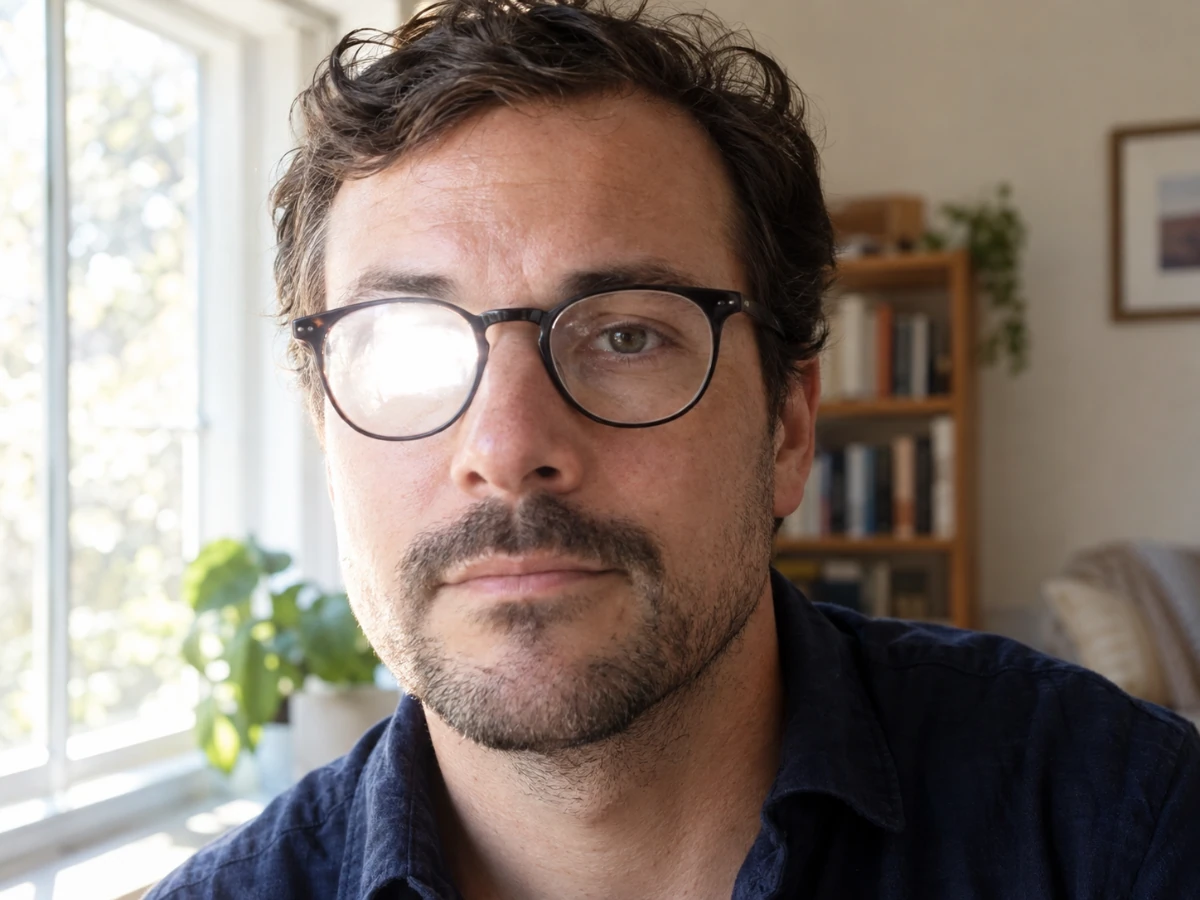
Café glasses: reduce the window glare while checking pupils, eyelids and the frame. Keep small, natural catchlights.
Loads the original only. Review the quote before generating.
Everyday photos · Automatic editing result
See through the window
Automatic editing result · An actual PicOnTap edit of this AI-generated input, reviewed before display. New detail beneath reflections is not verified recovery.
Input previewAutomatic editing result
↔
Check the same detail in both images
Input preview
Automatic editing result
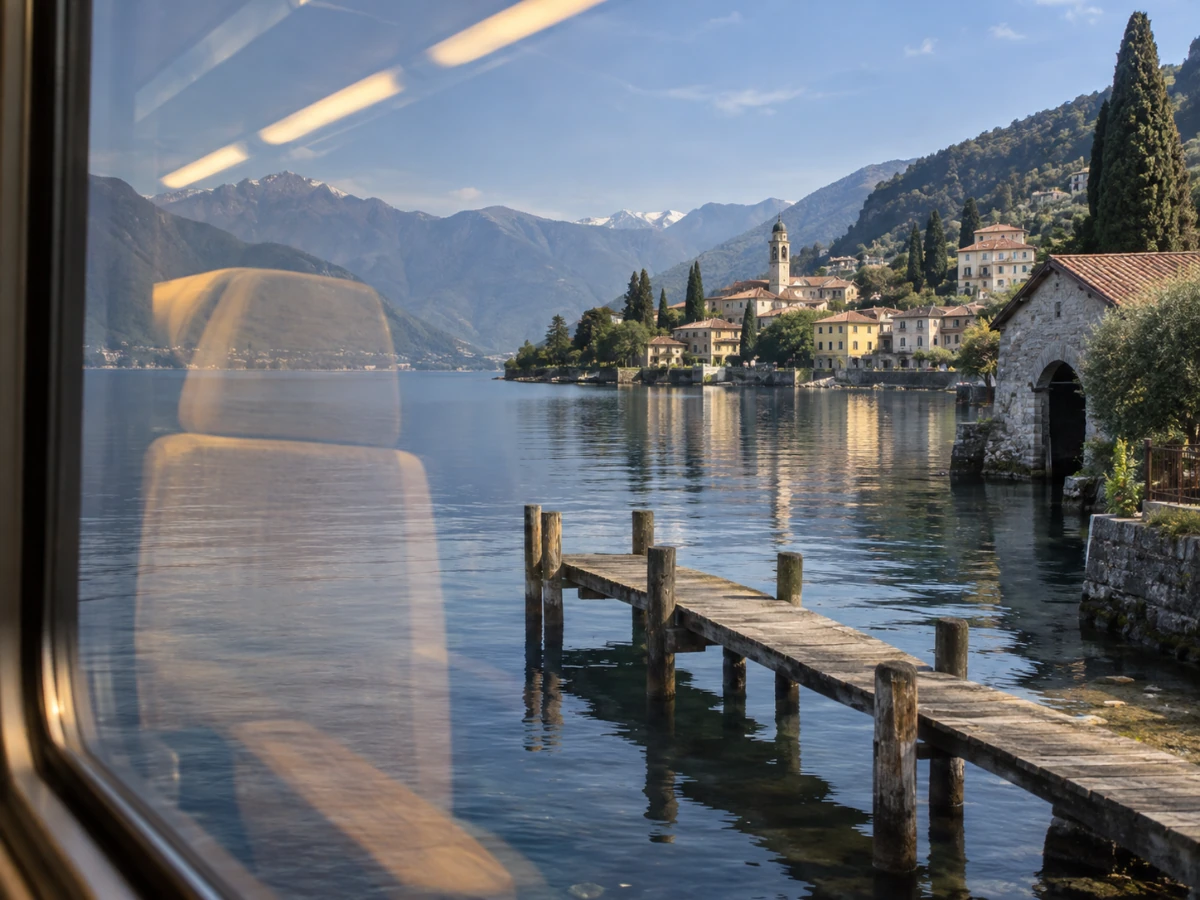
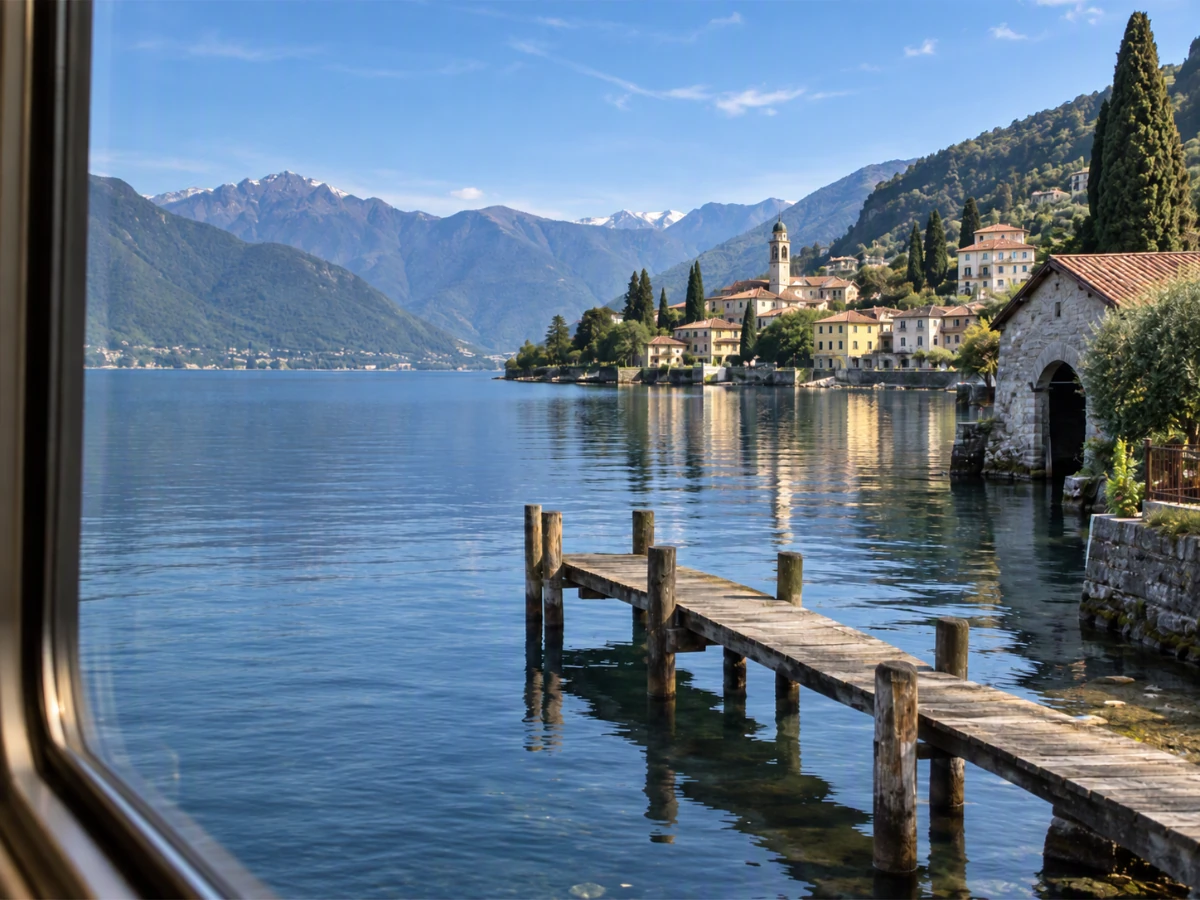
Train-window scenery: reduce reflected seats and lights. Check the shoreline, buildings and dock; keep the reflections on the water.
Loads the original only. Review the quote before generating.
Product photos · Automatic editing result
Show the craft
Automatic editing result · An actual PicOnTap edit of this AI-generated input, reviewed before display. New detail beneath reflections is not verified recovery.
Input previewAutomatic editing result
↔
Check the same detail in both images
Input preview
Automatic editing result
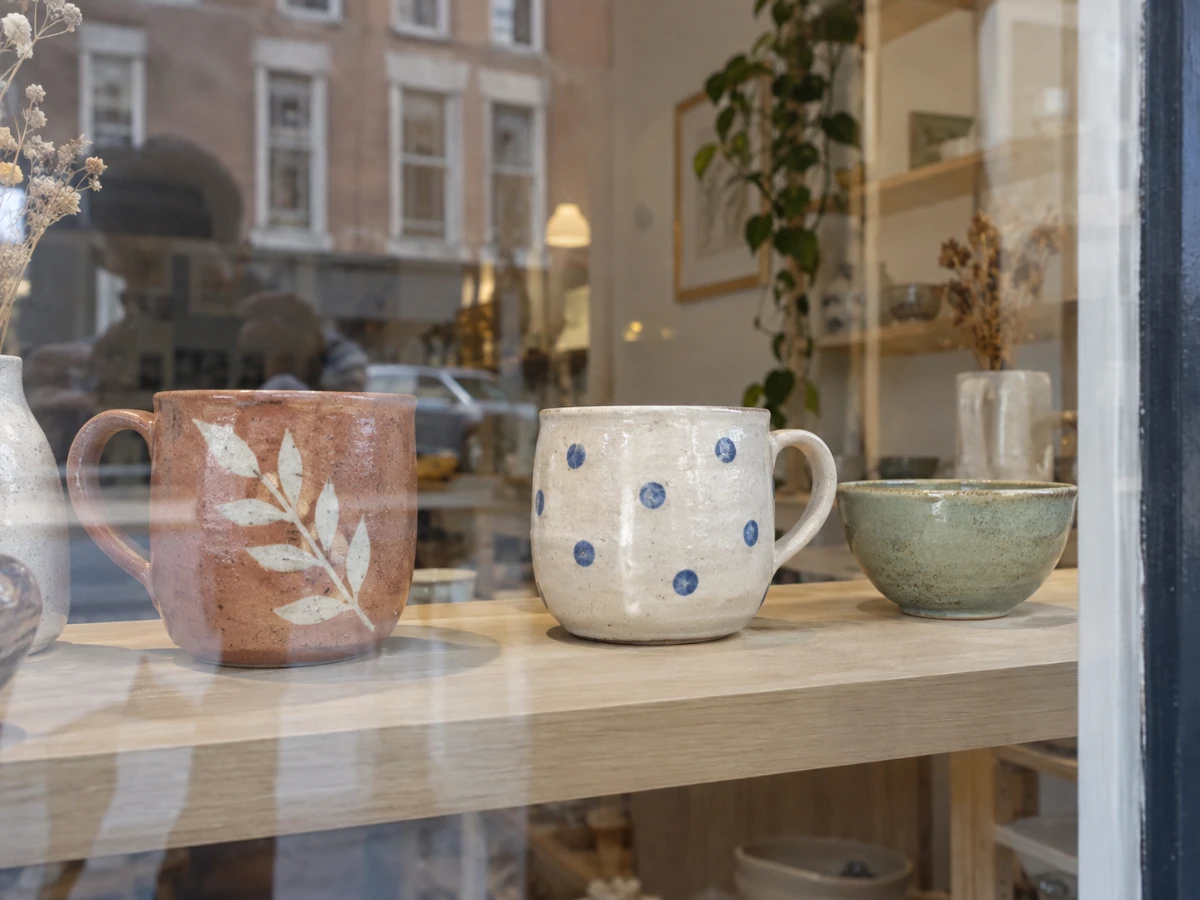
Ceramics behind glass: reduce street reflections while checking cup handles, patterns and object count. Keep the glaze and contact shadows.
Loads the original only. Review the quote before generating.
How to remove glare from a photo
1
Upload a photo
Choose a photo with mild or moderate reflections and visible detail underneath.
2
One click, or an optional brush
Review the quote and generate automatically. To guide the edit to a specific area, mark it first; no written prompt is needed.
3
Inspect, compare and download
Compare this input and result at full size. Check eyes, text, edges and materials before choosing a version.
White glare cannot tell us what was there.
When a lens or label is completely obscured, newly generated eyes or letters are not verified recovery. Selections guide the model, but changes may extend beyond them. Check the whole photo and prefer some remaining glare to invented identity or text.
Boundary example, not a successful restoration: a synthetic input and its actual AI output. The newly visible eye cannot be verified against the source.
Original: the eye is obscured
AI result: new eye details cannot be verified
Know the cost before editing
2 credit, reset at 00:00 UTC. Unused daily allowance does not accumulate; signing in carries over today’s usage.
Current rules and image limits
Model and access
GPT Image 2.5 · Available · The current model policy and your quote determine availability and cost. Loading an example or opening the brush does not generate an edit.
Per edit
2 credits
Maximum input
10 MiB · PNG, JPEG, WebP
File size, pixel count, edge length and aspect ratio are separate limits. Use a static PNG, JPEG or WebP; GIF and animated images are not supported by the editor.
Download the original result returned by the model. Its format and dimensions may differ from the input; check eyes, text and texture at full size.
Browsing and loading examples do not spend editing credits. A technical failure returns the credits charged for that attempt; a delivered result you dislike is not a technical failure. Check pending returns in the editor.
No. The glare remover edits automatically in one click by default. Mark an area to guide the model toward it; other areas may also change. An empty local selection must be completed or explicitly cleared before automatic editing.
Should every reflection disappear?
No. Glass highlights, ceramic glaze, eye catchlights and water reflections can belong in the photo. This tool targets distracting reflections, not every bright area.
Is another edit free if I dislike the result?
A new edit after delivery gets a new quote and is charged as a new task. Technical failures follow the existing credit-return rules; opening refinement alone costs nothing.
Can it recover unreadable text or covered eyes?
Fully hidden content cannot be verified from the source. Inspect visible anchors and do not treat plausible generated details as evidence of the original.
Can it remove glare from glasses in a photo?
Yes. Upload the portrait and generate in one click, or brush the lenses to guide the edit. Check pupils, eyelids and the frame at full size. If white glare hides the eyes completely, new eye detail cannot be verified.
How can I avoid glare when taking photos?
Turn off the flash, shoot glass and glossy prints at a slight angle, and keep bright windows and lamps out of the reflection. When shooting through a window, hold the lens close to the glass; a polarizing filter also cuts reflections. Photographing an old glossy print? After reducing the glare, you can restore it too: Old photo restoration

 Input previewAutomatic editing result