Edit photos with GPT Image 2
Bring subject, copy, hierarchy and style into one visual brief. Define the overall idea first, then check the details.
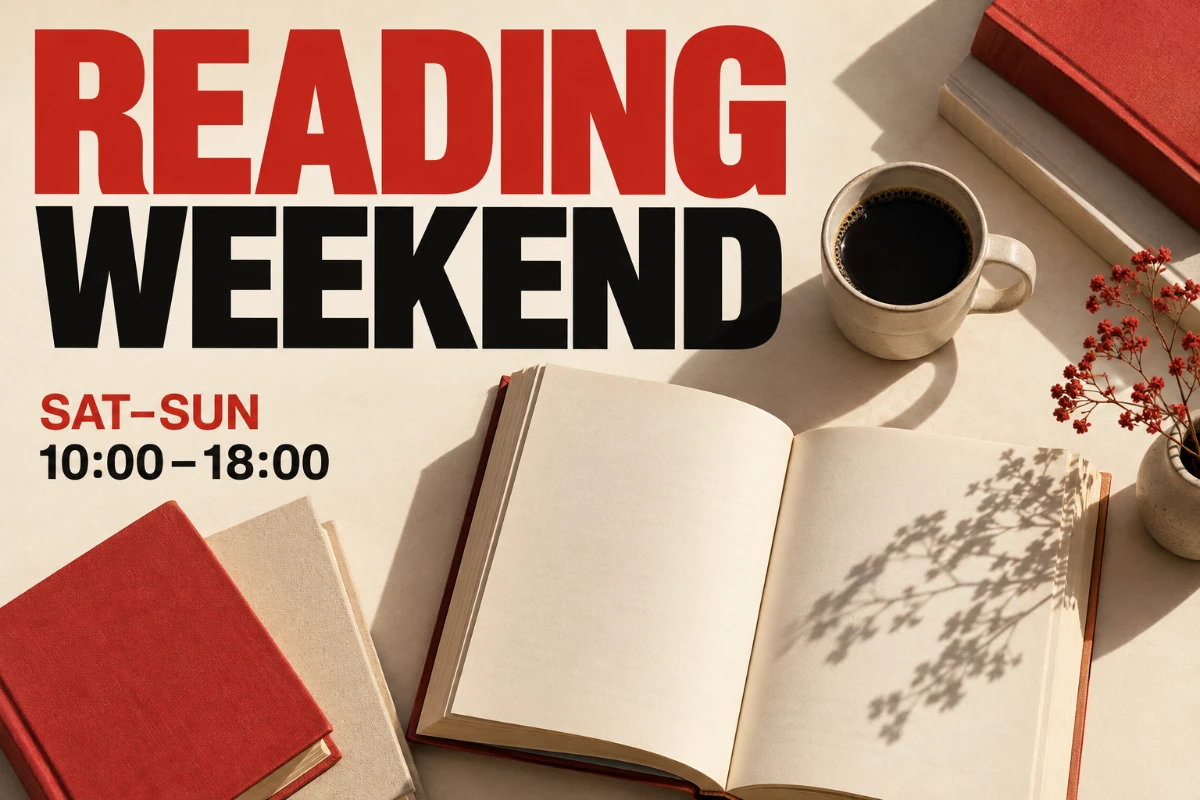
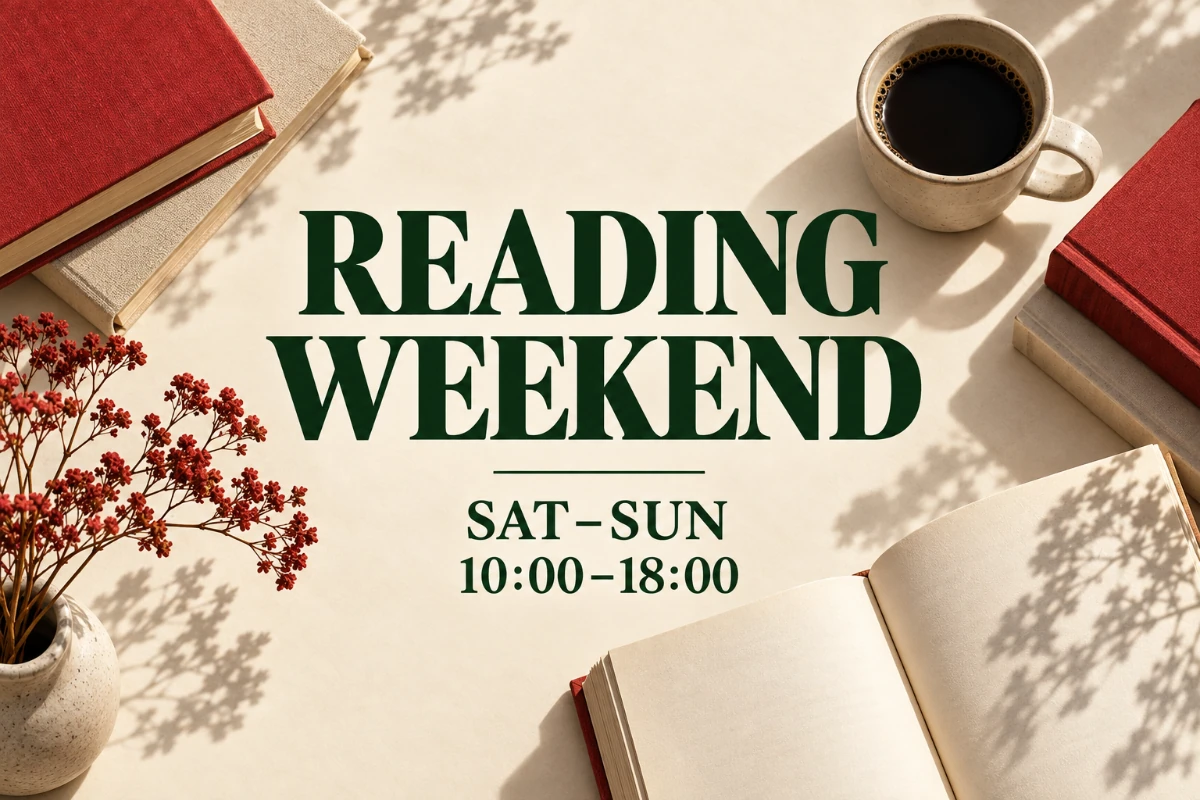
AI-created creative examples, not verified outputs from the selected model.
Turn an image into a complete creative idea.
Bring subject, copy, hierarchy and style into one visual brief. Define the overall idea first, then check the details.
Give your brief a clear priority.
Keep the books, coffee and dried flowers as the visual subject of the reading event.
These choices help you write a prompt. They do not submit tasks or generate new results.
See the whole design. Then proof the copy.
The copy beside the image is the requested text. Compare it with the actual lettering in the image; it does not cover or correct the artwork.
- Headline
- READING WEEKEND
- Date
- SAT–SUN
- Time
- 10:00–18:00
One briefing method, many visual uses.
Posters need hierarchy, packaging needs preserved form, and explanatory images need clear placement. The same approach helps with photographic style and overall composition.
Bring the requirements together.
Redesign this reading-event poster. Keep the books, coffee and dried flowers as the subject, with a cream text area. Include only "READING WEEKEND", "SAT–SUN" and "10:00–18:00". Make the dark green bold serif headline largest, with date and time smaller below. Use dark green, cream and burgundy, preserve natural textures, and add no other text or logos.
Try the approach on different images
Each case has its own original and prompt. Try one, then adjust the instructions.
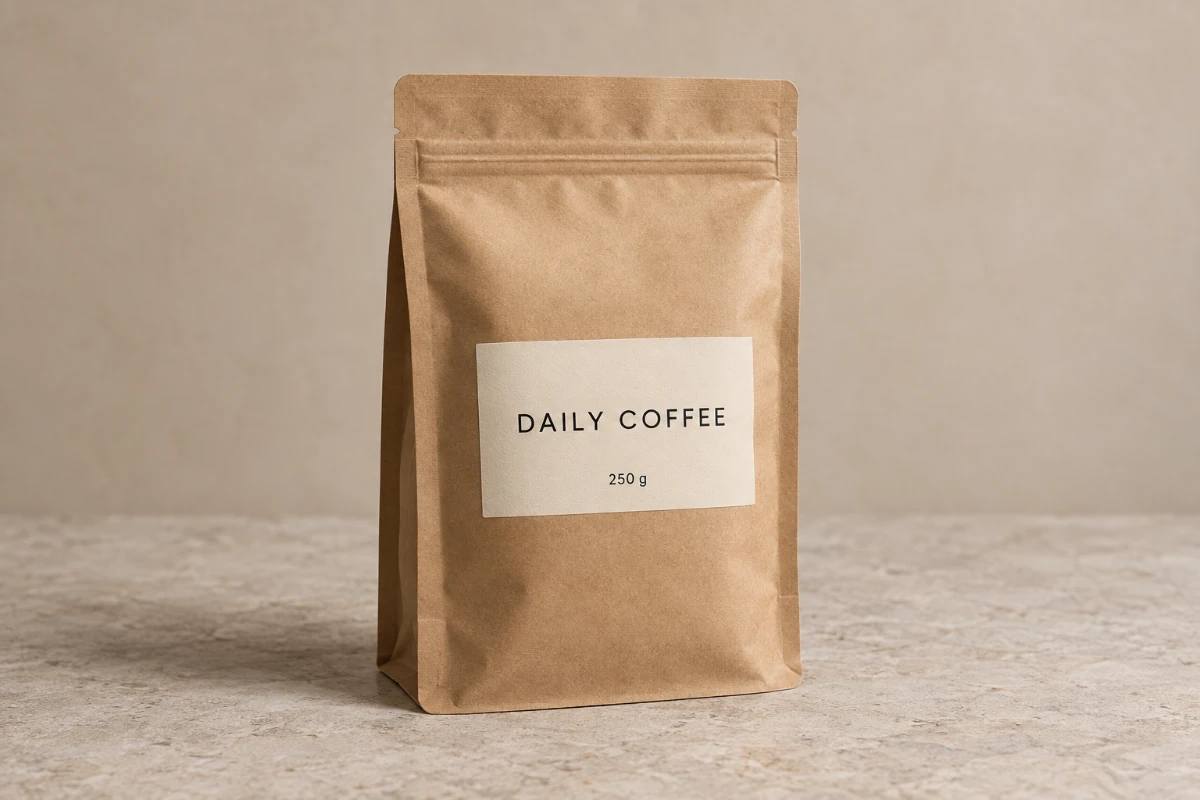
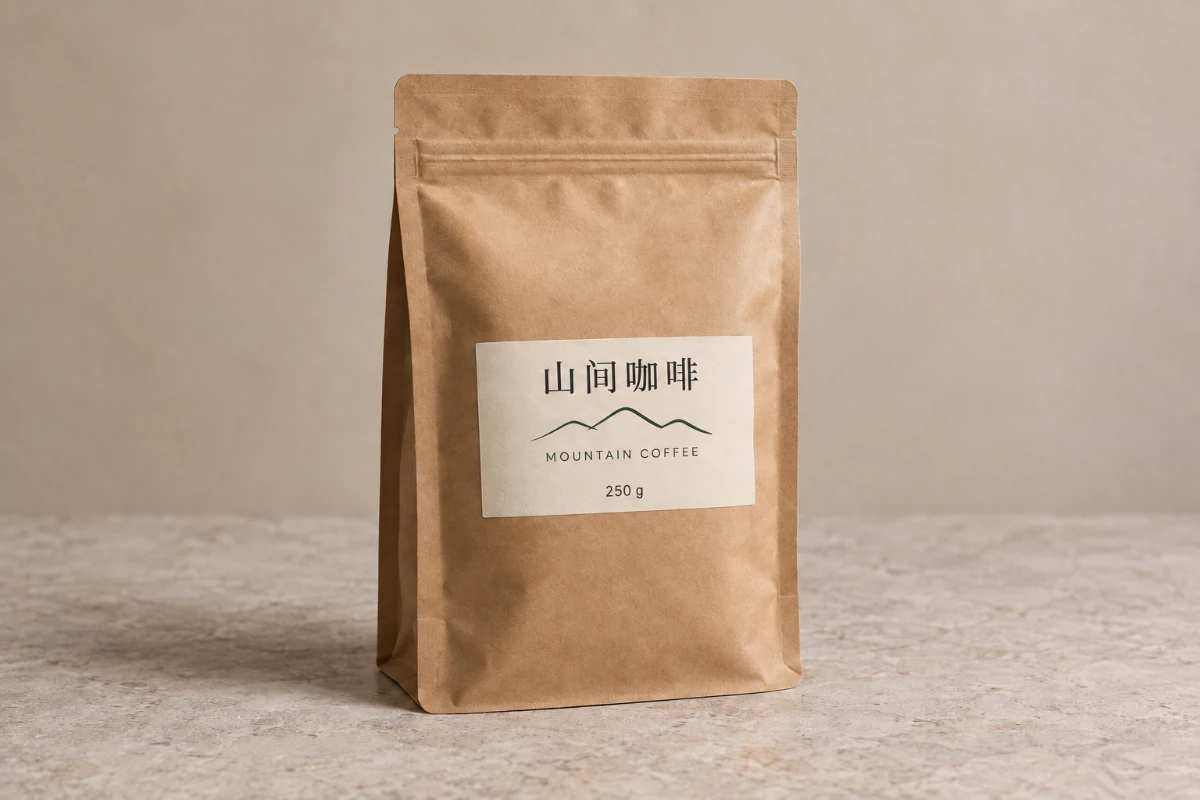
New copy, familiar packaging
Integrate short copy into a label and check both Chinese and English lettering.
Change only the coffee pouch label. Use the exact title "山间咖啡", then "MOUNTAIN COFFEE", and "250 g" at the bottom, with a minimal dark green mountain motif. Preserve the kraft bag’s silhouette, folds, zipper, position, lighting and background. Add no text outside the label.
Loads the original and prompt. Credits are used when you submit an edit.
Creative scene illustration, not a verified output from this model.
What to check in the result
Check spelling and punctuation first, then hierarchy, subject and materials. Shorten long copy or divide a complex redesign into smaller edits.
View current credits and image requirements
Current rules and image limits
- Model and access
- GPT Image 2 · Available · No sign-in required. Use any available model with enough credits.
- Per edit
- 2 credits
- Maximum input
- 10 MiB · PNG, JPEG, WebP
File size, pixel count, edge length and aspect ratio are separate limits. Use a static PNG, JPEG or WebP; GIF and animated images are not supported by the editor.
Photos that already meet the model's requirements are sent as they are; others may be converted once to a format the model accepts. The result comes back in the model's own format and size, which may differ from your original. Background replacement does not create a transparent cutout. Photo restoration may reconstruct details.
Browsing and loading examples do not spend editing credits. A technical failure returns the credits charged for that attempt; a delivered result you dislike is not a technical failure. Check pending returns in the editor.
Current allowances · Getting started · Writing editing instructions
Before you start
GPT Image 2
Can I start with a photo and no copy?
Yes. Describe the subject, composition and style. Text in images is one demonstration direction, not the model’s only use.
How do I avoid unwanted text?
Quote the required short copy exactly and specify that no other text should appear. Still check every character, number and punctuation mark in the result.
Can I edit the output as layers?
The output is a flattened image. The copy checklist and brief help with prompting; they do not imply editable text layers or a design source file.
When are credits used?
Selecting a model is free. The current edit cost appears in the editor. Credits are held when a task is accepted and settled on delivery; failed edits follow the credit return process.