The space inside the handle
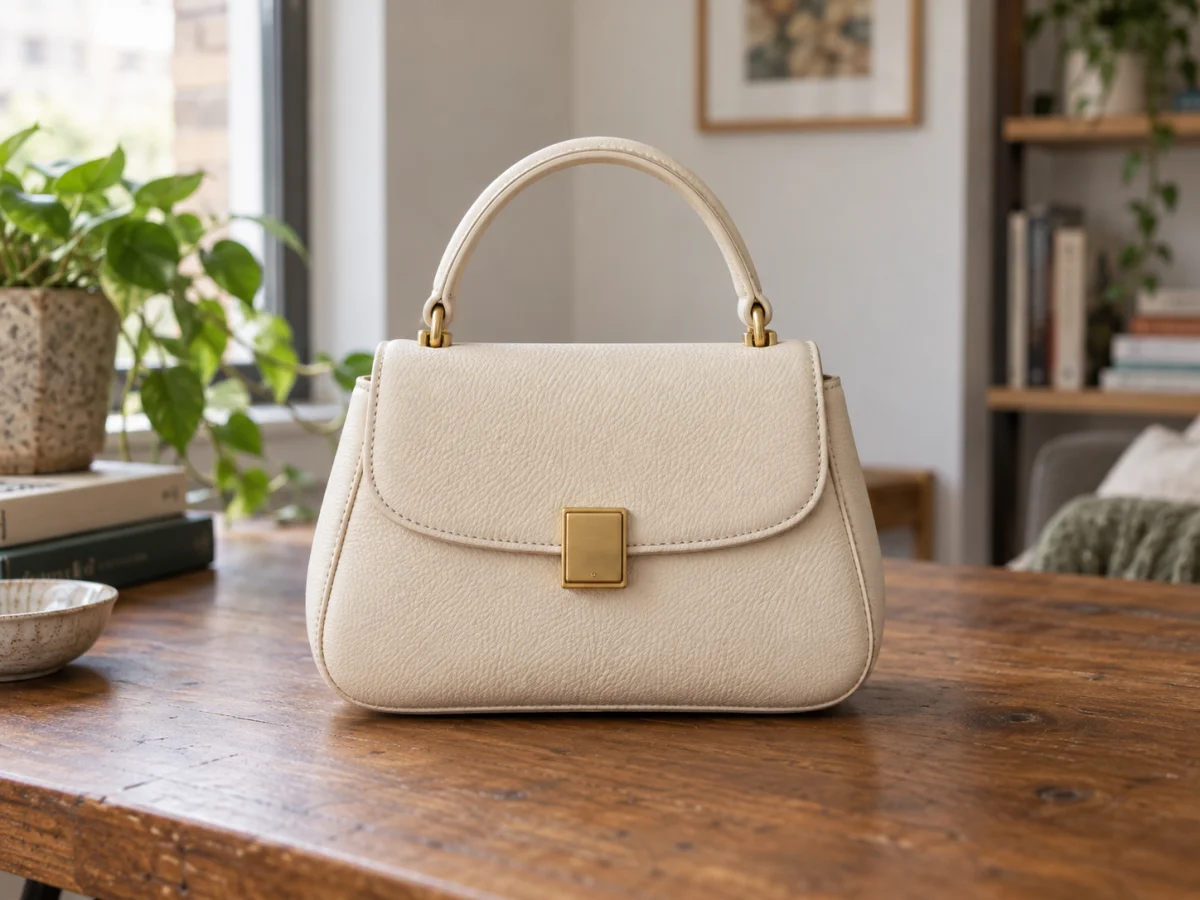
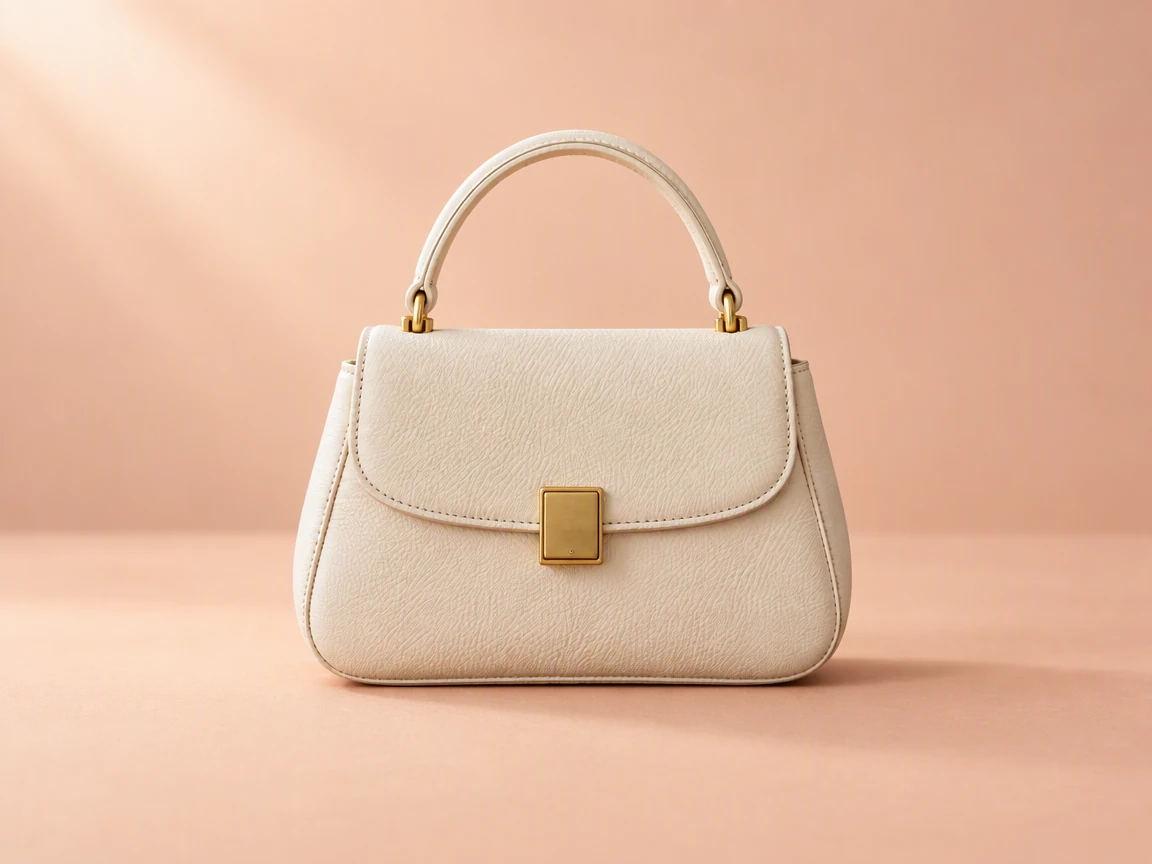
A new scene should reach through the handle opening. Compare the edge and the small fittings against the original.
Change the background of a photo online with this free AI background changer. Pick a solid color or describe a new scene, and AI replaces the background while the subject stays in place. Compare edges and light before you download.
Upload a photo, or use an example on the canvas.
Add a PNG, JPEG or WebP photo, or load one of the examples on this page.
Pick a solid color such as white or light gray, or describe a place, surface and light. You can also mark the background to specify the area to change.
Check the cost, generate the edit, then compare edges, hair and shadows with your original before you download.
Compare the same areas before and after. Look at the edit, then check the details you want to keep.
Scenes are AI-generated; results are actual GPT Image 2.5 edits in PicOnTap, without manual retouching. AI may change nearby details, so compare the original before using a result.
A new scene should reach through the handle opening. Compare the edge and the small fittings against the original.
The contact shadow helps the bag feel grounded. Watch for floating edges and light coming from conflicting directions.
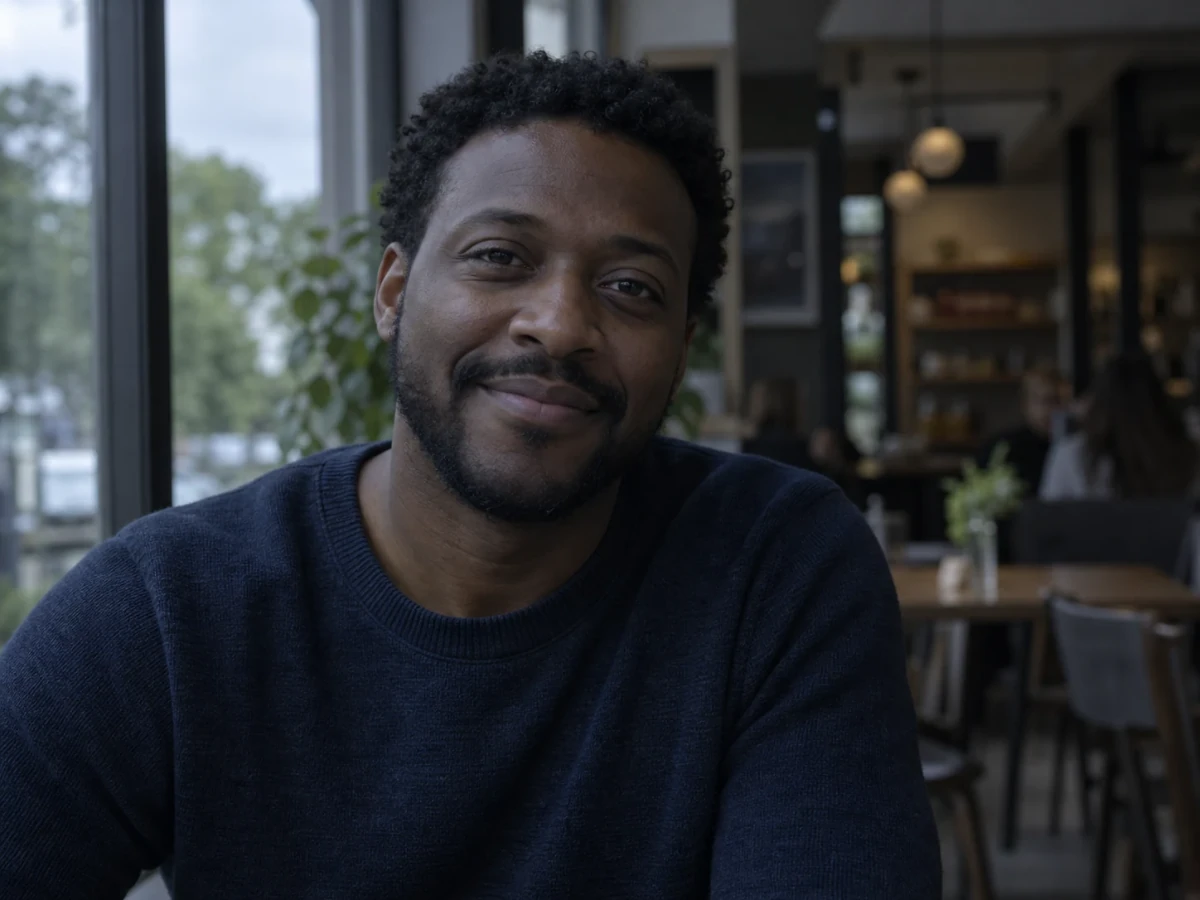
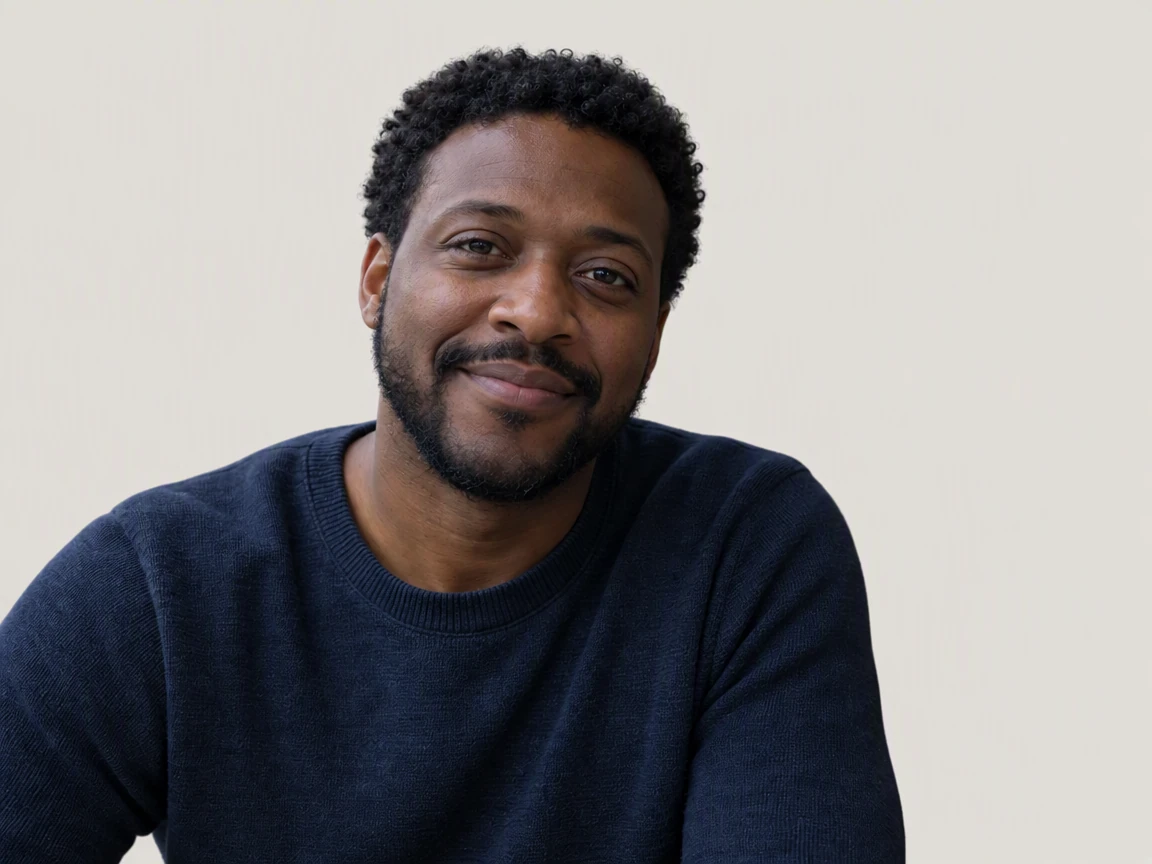 OriginalPicOnTap result
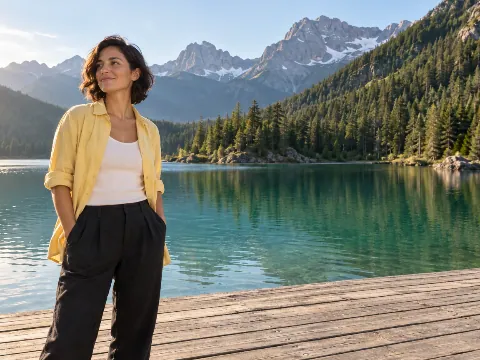
A friendly cafe snapshot can become a profile photo. Swap the busy room for a plain light backdrop, then compare the curly hair outline and the face before you use it.
Loads the original and suggested settings. Review the cost before generating your own result.
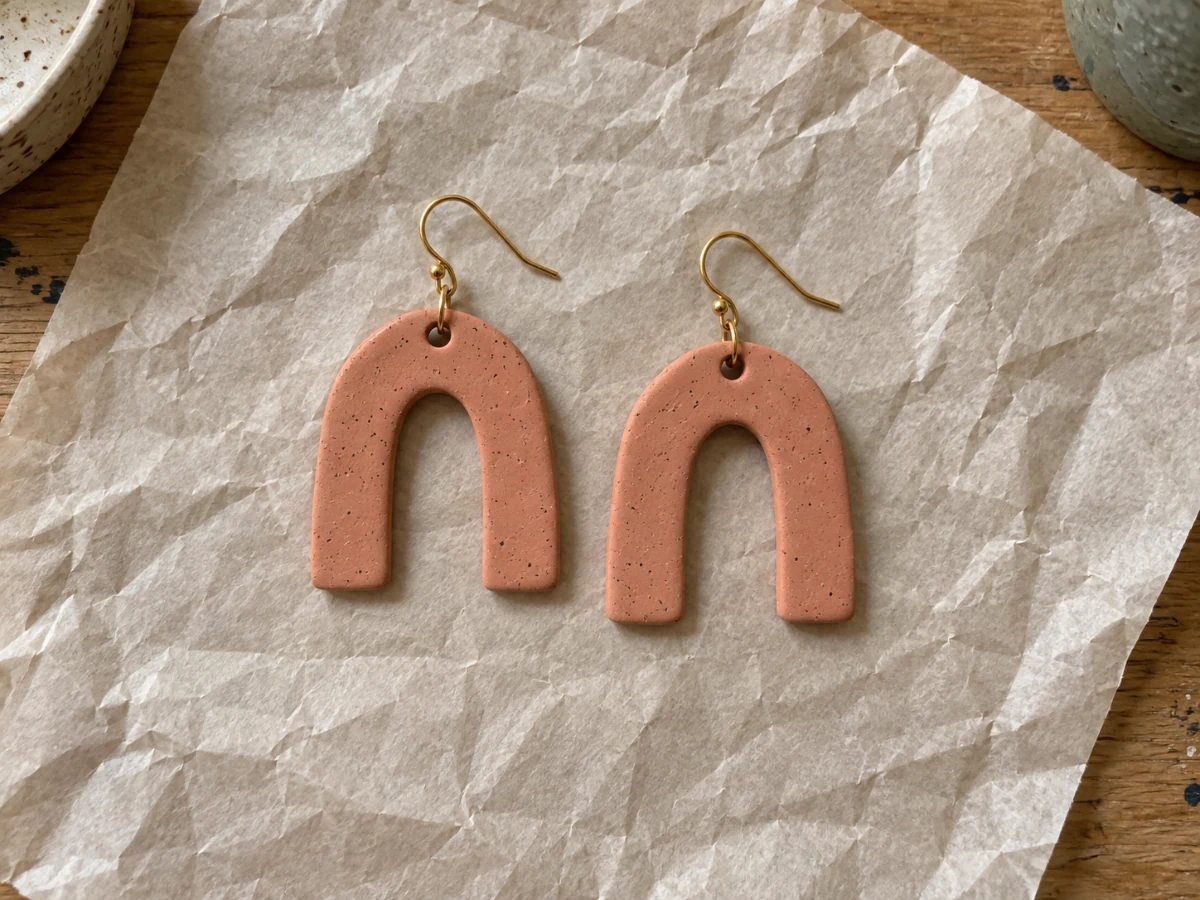
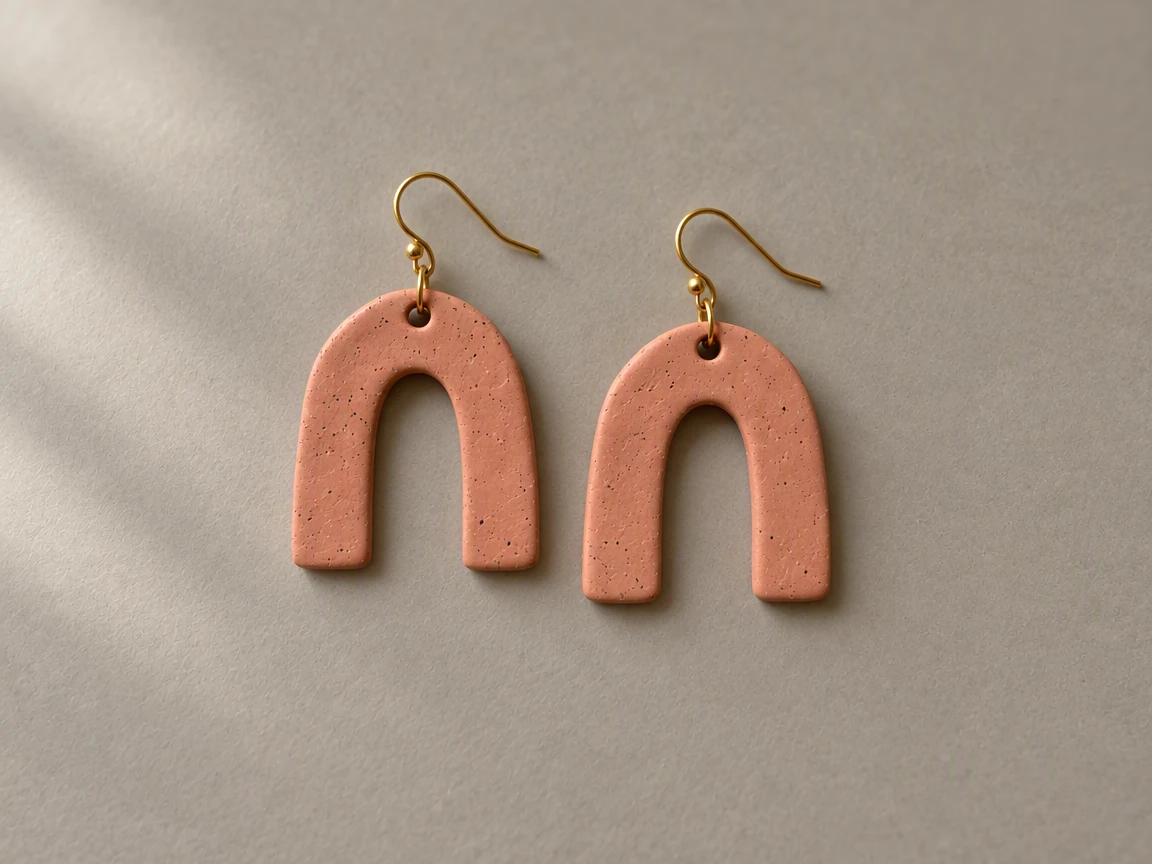 OriginalPicOnTap result
Turn a packing-table record into a simple launch image. Try a calm matte surface, then inspect the hooks, holes and handmade texture before choosing a version to publish.
Loads the original and suggested settings. Review the cost before generating your own result.
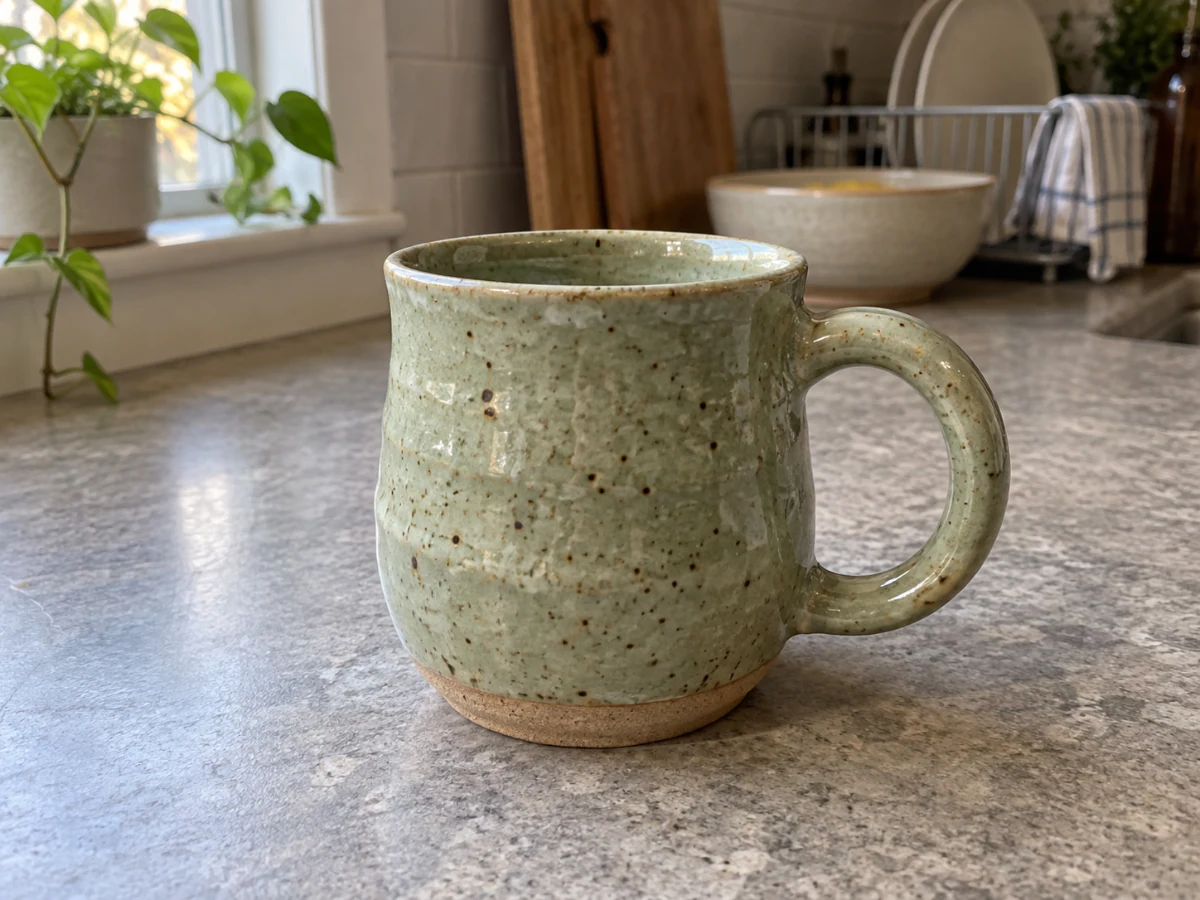
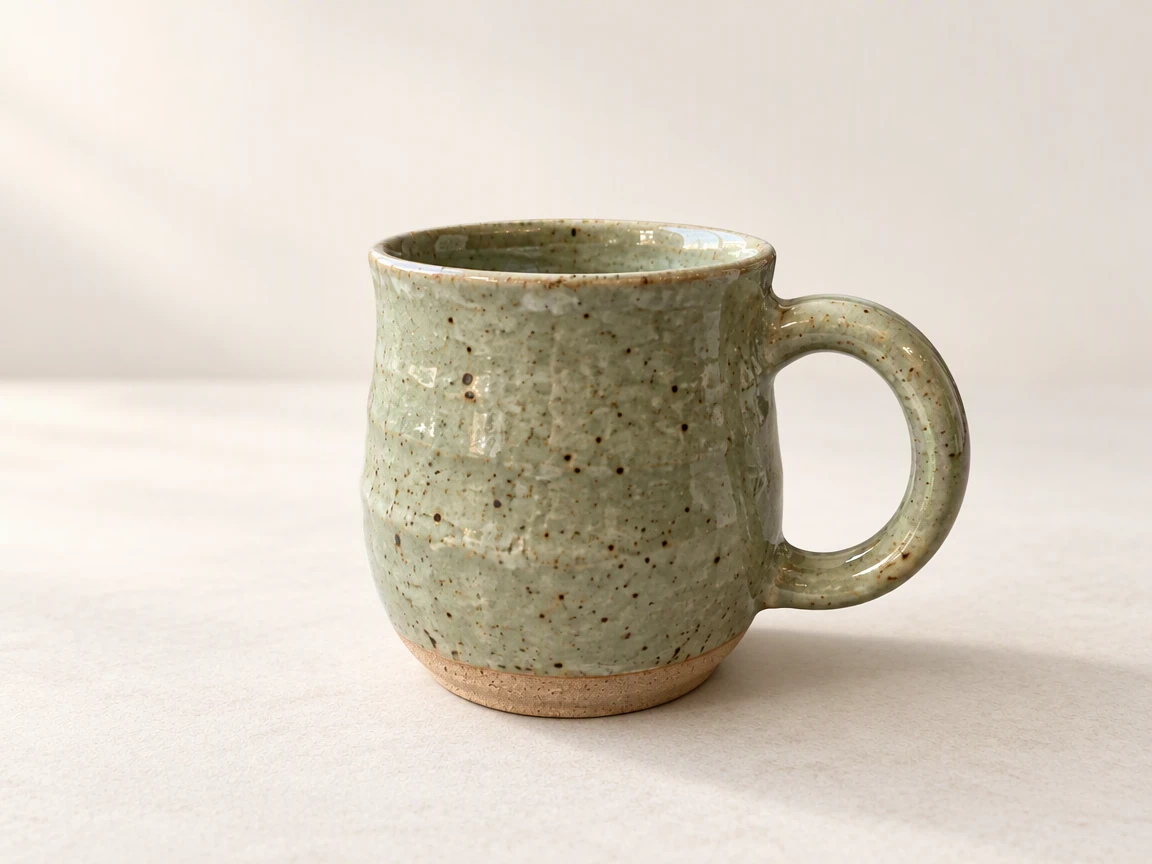 OriginalPicOnTap result
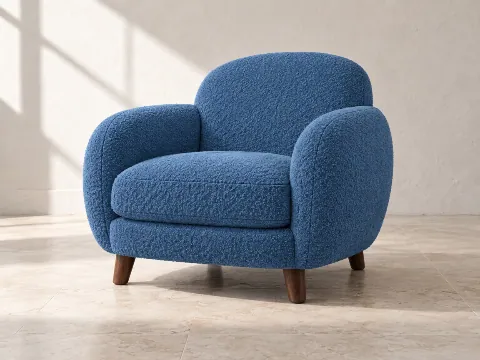
A finished mug does not need a dedicated photo set to be your starting point. Try a simple light background that leaves room for the glaze, shape and small handmade differences.
Loads the original and suggested settings. Review the cost before generating your own result.
Try: a warm gray matte tabletop, simple background, soft window light from the left. Concrete cues work better than just “make it beautiful.”
Keep the whole subject in frame. Fine hair, transparent glass and reflective jewelry need closer inspection than solid shapes.
Use a background compatible with the original light and camera angle. Check holes, contact shadows and the product color before publishing.
File size, pixel count, edge length and aspect ratio are separate limits. Use a static PNG, JPEG or WebP; GIF and animated images are not supported by the editor.
Photos that already meet the model's requirements are sent as they are; others may be converted once to a format the model accepts. The result comes back in the model's own format and size, which may differ from your original. Background replacement does not create a transparent cutout. Photo restoration may reconstruct details.
Browsing and loading examples do not spend editing credits. A technical failure returns the credits charged for that attempt; a delivered result you dislike is not a technical failure. Check pending returns in the editor.
Current allowances · Getting started · Writing editing instructions
This tool creates a solid-color or scene background. It does not extract the subject as a transparent cutout.
A solid color suits a simple presentation. A scene adds a setting for product launches or personal content. Start with a preset, then refine your description.
These areas deserve close comparison. Results depend on the original and the requested scene; fine or transparent structures may change.
Editing works one image at a time. The scene buttons switch between prepared example results, not a batch generation.
Yes. Choose a white or light solid color, or describe a plain white backdrop. The result is a new image rather than a cutout, so check contact shadows and fine edges such as hair.
Yes. Choose a plain color or a simple backdrop for a headshot. Compare the hair outline and face with the original: AI may smooth fine strands or brighten the light on the face, so generate again if the person no longer looks like themselves.
Guests can use available models when they have enough credits. Your allowance and the cost of this edit appear in the editor. Browsing examples, loading an original and adjusting settings do not submit a generation.
Use a static PNG, JPEG or WebP up to 10 MiB. The selected model's file, geometry, aspect-ratio and color requirements are checked before submission. Results retain the provider's supported native format and dimensions.
A technical failure returns the credits charged for that edit; follow the status in the editor. A delivered result you dislike is not a technical failure. Compare the result with the original before downloading. Each new generation is a separate edit with its own cost.
Start with your own photo, or load an example above. Your current draft stays in place.
Back to the editor