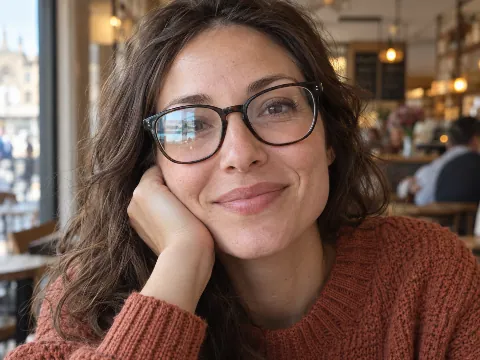
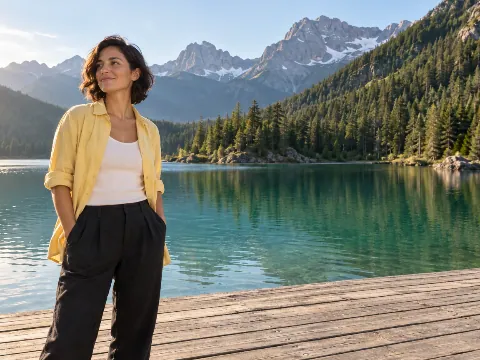
Shadow Remover: Remove Shadows from Photos for Free
Use this free AI shadow remover to soften the shadow that distracts from your photo. Preview a focused edit, compare it with the original, and keep the version that looks natural.
Upload a photo, then select the distracting shadow.
Examples
Original shadowShadow reduced
↔
Slide to compare the same photograph
This tool uses GPT Image 2.
One distracting shadow. A photo worth keeping.
A face in harsh sunlight, a phone shadow over dessert, or a dark band across a product: select the distracting patch and compare the same photo before and after.
Scenes are AI-generated; results are actual GPT Image 2 edits in PicOnTap, without manual retouching. AI may alter details, so compare the original before using a result.
Travel & portraits
Bring the face back into your travel photo
Original shadowShadow reduced
↔
The view is worth keeping, but a hard shadow hides part of the face. Select that dark patch to soften it while keeping the place and moment.
Loads the original photo. Select the shadow, then review the edit cost.
Food & cafés
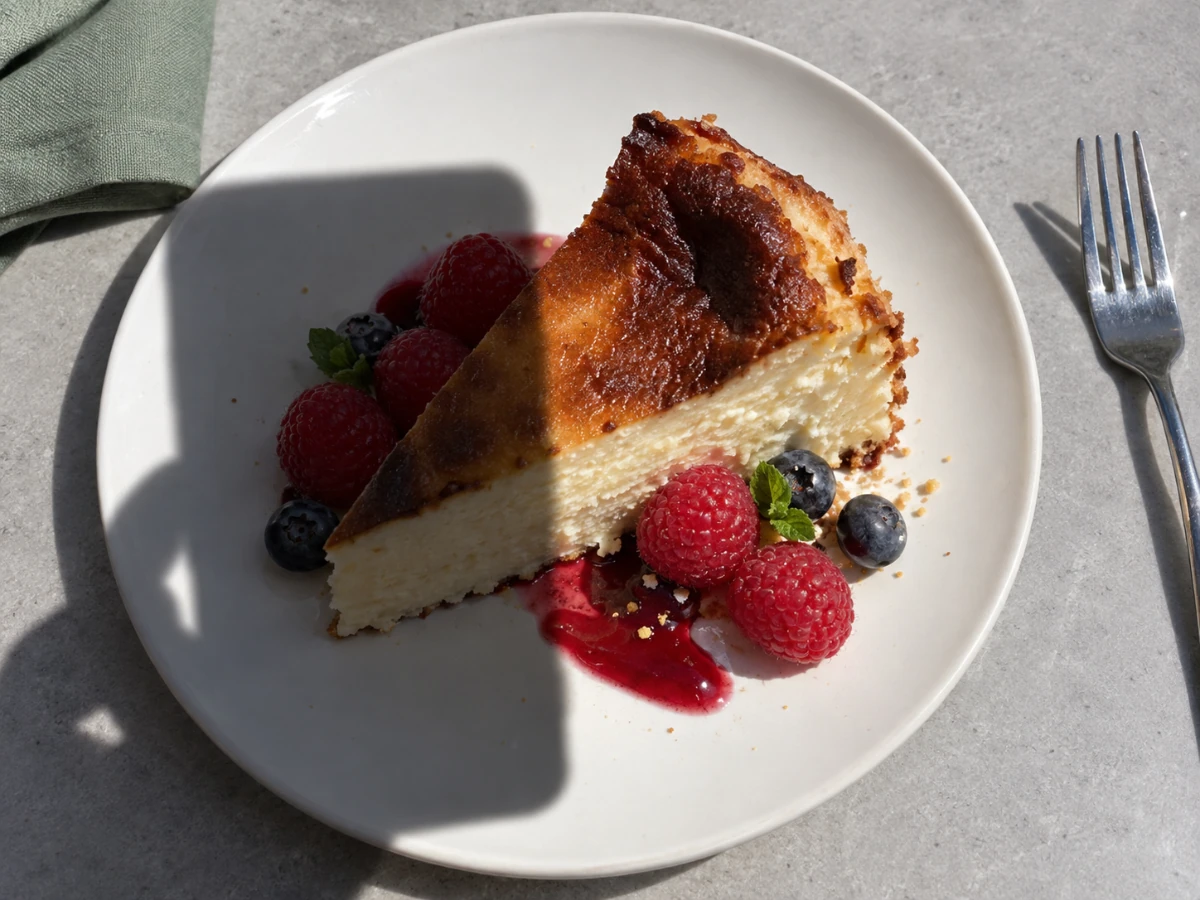
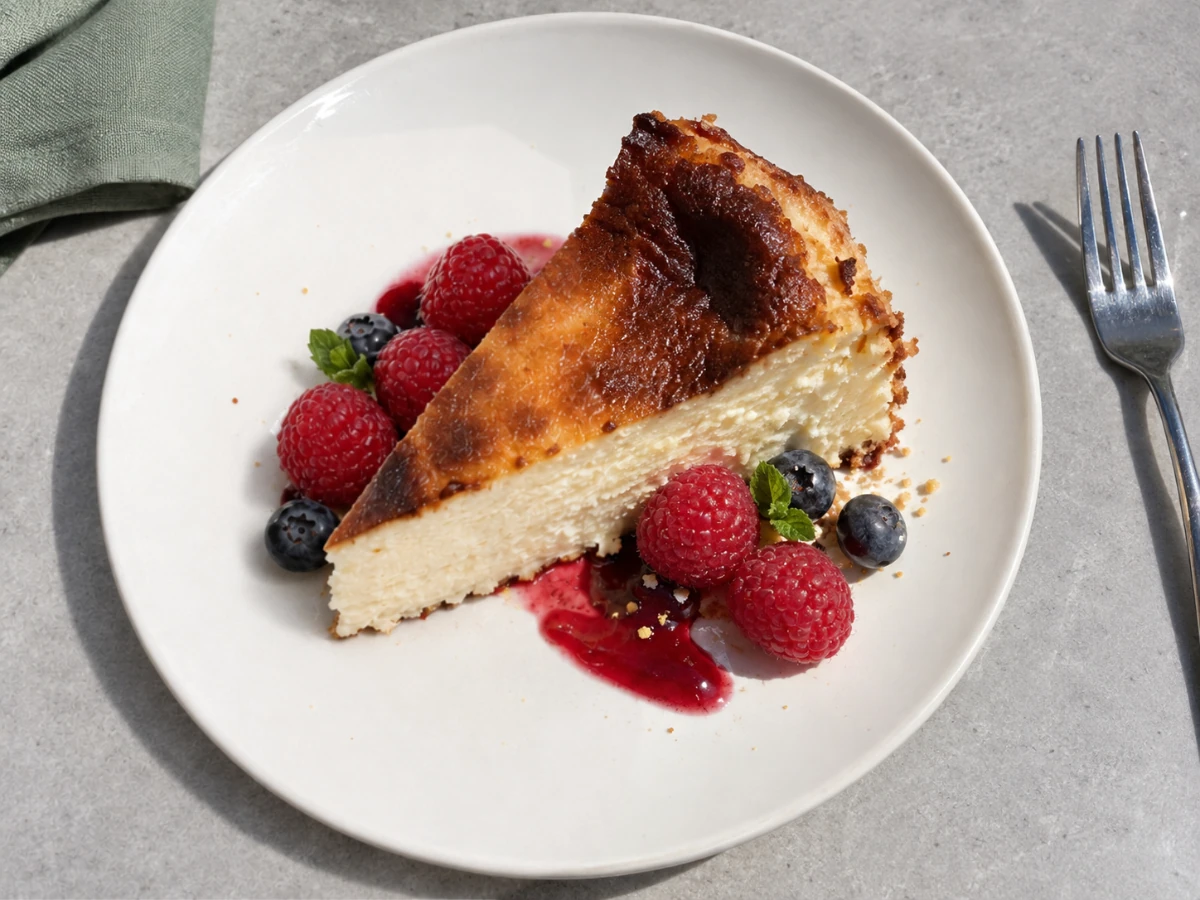
Keep the phone’s shadow out of your food photo
Original shadowShadow reduced
↔
You frame a slice of cake, but the phone casts a dark patch across the plate. Select that shadow to let the dessert’s color and texture come through.
Loads the original photo. Select the shadow, then review the edit cost.
Product photos
Let the product stand out
Original shadowShadow reduced
↔
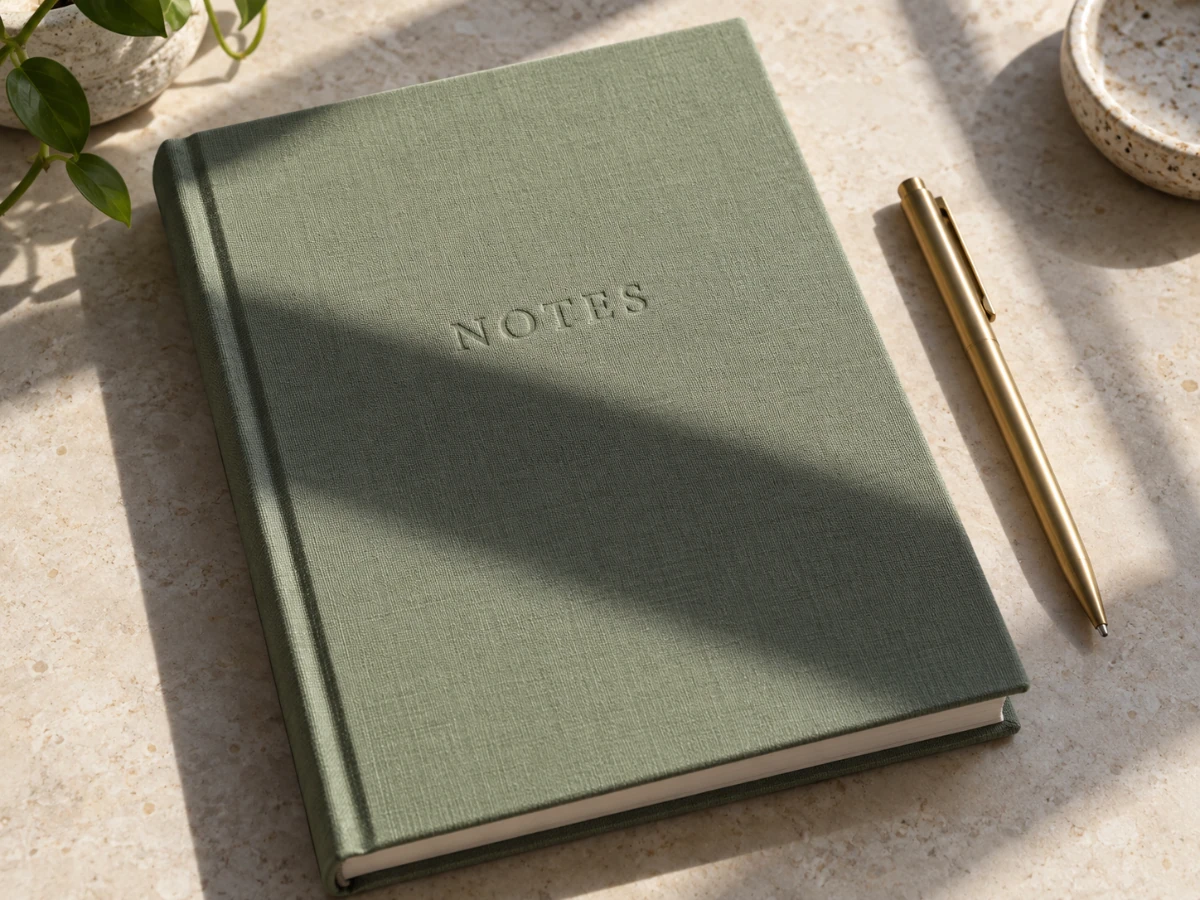
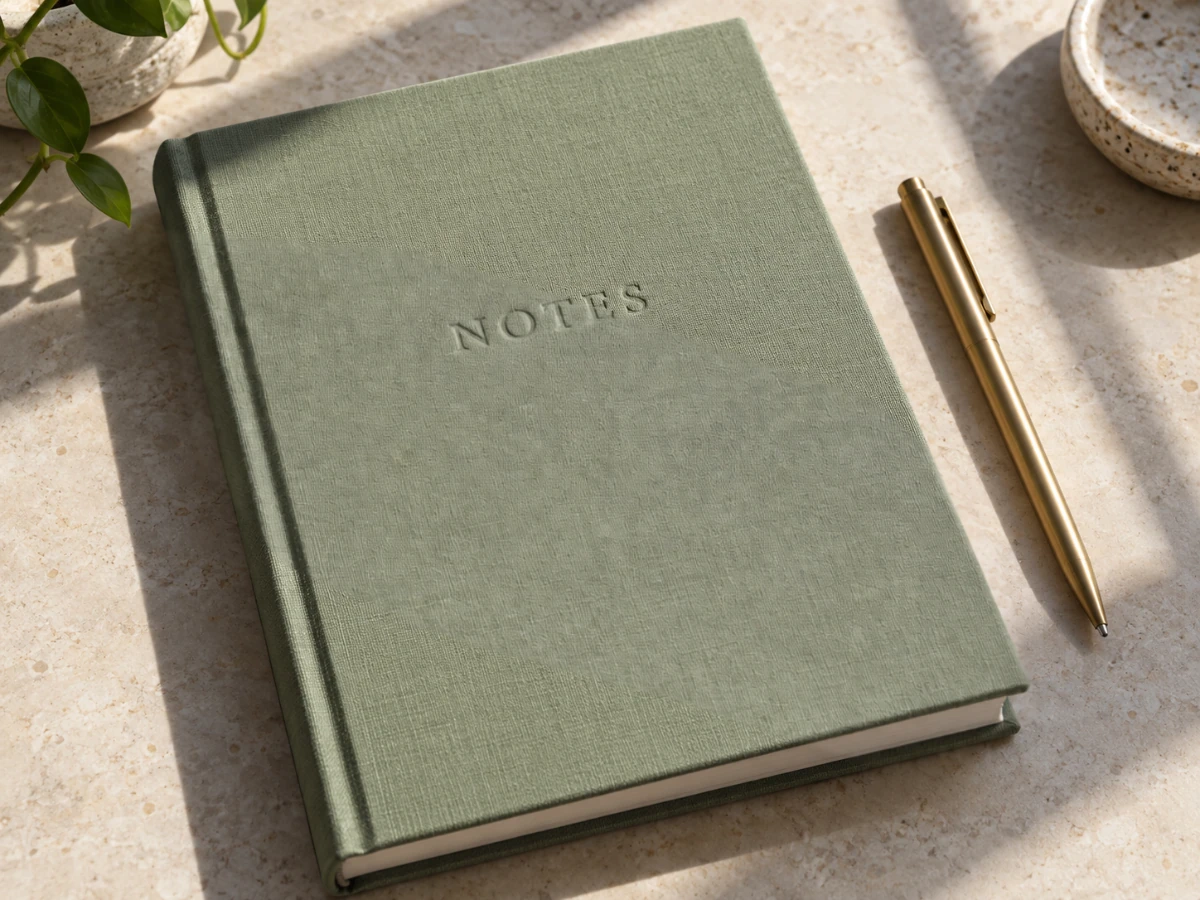
A window shadow can distract from a product’s color and material. Reduce the dark band across the notebook’s cover while leaving the soft shadow underneath.
Loads the original photo. Select the shadow, then review the edit cost.
How to remove a shadow from a photo
The shadow remover works from a selection; a written prompt is not required.
1
Upload Your Photo
Choose the image you want to work on, or open an example to explore the workflow.
2
Select the Shadow
Mark the full shadow and its soft edge to guide the model. Avoid natural contact shadows and erase accidental selections.
3
Compare and Adjust
Compare the edit with its input. Undo or revise the selection if it changes too much, then download the result you prefer.
A lighter patch is not always a better result. Check faces, text, texture and the selection edge. If a dark rim remains, cover the full shadow boundary; if unrelated areas change, refine the selection or keep the input.
Free Access, Downloads, and Your Photos
Start free without creating an account. Review your result before choosing what to download.
Usage and Output Details
The current allowance, edit cost and input limits are shown below. Each new generation uses the displayed credits; comparing, adjusting a selection and returning to an existing version do not start a new generation.
2 credit, reset at 00:00 UTC. Unused daily allowance does not accumulate; signing in carries over today’s usage.
GPT Image 2 · Available · No sign-up required. This tool uses GPT Image 2 and needs enough credits for the displayed edit cost.
Per edit
2 credits
Maximum input
10 MiB · PNG, JPEG, WebP
File size, pixel count, edge length and aspect ratio are separate limits. Use a static PNG, JPEG or WebP; GIF and animated images are not supported by the editor.
Download the original result returned by the model. Its format and dimensions may differ from the input. The selection guides the edit; compare the whole photo before downloading.
Browsing and loading examples do not spend editing credits. A technical failure returns the credits charged for that attempt; a delivered result you dislike is not a technical failure. Check pending returns in the editor.
Yes. Upload your photo and use the shadow remover without creating an account, within the current free allowance. The edit cost is shown before you submit.
Should I remove every shadow?
No. Shadows can show shape, contact, and the direction of light. Focus on the ones that interfere with the photo you want.
What if the edited area looks unnatural?
Undo the change and refine the selection. Compare skin, textures, and nearby edges before trying another edit. A new generation uses the displayed credits; undoing or viewing an existing result does not.
Will this restore every detail hidden in shadow?
No. AI may infer or change details. Review important features carefully and keep the input when the result is uncertain.
Can it remove a shadow from a face?
Yes. Select the hard shadow across the face, including its soft edge, then compare the eyes, skin tone and features with the original. Gentle shading that gives the face its shape can stay.
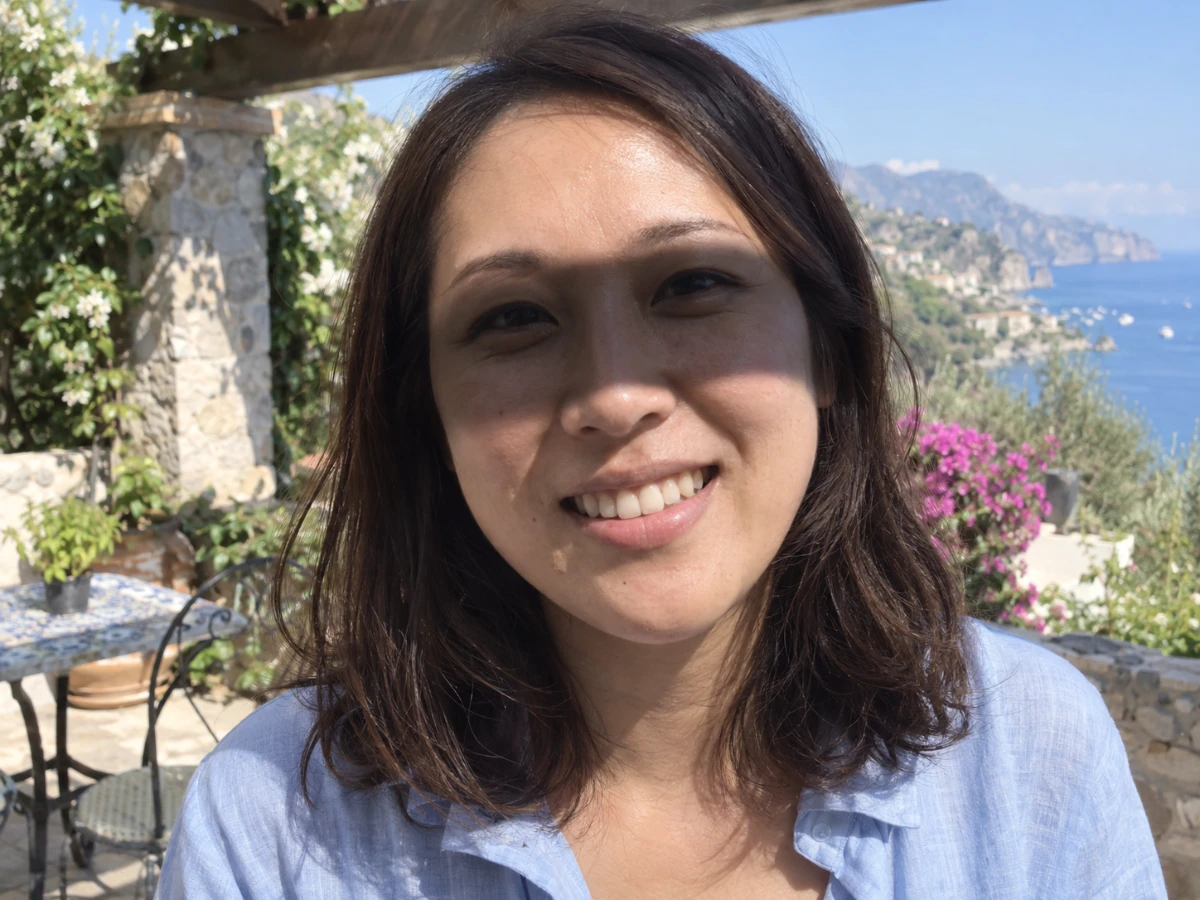
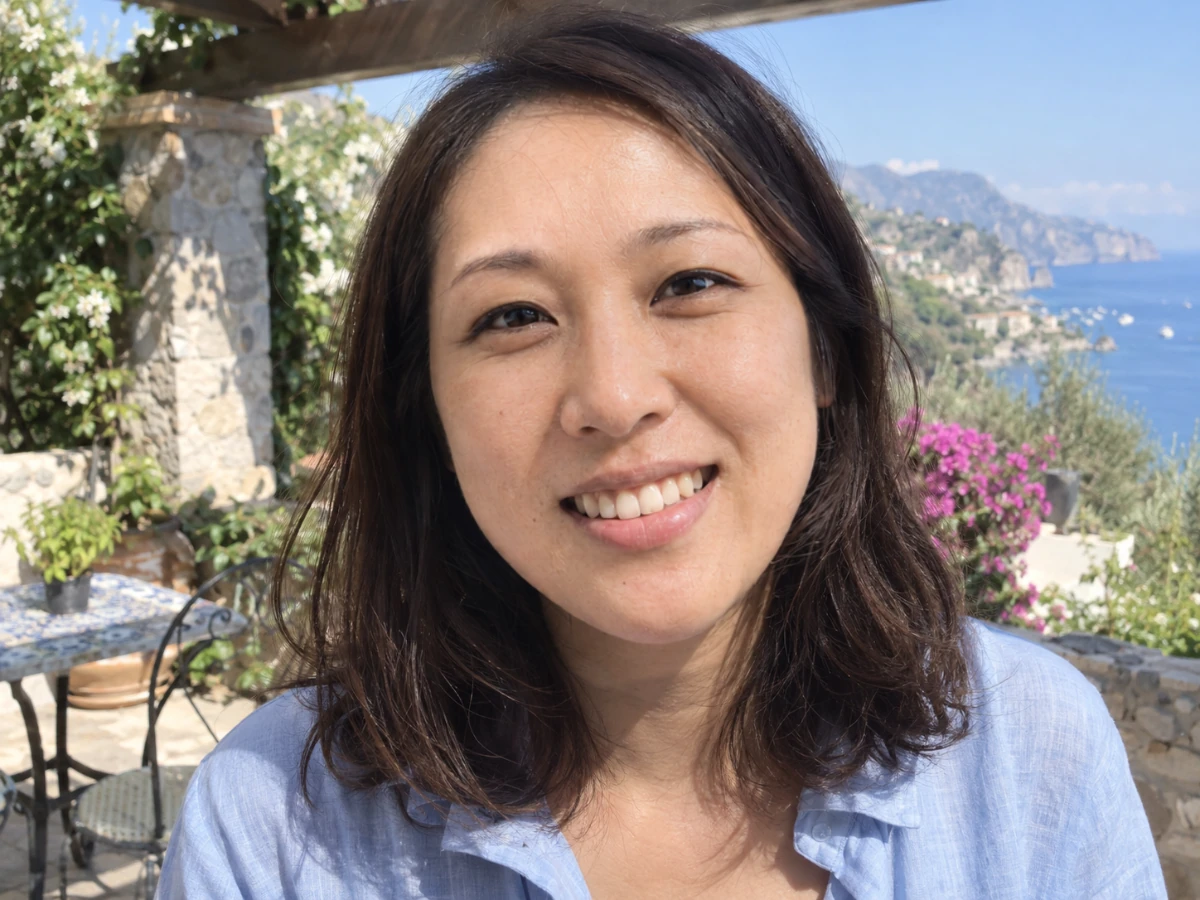 Original shadowShadow reduced