A familiar expression
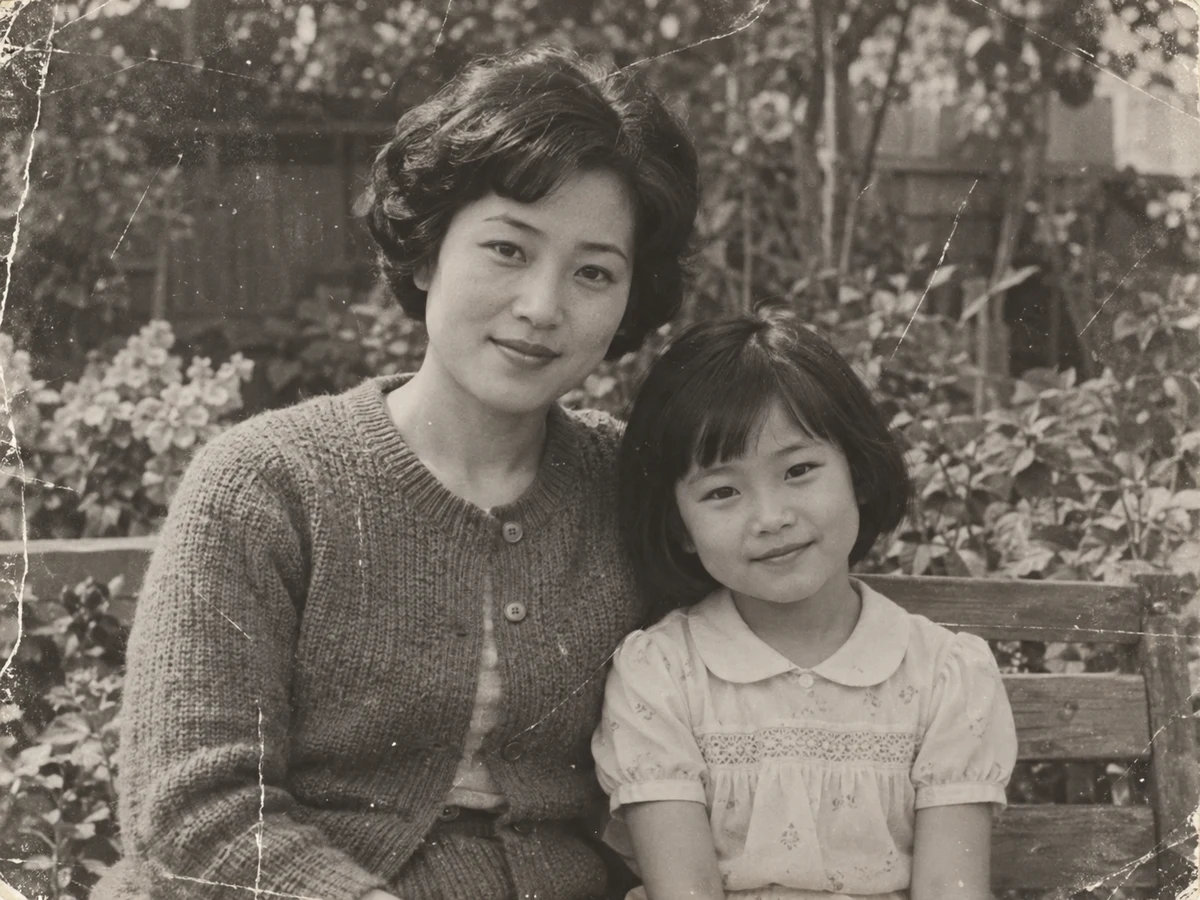
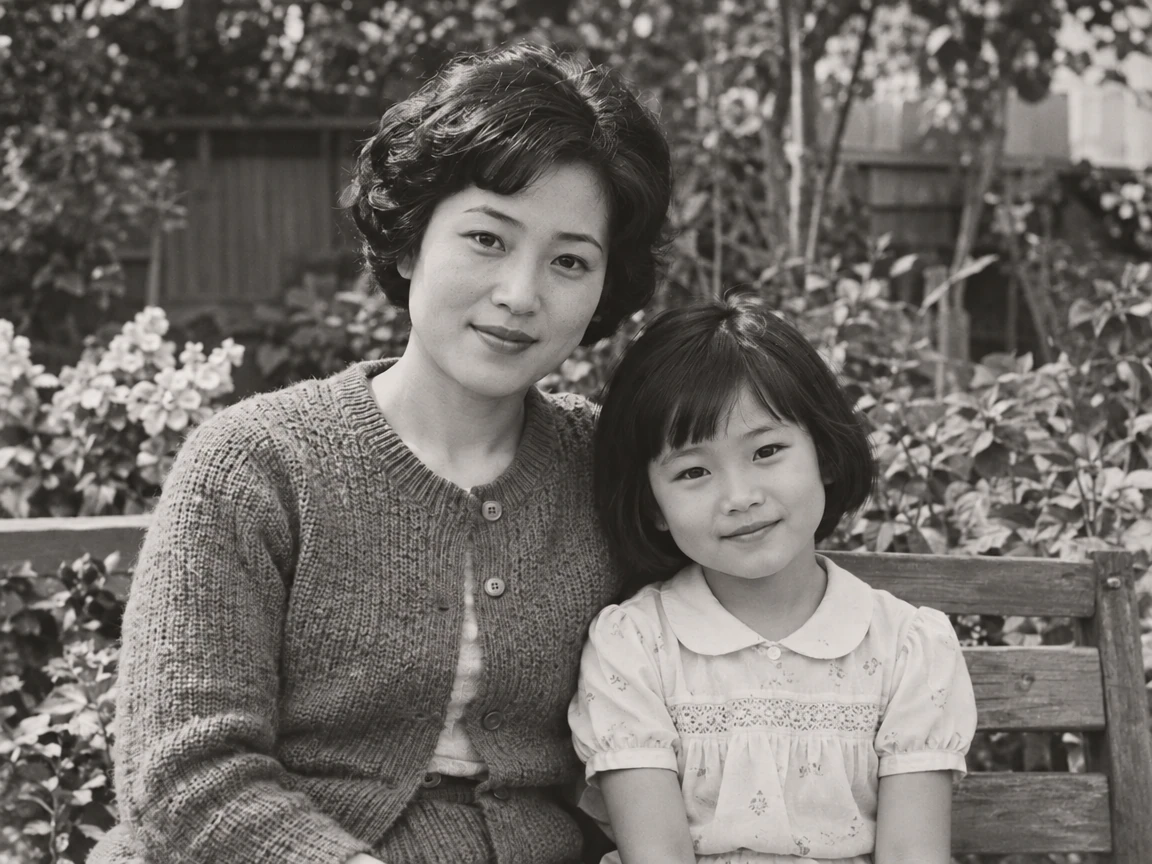
Compare eyes, smile and face shape. Extra sharpness is useful only when the person still feels like the person in the original.
Restore old photos online with free AI old photo restoration. Reduce scratches, fading and mild blur in a scan or phone capture, then compare faces and details with the original before you save.
Start with a photo worth keeping.
OriginalRestoredUse a scan, or a phone photo taken square to the print in soft, even light. PNG, JPEG and WebP are supported.
Check the cost and generate. Old photo restoration repairs scratches, creases and fading and keeps black-and-white photos monochrome.
Slide between the original and the result, check faces and readable details, then download. Keep your unedited scan as well.
Compare the same areas before and after. Look at the edit, then check the details you want to keep.
Scenes are AI-generated; results are actual GPT Image 2.5 edits in PicOnTap, without manual retouching. AI may change nearby details, so compare the original before using a result.
Compare eyes, smile and face shape. Extra sharpness is useful only when the person still feels like the person in the original.
Look at scratches crossing the cardigan and garden. Fine grain and the original tonal character belong to the photograph too.
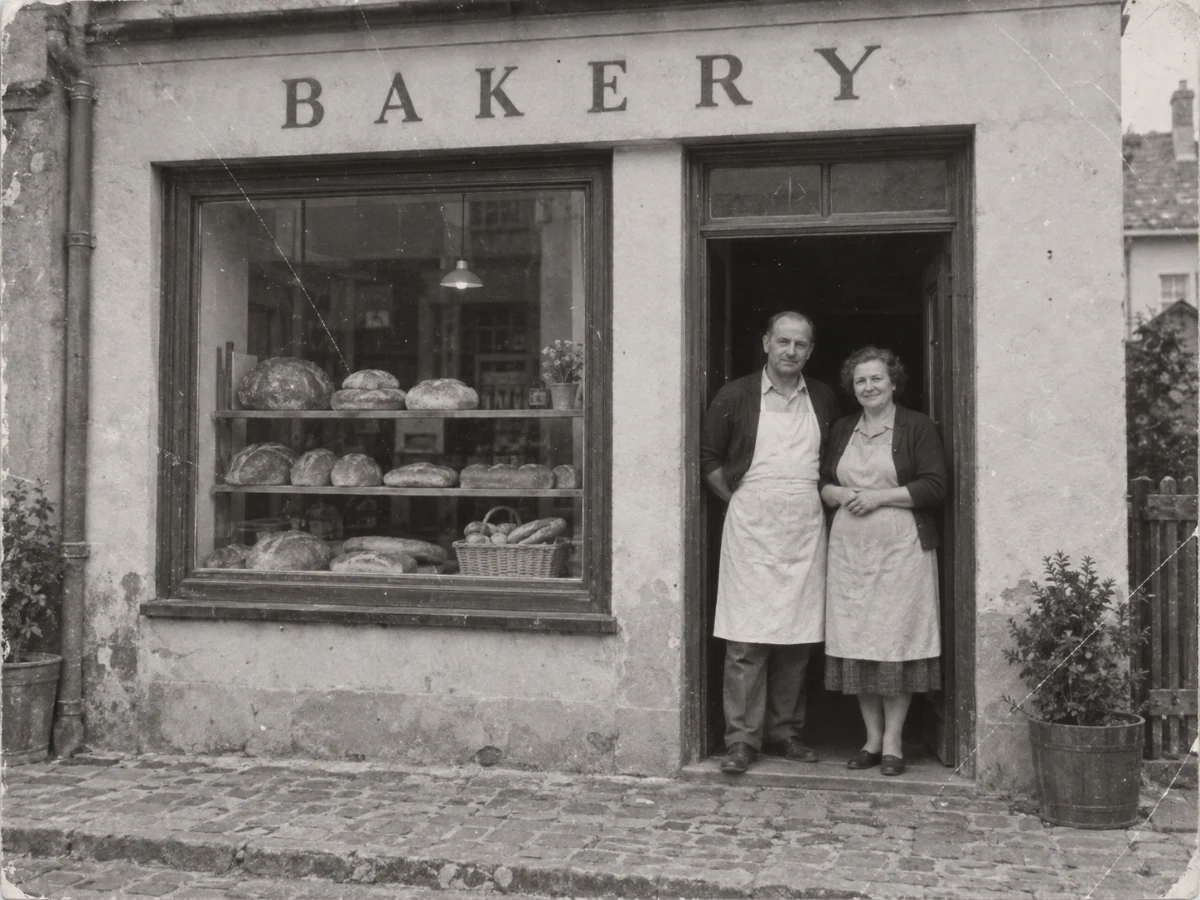
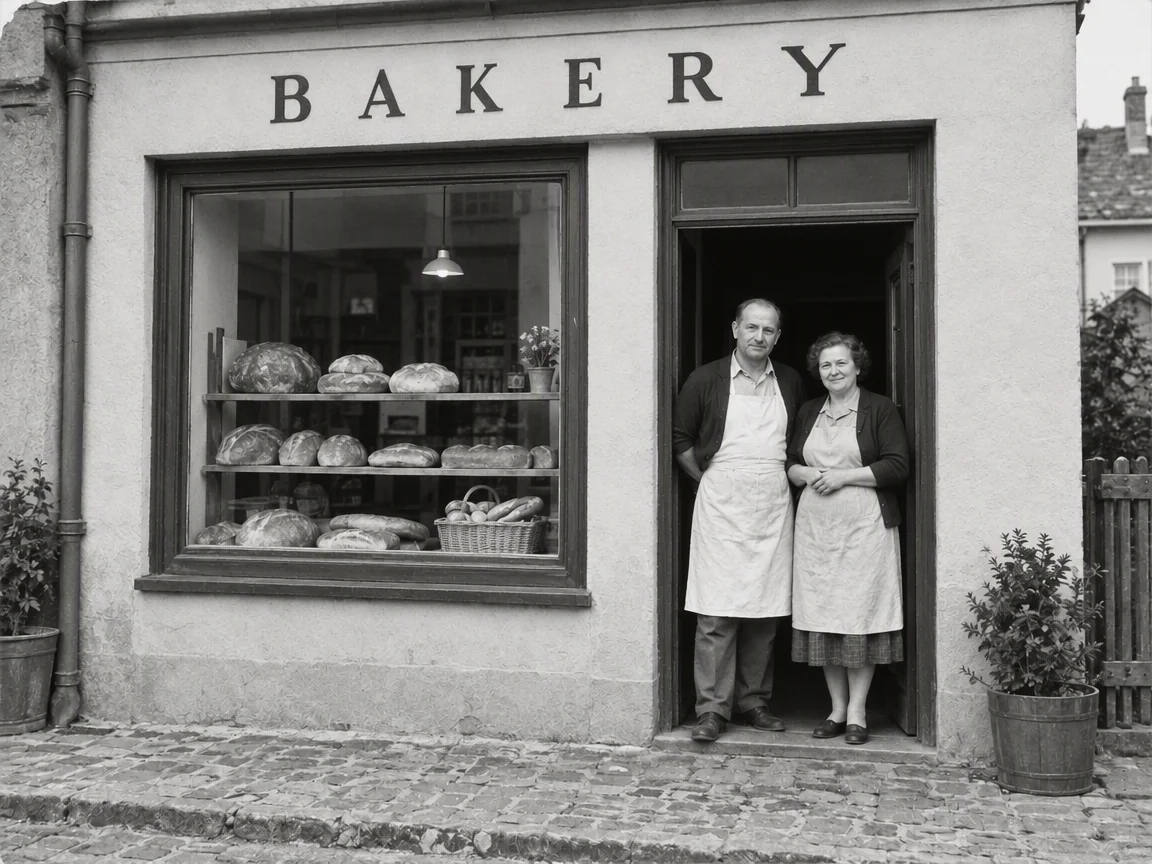 OriginalPicOnTap result
An old storefront photo can anchor an anniversary story. Reduce visible wear, then ask someone who knows the history to check the sign, people and building. This is a fictional demonstration.
Loads the original and suggested settings. Review the cost before generating your own result.
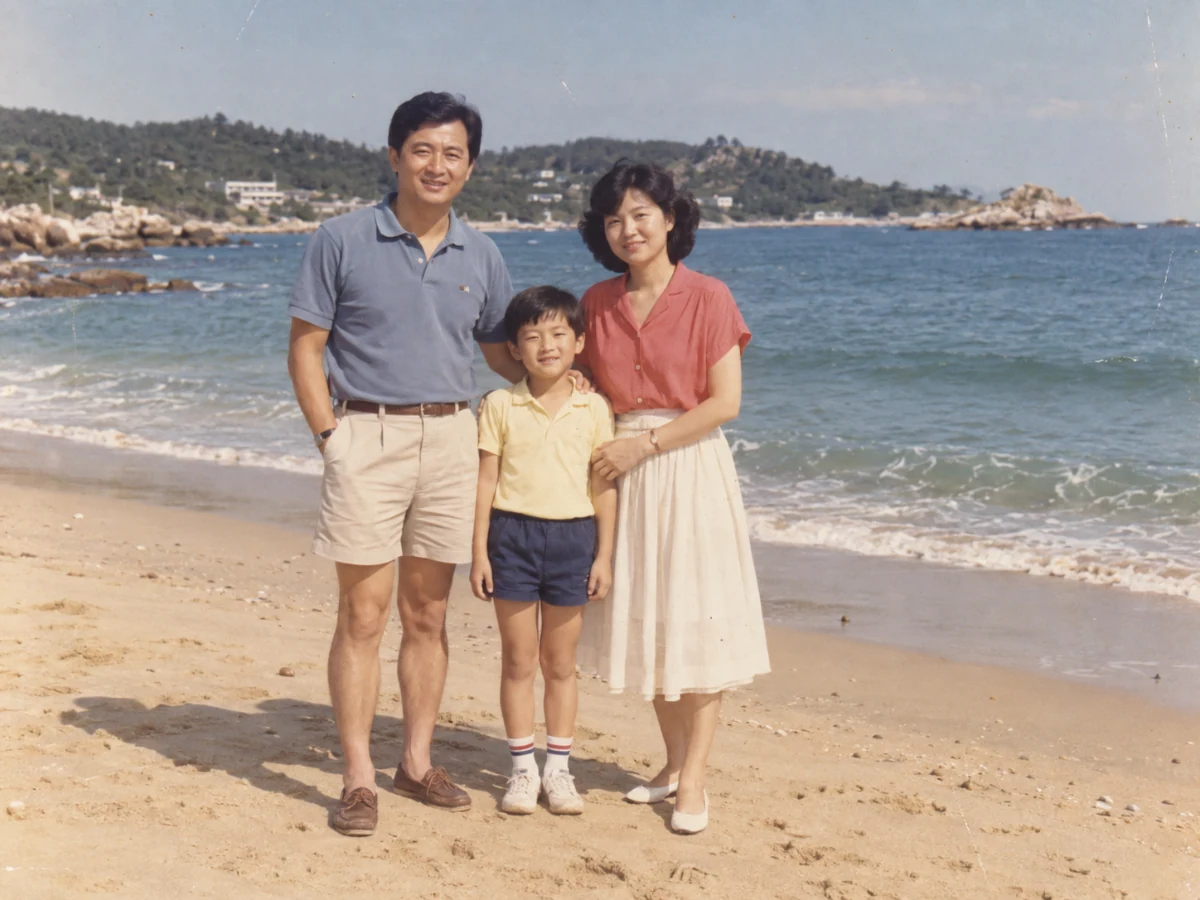
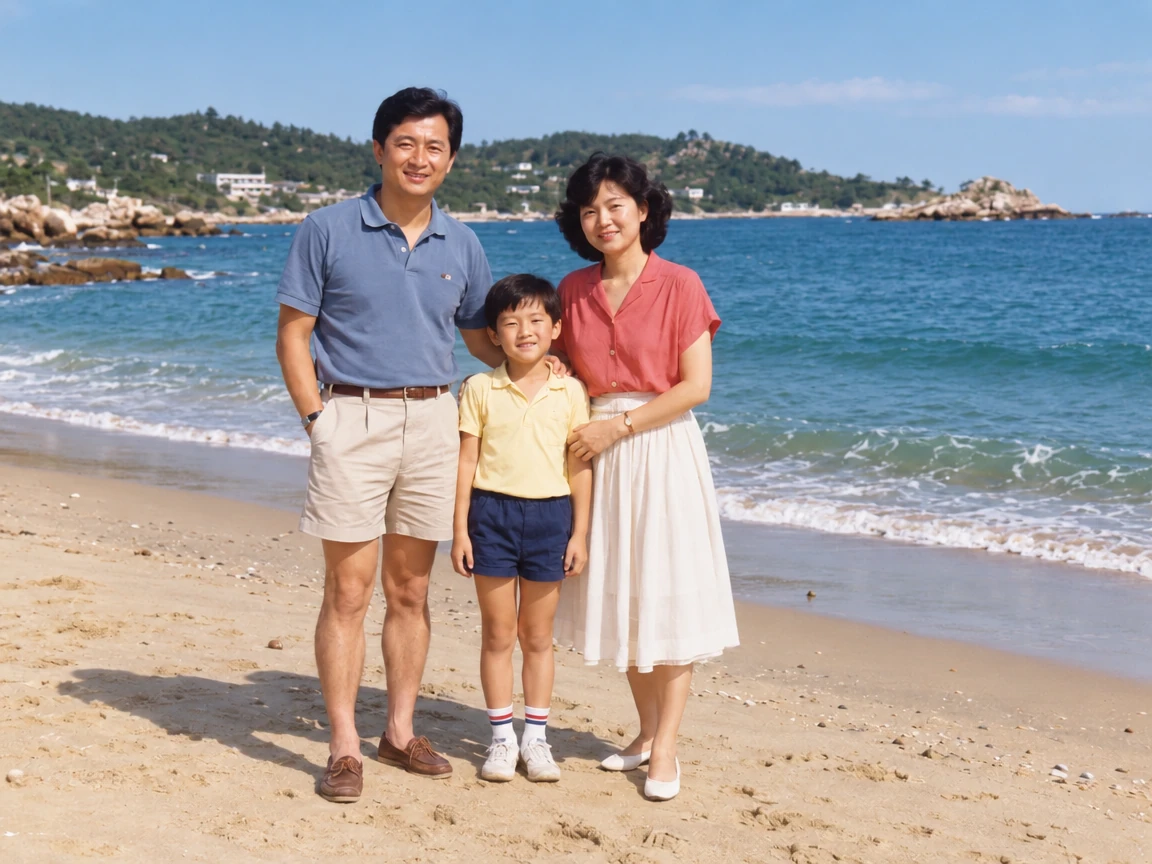 OriginalPicOnTap result
An old color print need not look like a new digital photo. Tidy light wear and fading, compare faces and clothes, and keep some of the original grain and feeling.
Loads the original and suggested settings. Review the cost before generating your own result.
A scan is a good starting point. For phone captures, face the print squarely and use even light without reflections.
Retain the unedited scan. The restored version is a new interpretation of damaged detail, not a replacement for your source.
Compare age, expression, clothes and any readable signs. For a brand history page, have the owner verify the people and storefront.
File size, pixel count, edge length and aspect ratio are separate limits. Use a static PNG, JPEG or WebP; GIF and animated images are not supported by the editor.
Photos that already meet the model's requirements are sent as they are; others may be converted once to a format the model accepts. The result comes back in the model's own format and size, which may differ from your original. Background replacement does not create a transparent cutout. Photo restoration may reconstruct details.
Browsing and loading examples do not spend editing credits. A technical failure returns the credits charged for that attempt; a delivered result you dislike is not a technical failure. Check pending returns in the editor.
Current allowances · Getting started · Writing editing instructions
It aims to preserve the original, but AI may infer damaged details differently. Compare eyes, mouth, face shape and hands before saving.
The default restoration aims to keep black-and-white photos monochrome and preserve colors already present. Automatic colorization is not offered; still compare the result.
Yes, use a clear capture with the camera parallel to the print. Keep lighting soft and even, without glare or shadows across the photo. If a glossy print still reflects light, you can try reducing it before restoring: Remove glare from photos
Missing information cannot be reliably recovered as historical fact. Generated detail may be plausible but different; do not treat it as proof of the original appearance.
Yes. Old photo restoration is free within the daily allowance, without signing up. Upload a clear scan, review the cost shown in the editor, and keep your original file alongside the restored version.
Guests can use available models when they have enough credits. Your allowance and the cost of this edit appear in the editor. Browsing examples, loading an original and adjusting settings do not submit a generation.
Use a static PNG, JPEG or WebP up to 10 MiB. The selected model's file, geometry, aspect-ratio and color requirements are checked before submission. Results retain the provider's supported native format and dimensions.
A technical failure returns the credits charged for that edit; follow the status in the editor. A delivered result you dislike is not a technical failure. Compare the result with the original before downloading. Each new generation is a separate edit with its own cost.
Start with your own photo, or load an example above. Your current draft stays in place.
Back to the editor