Wood grain and shadows
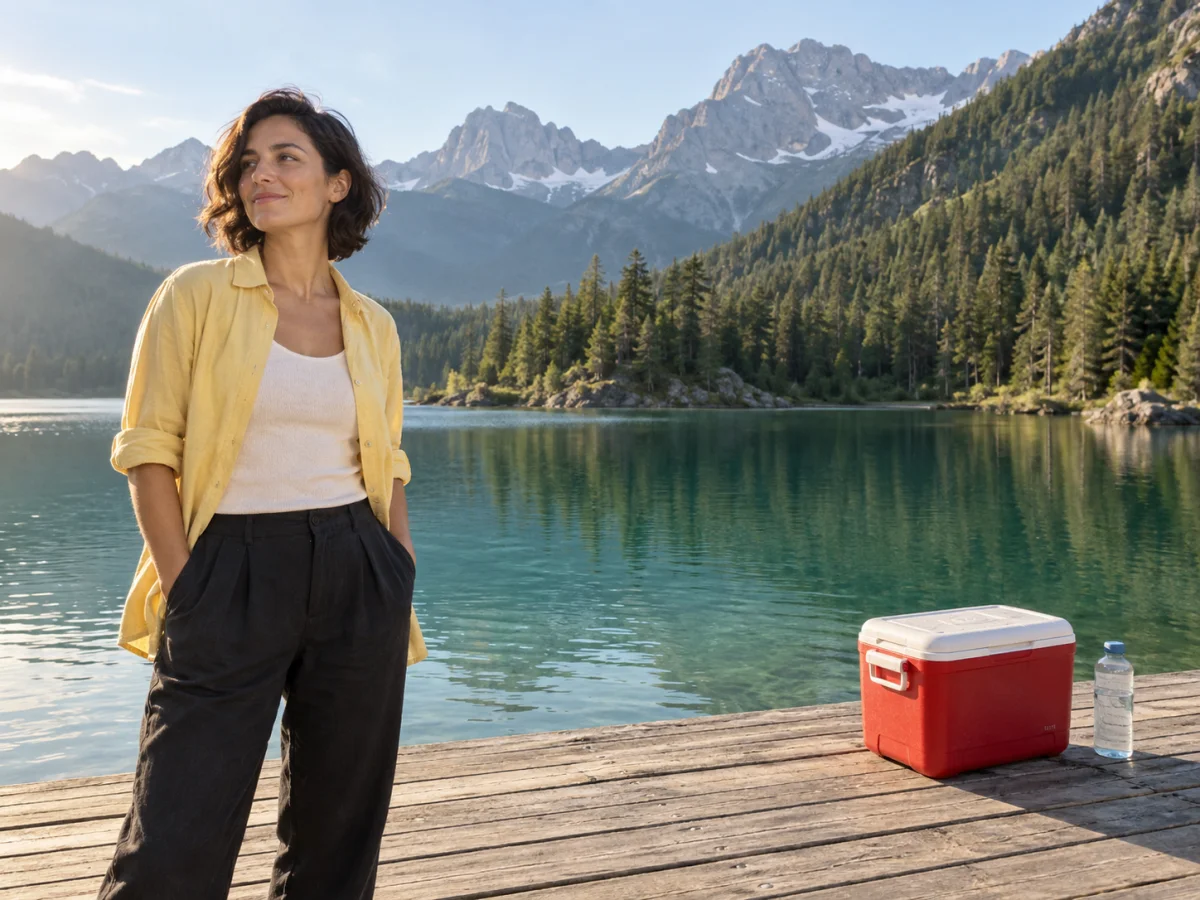
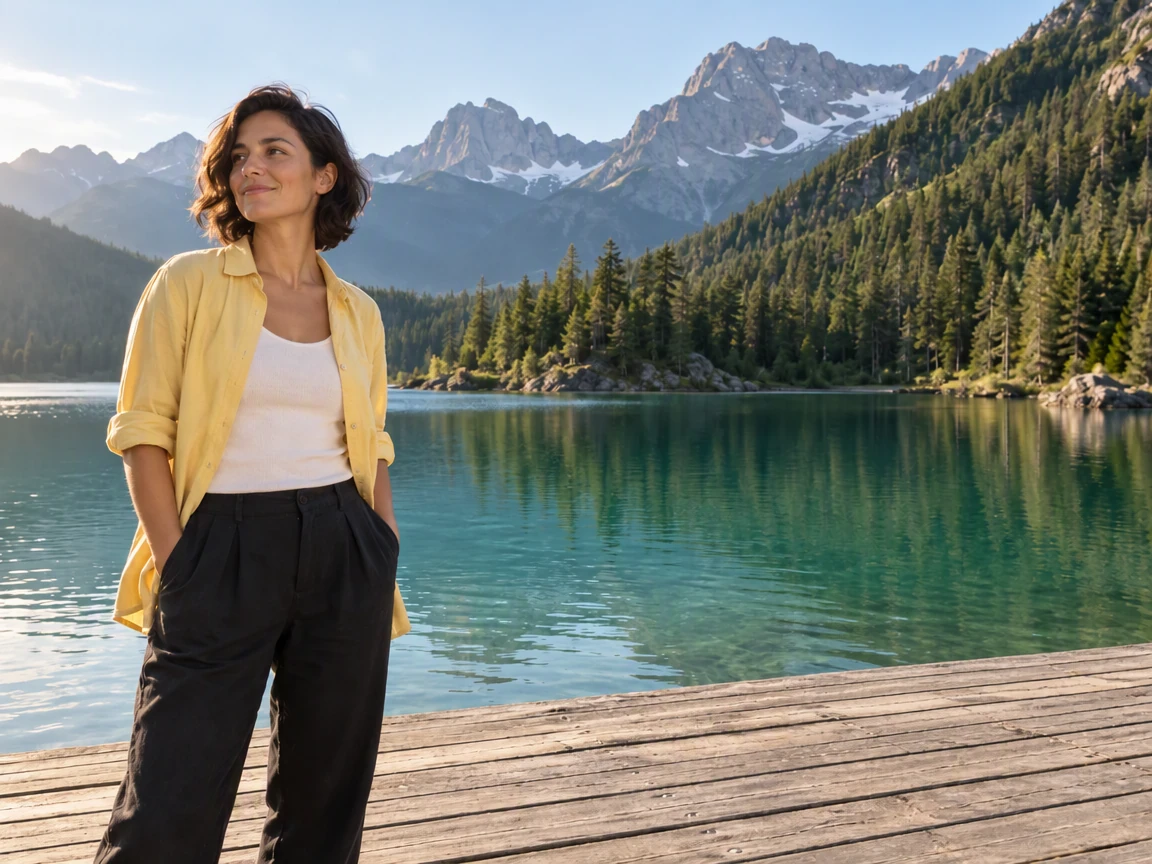
Where the cooler stood, look for continuous boards and natural light. Repeated textures and leftover shadows are worth a second look.
Remove objects from photos online with this free AI object remover. Brush over people, bags or clutter and AI fills the gap to match the scene. Compare the repaired photo before you download.
Upload a photo, or use an example on the canvas.
OriginalResultAdd a PNG, JPEG or WebP photo, or load one of the examples on this page.
Paint over everything you want gone, including its shadow. Add optional instructions if you want to describe the result.
Check the cost, generate the edit, then compare it with your original before you download.
Compare the same areas before and after. Look at the edit, then check the details you want to keep.
Scenes are AI-generated; results are actual GPT Image 2.5 edits in PicOnTap, without manual retouching. AI may change nearby details, so compare the original before using a result.
Where the cooler stood, look for continuous boards and natural light. Repeated textures and leftover shadows are worth a second look.
Compare the face, hair and shirt as well as the edited area. Nearby details may change while the scene is blended.
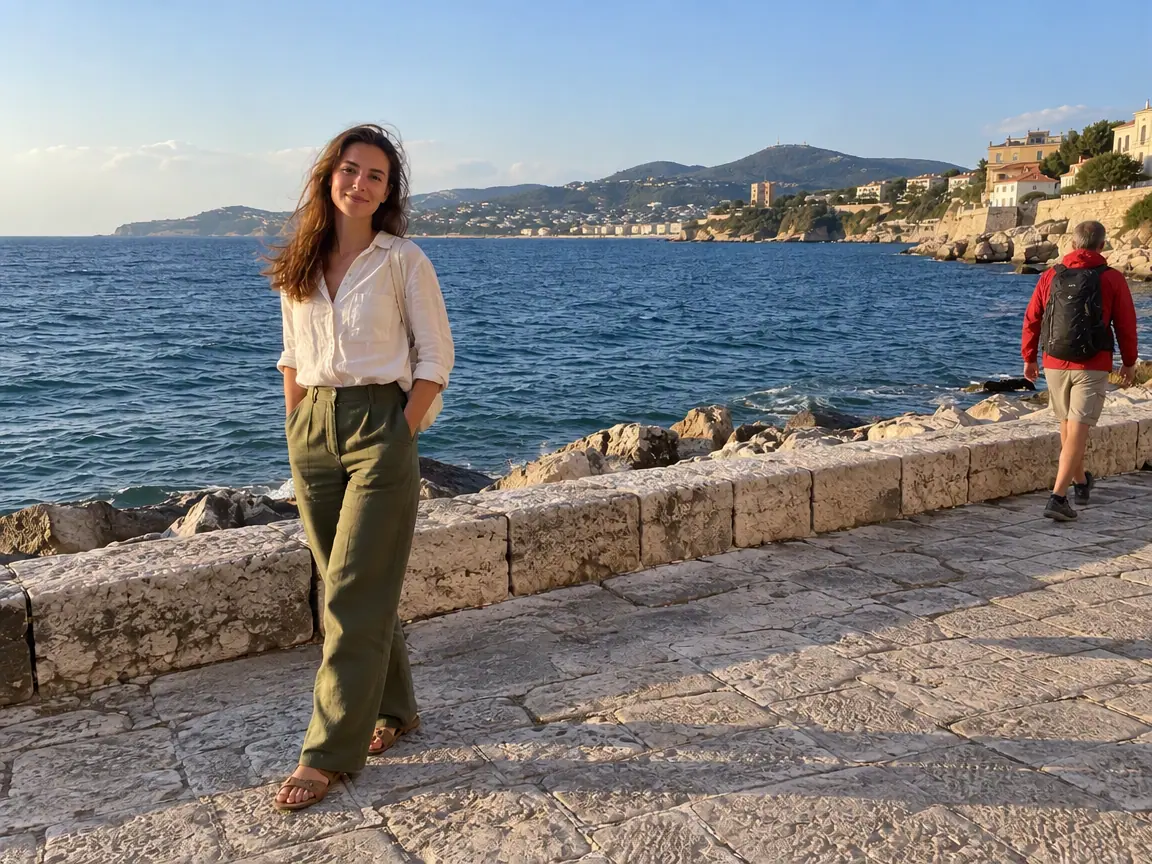
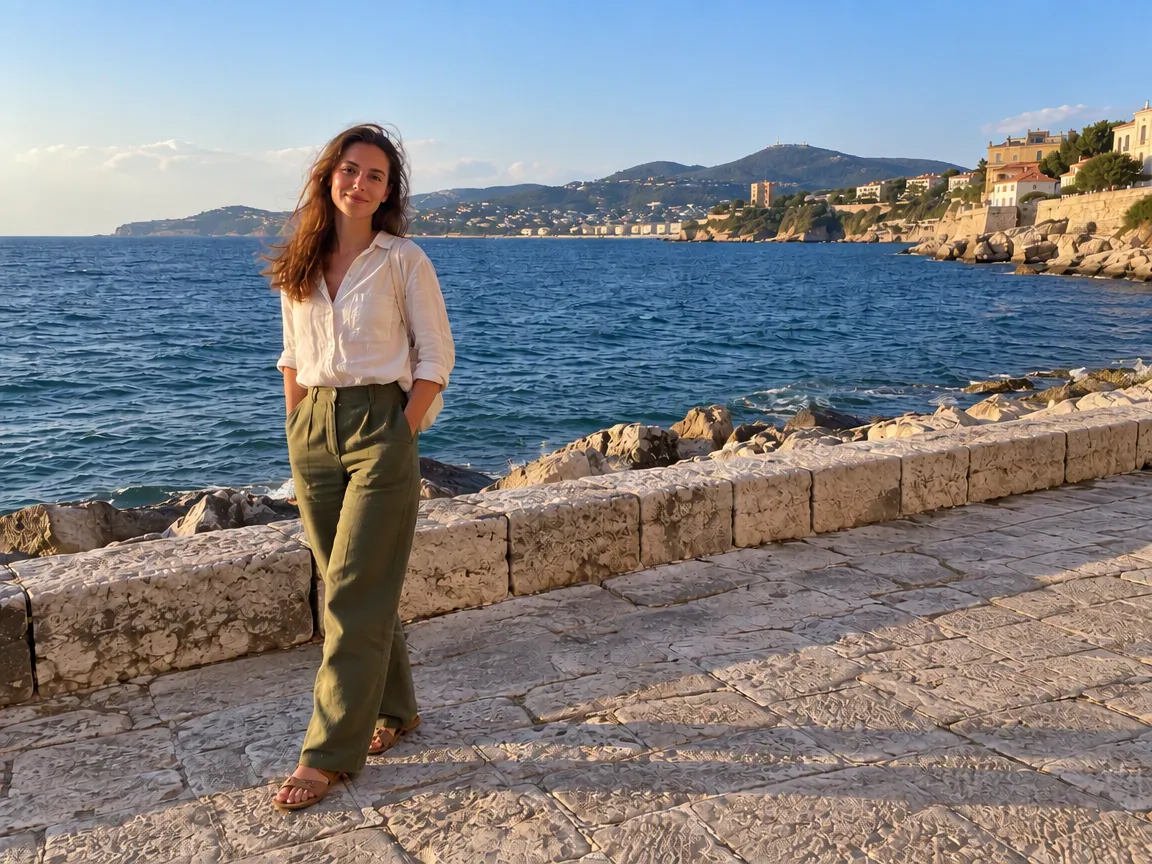 OriginalPicOnTap result
A seaside portrait is almost perfect until a stranger walks into the frame. Brush over the passer-by and their shadow, and the promenade wall and sea are rebuilt behind them.
Loads the original and suggested settings. Review the cost before generating your own result. Brush over the area you want to edit after loading the image.
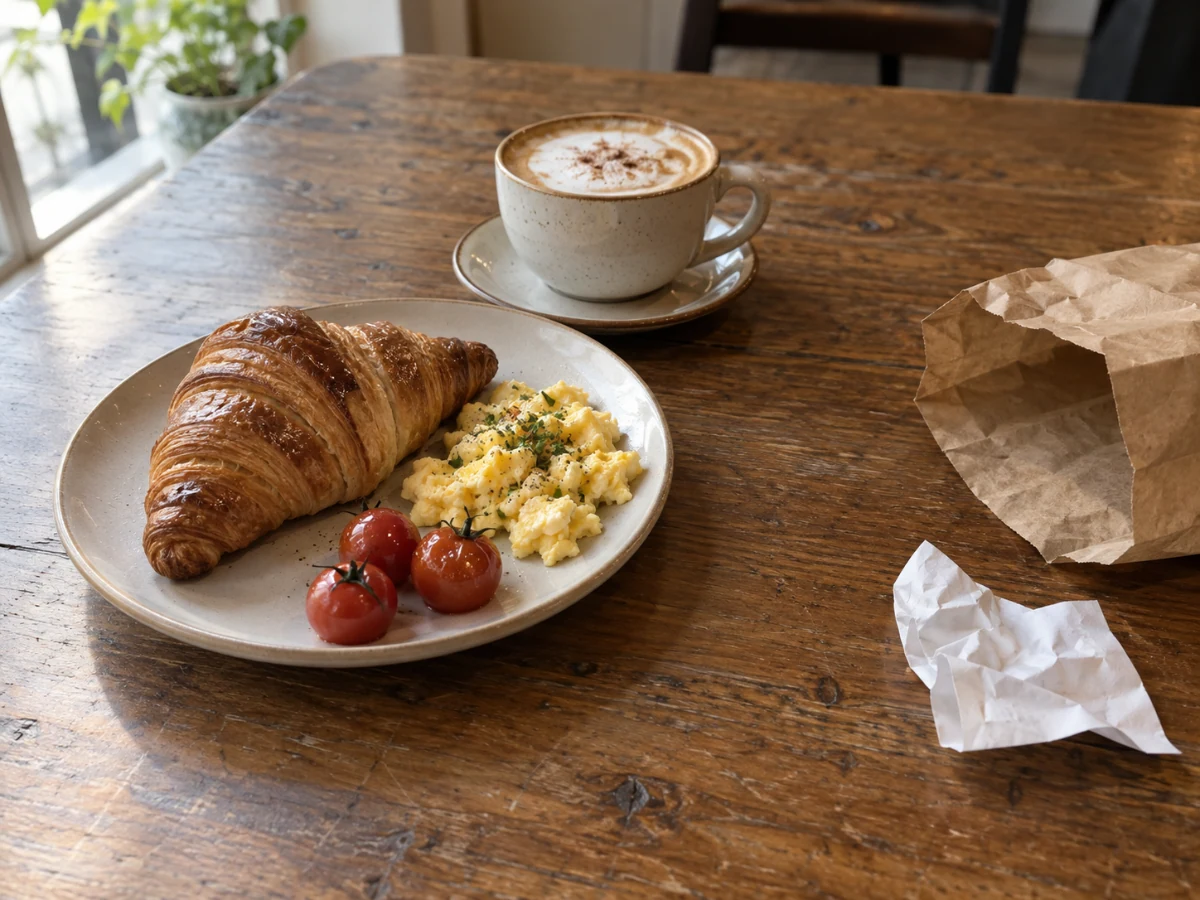
 OriginalPicOnTap result
A breakfast snapshot is nearly ready to share. Remove the paper and takeout bag beside the plate so attention returns to the same food, portion and presentation.
Loads the original and suggested settings. Review the cost before generating your own result. Brush over the area you want to edit after loading the image.
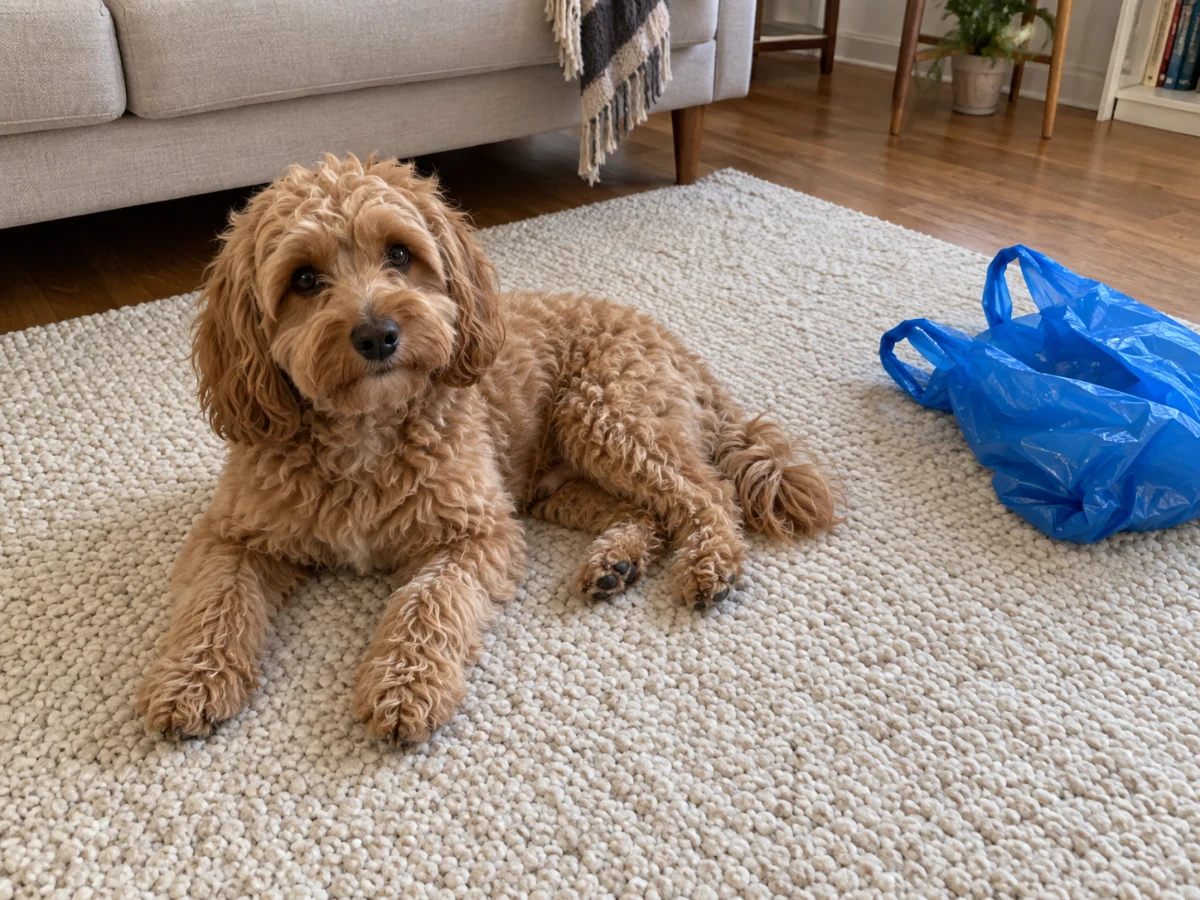
 OriginalPicOnTap result
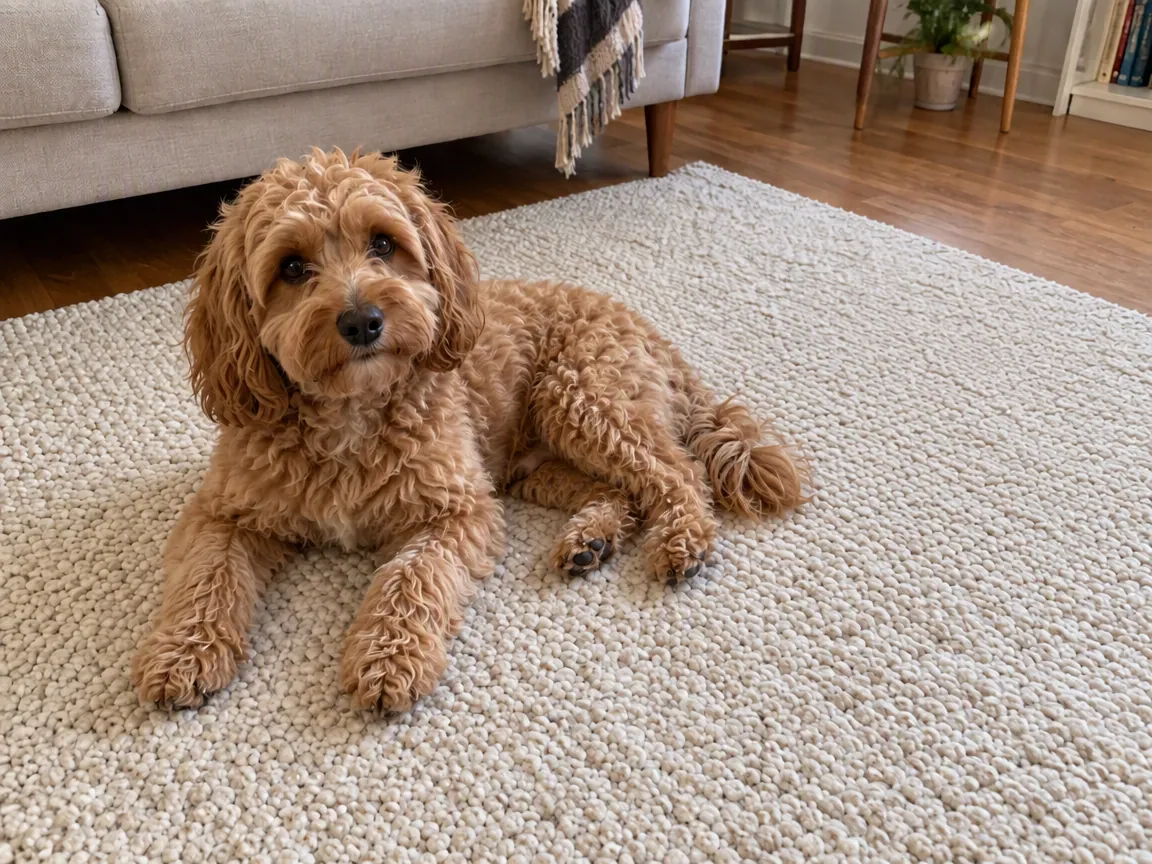
Your dog finally looks at the camera, with a shopping bag beside the rug. Mark the bag rather than the fur, and give this everyday moment a little more room.
Loads the original and suggested settings. Review the cost before generating your own result. Brush over the area you want to edit after loading the image.
Include loose straps, handles and any shadow you want removed. A small gap in the selection can leave part of an object behind.
Start with objects separated from your subject. Hair, hands and intricate furniture are harder to reconstruct when covered.
Look along tile joints, wood grain and horizons. For several distractions, work in smaller selections and review each result.
File size, pixel count, edge length and aspect ratio are separate limits. Use a static PNG, JPEG or WebP; GIF and animated images are not supported by the editor.
Photos that already meet the model's requirements are sent as they are; others may be converted once to a format the model accepts. The result comes back in the model's own format and size, which may differ from your original. Background replacement does not create a transparent cutout. Photo restoration may reconstruct details.
Browsing and loading examples do not spend editing credits. A technical failure returns the credits charged for that attempt; a delivered result you dislike is not a technical failure. Check pending returns in the editor.
Current allowances · Getting started · Writing editing instructions
Mark the entire object while avoiding things you want to keep. The model can use nearby areas to blend the scene; check the edges after generation.
Include the shadow in your selection when you want it removed. Complex lighting can leave traces, so compare before editing again. If you only want to soften a shadow on a face or product, use the shadow tool: Remove shadows from photos
AI fills the area using surrounding visual cues. It cannot verify what was actually behind the object.
Yes. Brush over every object you want gone before you generate. For the cleanest result, remove one or two at a time and check each result; if a texture looks wrong, try a tighter selection. Each generation is a separate edit, and its cost is shown before you submit.
Yes, within the free daily allowance. Brush over the person you want to remove, including their shadow, and compare the result. The background behind them is reconstructed, so check edges and repeated textures before you download.
The model rebuilds the area you brushed and aims to leave the rest unchanged, though nearby details can shift while the repair is blended. The result comes back in the model’s own format and dimensions, which may differ from your original. Compare the two before you download.
Yes. The object remover runs in your phone’s browser, so there is no app to install. Upload a photo, brush over the object with your finger, then compare and download the result.
Guests can use available models when they have enough credits. Your allowance and the cost of this edit appear in the editor. Browsing examples, loading an original and adjusting settings do not submit a generation.
Use a static PNG, JPEG or WebP up to 10 MiB. The selected model's file, geometry, aspect-ratio and color requirements are checked before submission. Results retain the provider's supported native format and dimensions.
A technical failure returns the credits charged for that edit; follow the status in the editor. A delivered result you dislike is not a technical failure. Compare the result with the original before downloading. Each new generation is a separate edit with its own cost.
Start with your own photo, or load an example above. Your current draft stays in place.
Back to the editor