Where the person stood
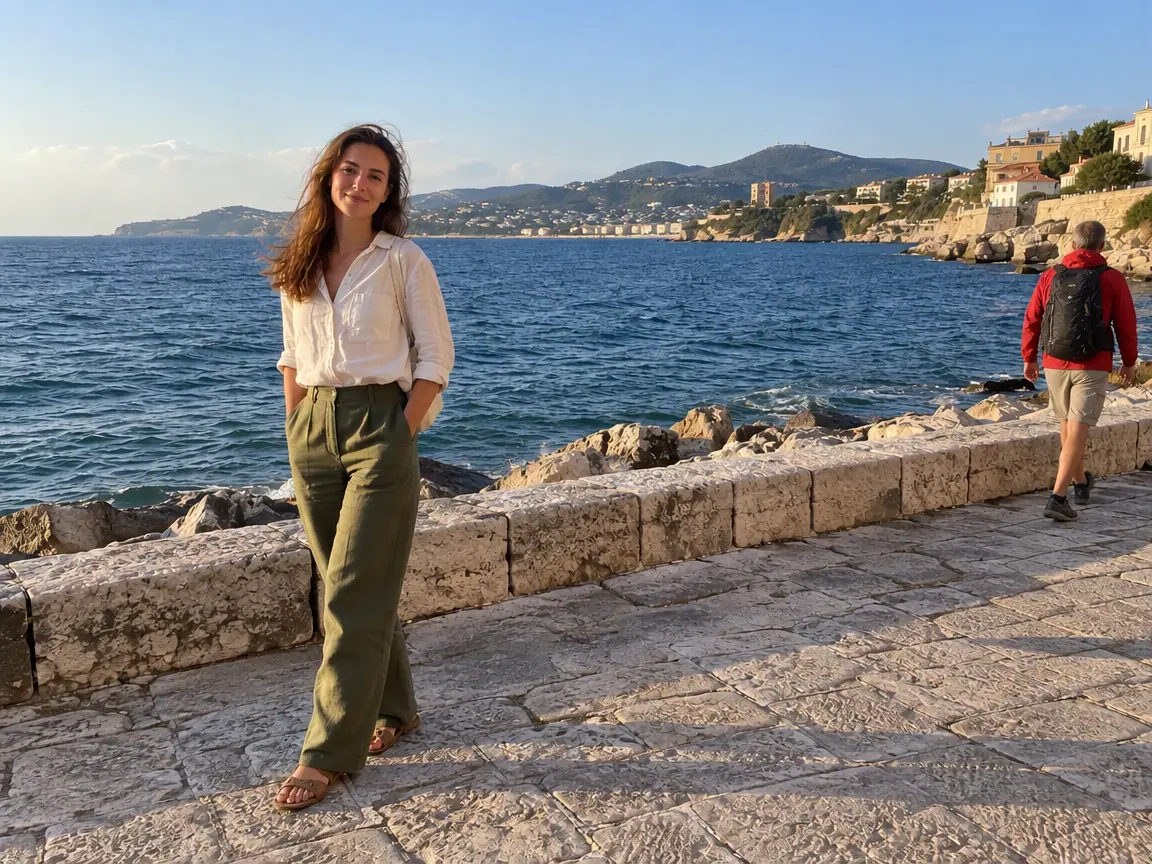
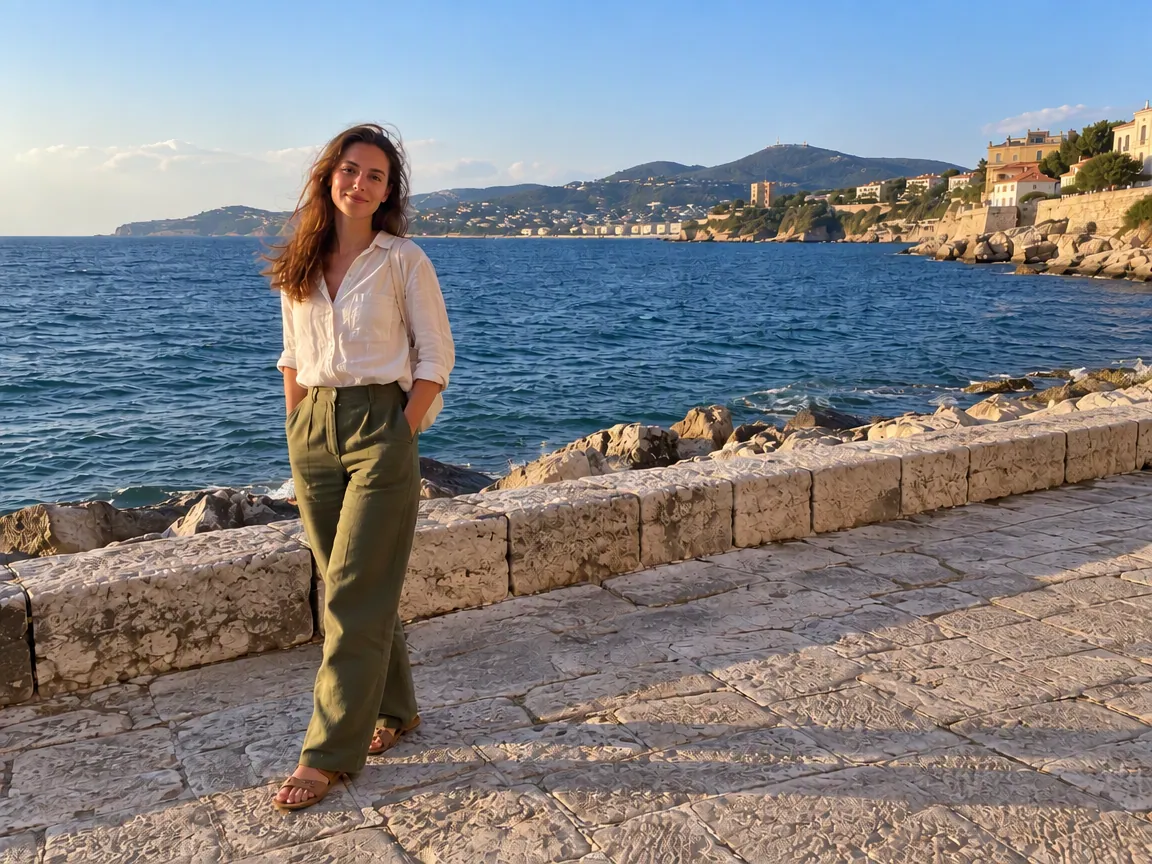
Follow the wall blocks, rocks and waterline through the gap. Repeated textures and leftover shadows are the first signs of a repair.
Remove people from a photo online for free. Brush over the person, say who should go, and AI rebuilds the scene behind them. Compare the result with your original before you download.
OriginalResultAdd a PNG, JPEG or WebP photo, or load one of the examples on this page.
Paint over the person and their shadow, then describe them in a few words, such as “the man in the blue shirt”. The description matters most when people stand close together.
Check the cost, generate the edit, then compare it with your original before you download.
Compare the same areas before and after. Look at the edit, then check the details you want to keep.
Scenes are AI-generated; results are actual GPT Image 2.5 edits in PicOnTap, without manual retouching. AI may change nearby details, so compare the original before using a result.
Follow the wall blocks, rocks and waterline through the gap. Repeated textures and leftover shadows are the first signs of a repair.
Compare her face, hair and shirt with the original. The model returns a new version of the whole photo, so details outside your selection can shift.
OriginalPicOnTap resultA seaside portrait is almost perfect until a stranger walks into the frame. Brush over the passer-by and their shadow, and the promenade wall and sea are rebuilt behind them.
Loads the original and suggested settings. Review the cost before generating your own result. Brush over the area you want to edit after loading the image.
 OriginalPicOnTap result
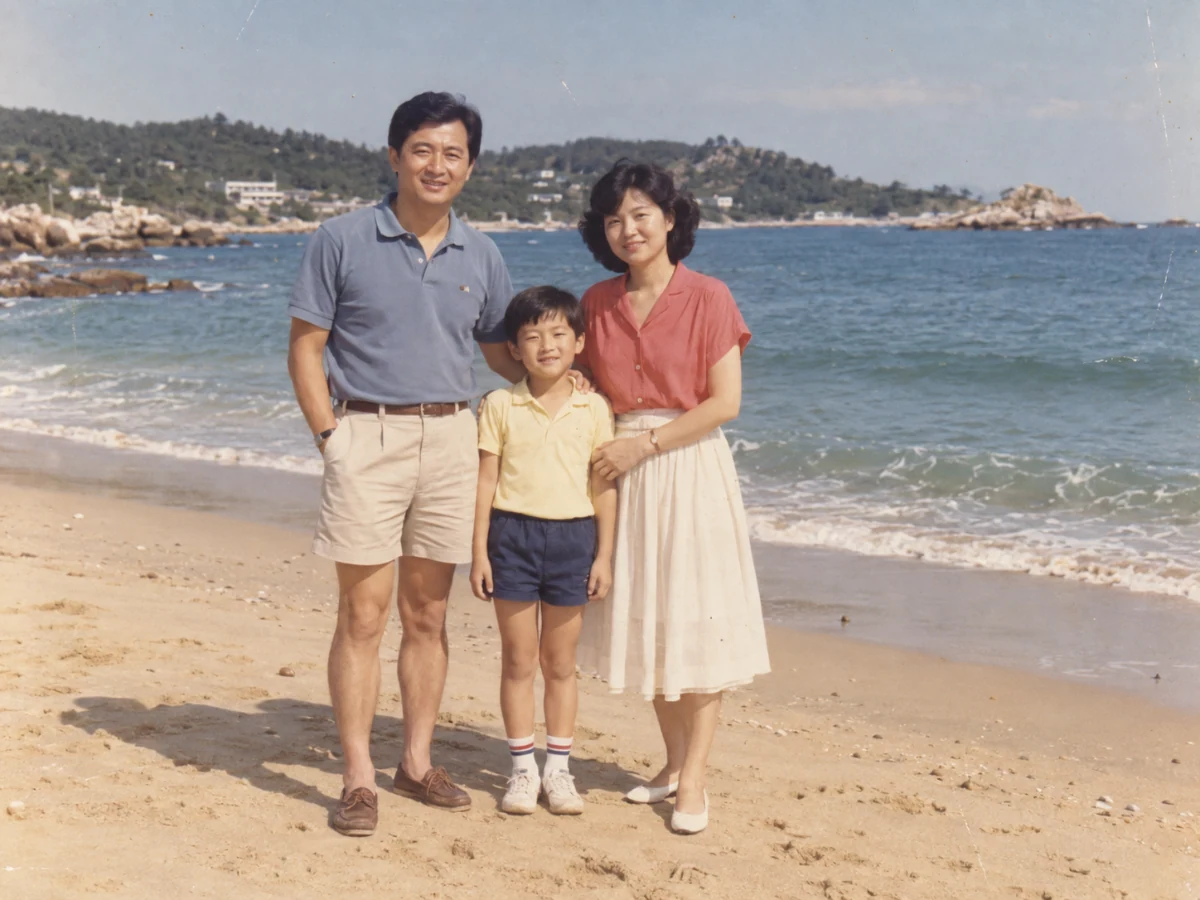
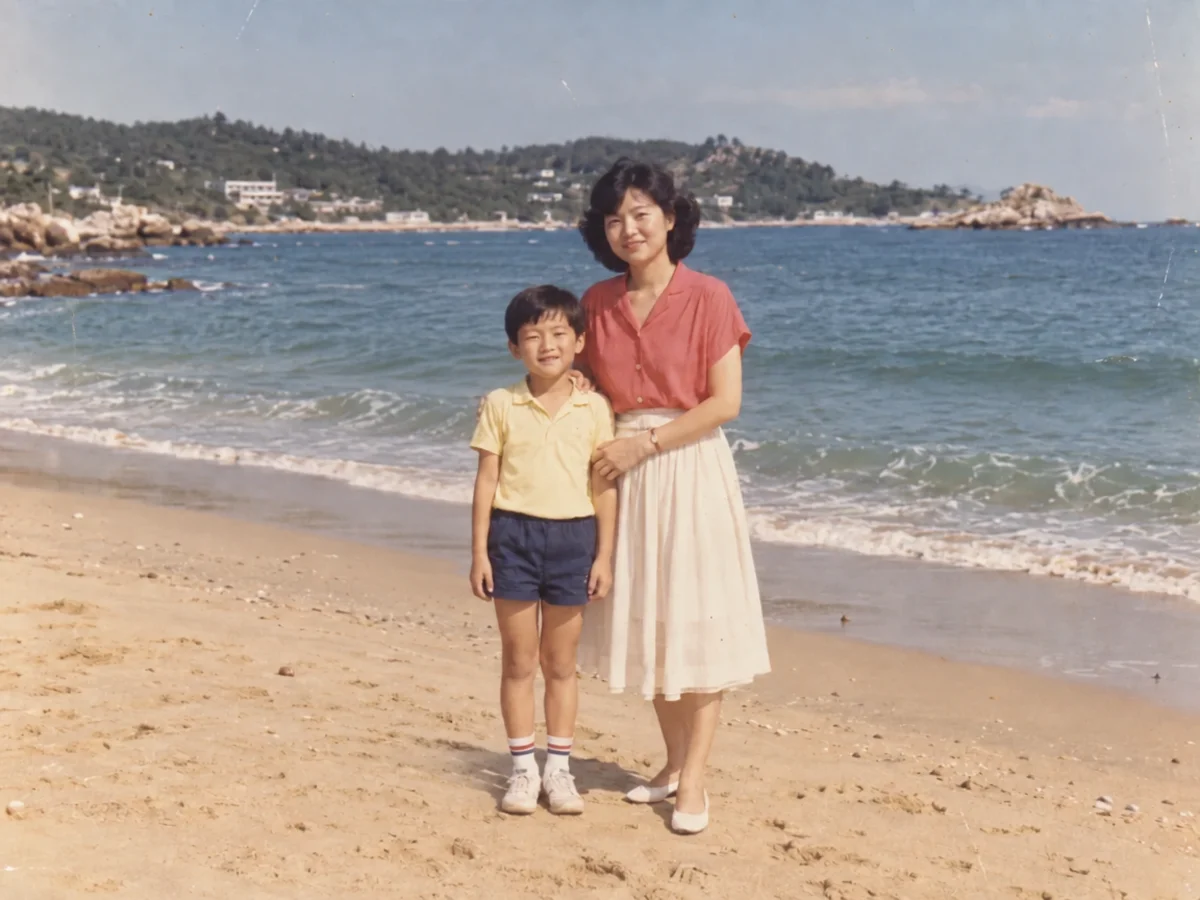
The man in this beach photo stands against the boy and the woman. We brushed over him and wrote who should go. He and his shadow left and the other two stayed, but the model also moved them toward the center of the frame.
Loads the original and suggested settings. Review the cost before generating your own result. Brush over the area you want to edit after loading the image.
Write something only that person has, like a shirt color or where they stand. On our family test photo, brushing alone removed the boy instead of the man we had marked. Naming the man removed him in both of our two tries. It is a small test, but the description is worth the few seconds.
Brush over the shadow on the ground as well as the person, and mention it in your description. A shadow left behind is the easiest way to spot an edit.
Arms around someone and overlapping bodies are the hard part. The people who stay can be redrawn or moved, so compare their faces before you share the result. A passer-by in the distance is much easier than someone in a hug.
File size, pixel count, edge length and aspect ratio are separate limits. Use a static PNG, JPEG or WebP; GIF and animated images are not supported by the editor.
Photos that already meet the model's requirements are sent as they are; others may be converted once to a format the model accepts. The result comes back in the model's own format and size, which may differ from your original. Background replacement does not create a transparent cutout. Photo restoration may reconstruct details.
Browsing and loading examples do not spend editing credits. A technical failure returns the credits charged for that attempt; a delivered result you dislike is not a technical failure. Check pending returns in the editor.
Current allowances · Getting started · Writing editing instructions
Yes, within the free daily allowance, and you do not need an account to start. The cost of each edit appears before you generate.
Brush over them and write who should go and who should stay, for example “Remove the man on the left. Keep the woman and the boy.” Close-ups are the hardest case: expect the people who stay to shift, and try again if the wrong person disappears.
Yes. This is the easiest case, because the person is small and the scene behind them is simple to rebuild. Brush over everyone you want gone and describe them, or remove one or two at a time and check each result.
Yes. It runs in your phone’s browser, so there is no app to install. Upload a photo, brush over the person with your finger, add a short description, then compare and download.
They can. The model returns a new version of the whole photo rather than patching only the area you brushed, so faces, hands and clothes may change slightly, and in tight group shots people may move. Compare the two versions before you download.
PicOnTap adds no watermark to the result. It comes back in the model’s own format and dimensions, which may differ from your original.
No. The background is invented from what is around the gap, so it can look right without being what was there. Only edit photos you have the right to edit, and do not use a result to mislead anyone about who was present. To remove things rather than people, use the object remover: Remove objects from photos
Guests can use available models when they have enough credits. Your allowance and the cost of this edit appear in the editor. Browsing examples, loading an original and adjusting settings do not submit a generation.
Use a static PNG, JPEG or WebP up to 10 MiB. The selected model's file, geometry, aspect-ratio and color requirements are checked before submission. Results retain the provider's supported native format and dimensions.
A technical failure returns the credits charged for that edit; follow the status in the editor. A delivered result you dislike is not a technical failure. Compare the result with the original before downloading. Each new generation is a separate edit with its own cost.
Start with your own photo, or load an example above. Your current draft stays in place.
Back to the editor