GPT Image 2.6 Online Editor
Upload a photo, say what should change and what should stay, and GPT Image 2.6 returns the edited image. No photo? Create one from text.
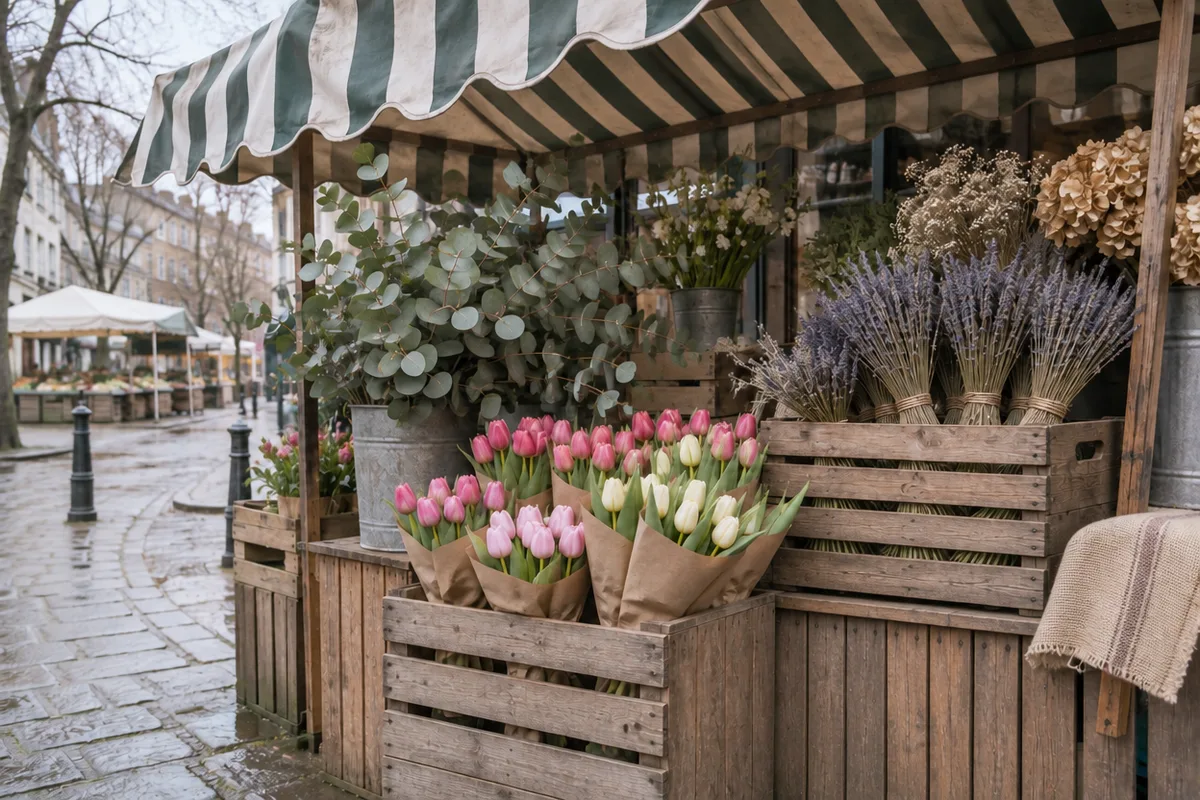
Actual GPT Image 2.6 result at 1K. The original image was also made with GPT Image 2.6.
What GPT Image 2.6 does with your photo
GPT Image 2.6 follows the instruction and leaves the rest of the photo alone. Every image on this page is a real GPT Image 2.6 result made in PicOnTap, not an illustration.
Check the edit up close
- The chalkboard is gone. Check that the crates behind it continue naturally and that nothing new was added.
- These flowers sat right next to the edit. Compare the colors and the paper wrapping with the original.
- An area the prompt did not mention. The stripes and the folds should be identical.
GPT Image 2.6 vs 2.5 on the same photo
We gave both models the same original and the same instruction. Pick a case to see the three images side by side.
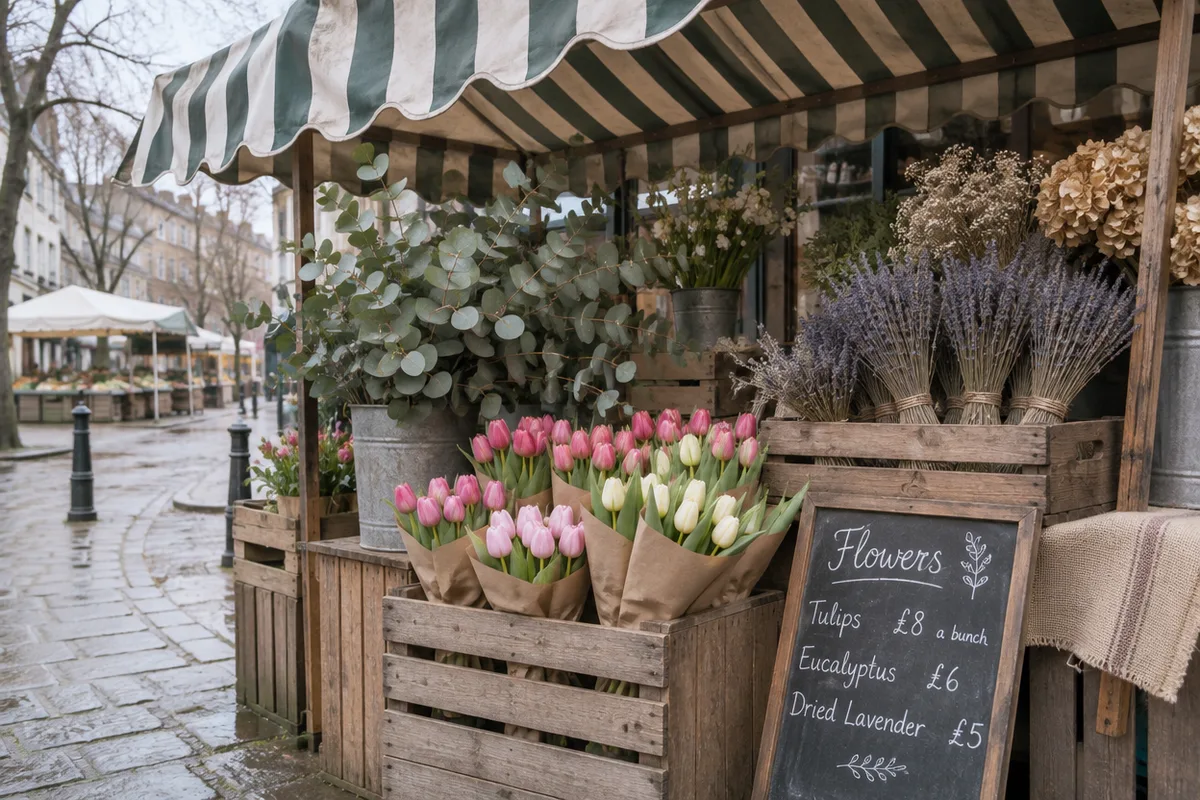
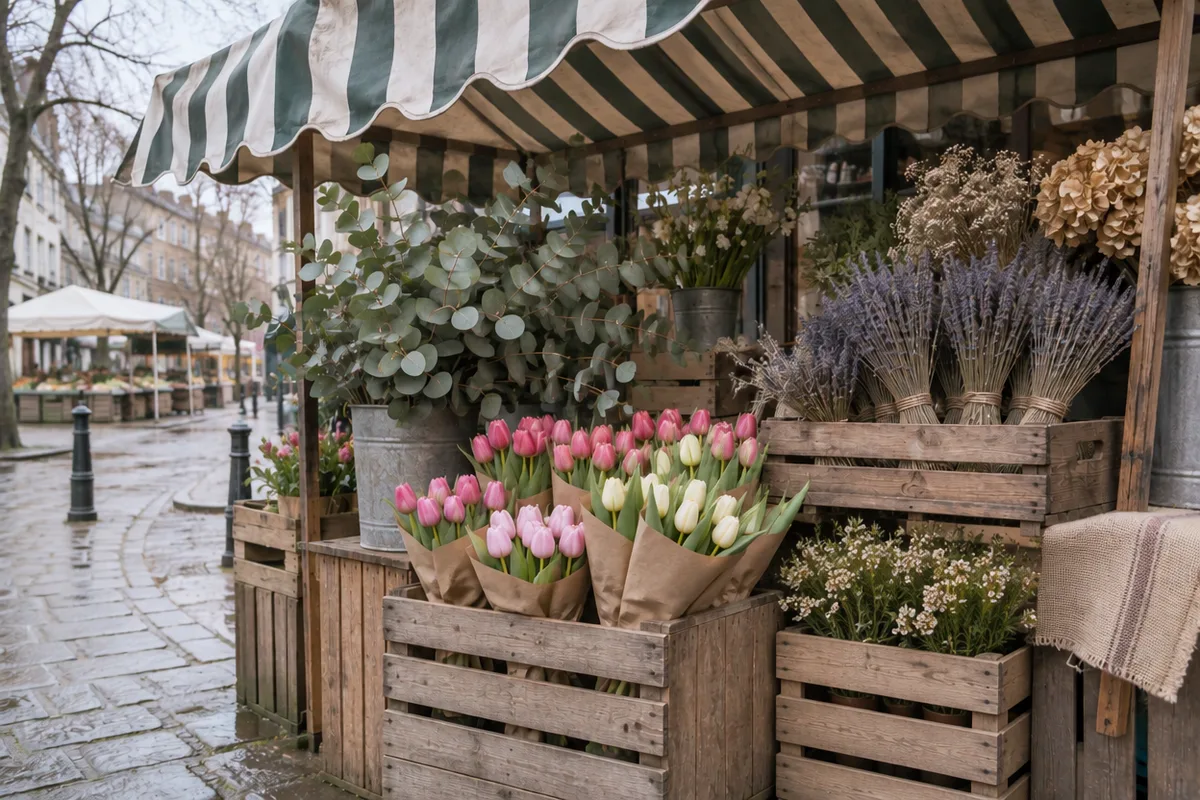
Same prompt for both: Remove the chalkboard price sign and rebuild the wooden crate and flowers that were behind it. Keep every other flower, the awning and the light unchanged.
GPT Image 2.5 removed the sign but filled the gap with a crate of white flowers that was never in the photo. GPT Image 2.6 rebuilt the wooden crates and added nothing.
One run per model at 1K on November 5, 2026. Times run from submission to the finished image and vary between runs. GPT Image 2.6 costs more to run, so it uses 4 credits instead of 2.
How to write a GPT Image 2.6 prompt
Name the change, then list what must stay. Copy one of these and swap in your own subject.
Remove the [object]. Rebuild what was behind it from the surrounding scene. Keep everything else unchanged.
Replace the background with [new setting]. Keep the [subject] exactly as it is, with believable contact shadows.
Change only the [item] to [color], keeping its texture. Keep the face, hair, pose and background unchanged.
No photo? Generate one from text
On the homepage, type a description without uploading a photo, choose GPT Image 2.6 in the model menu and press Generate. Each 1K image costs 4 credits. Open the image creator
A documentary-style photo of [subject] in [place], [time of day] light, shot on a 35mm lens, natural colors, no text.
Try the approach on different images
Each case has its own original and prompt. Try one, then adjust the instructions.
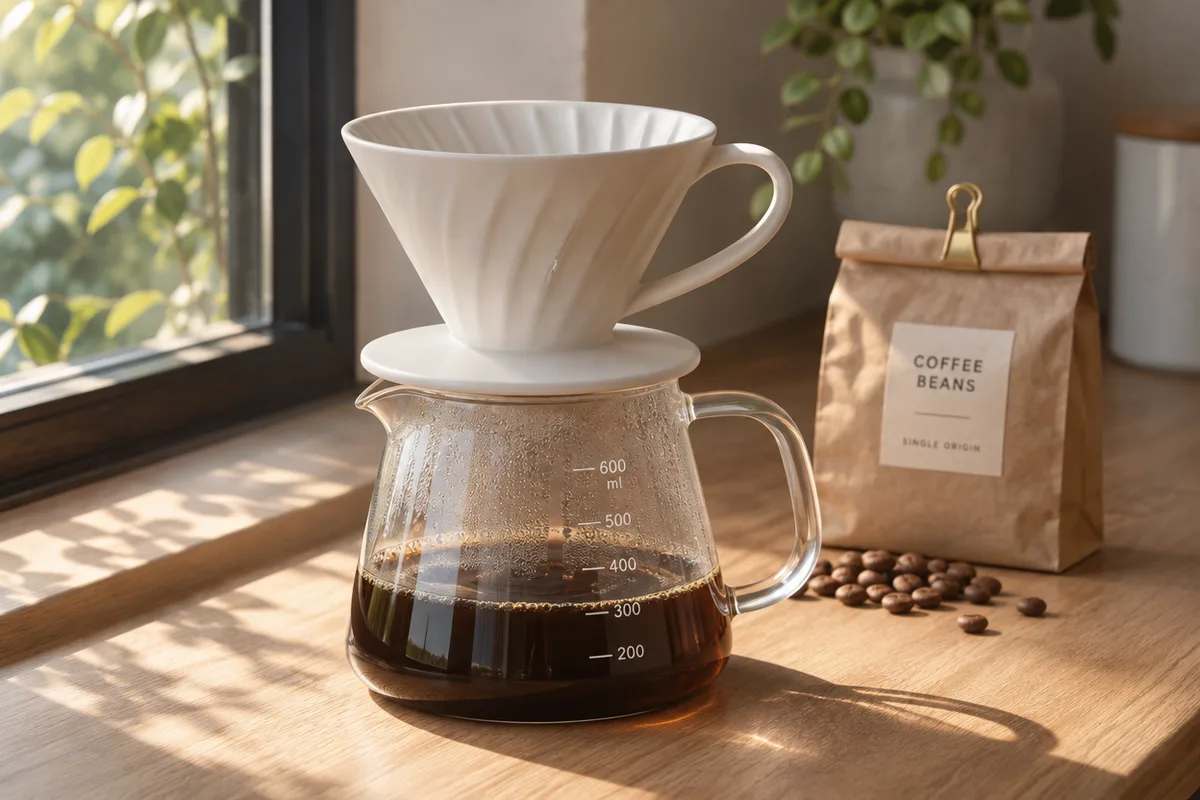
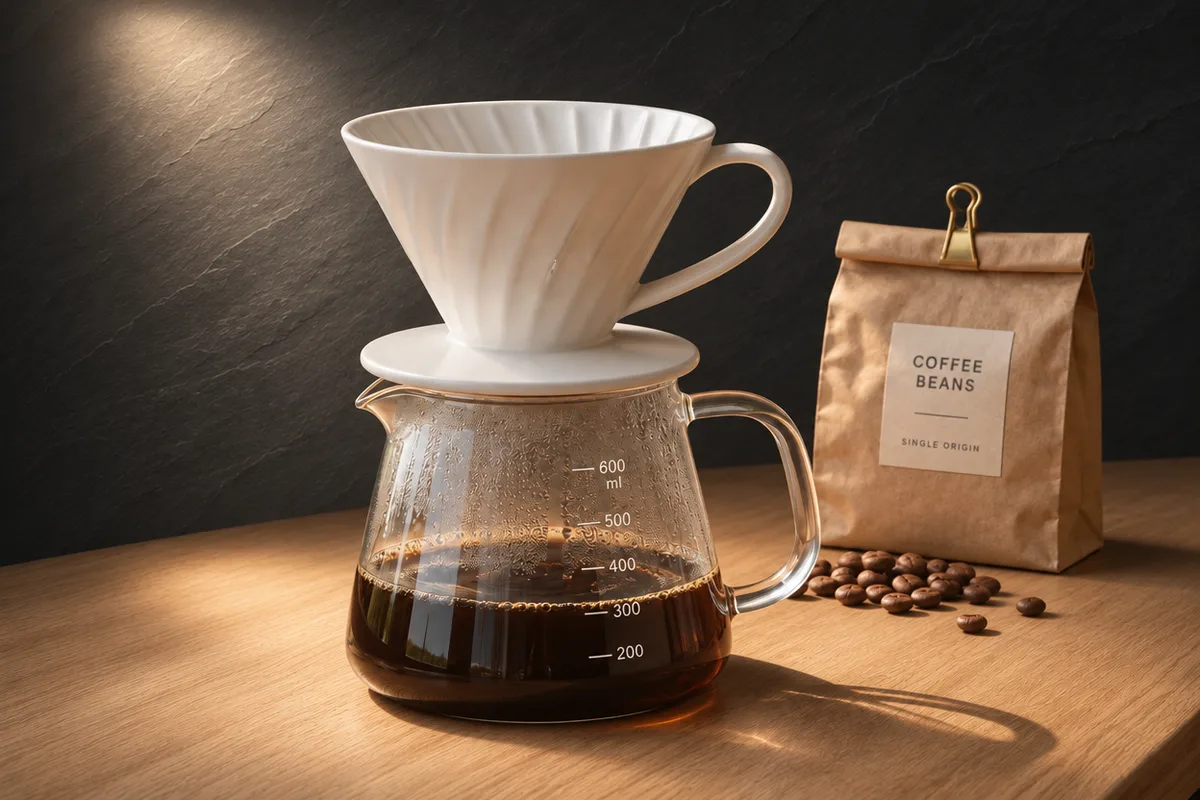
Move a product shot onto a slate wall
Swap the bright window for a dark slate wall and a single spotlight, and keep the product untouched.
Replace the window and background with a dark slate wall lit by one soft spotlight. Keep the dripper, the glass server, the coffee bag and the oak counter exactly as they are, with believable contact shadows.
Loads the original and prompt. Credits are used when you submit an edit.
Actual GPT Image 2.6 result at 1K. The original image was also made with GPT Image 2.6.
Where GPT Image 2.6 is worth the extra credits
Cleanups where a filler object would be worse than the original problem, and product backgrounds that must match the material you name. For recolors and quick drafts, including clothing on a person, GPT Image 2.5 at 2 credits gave the same result in our test.
What to check in the result
Compare the result with the original at the same zoom: the area you asked to change, its edges, and the places you asked to keep. If something extra changed, name it in a “keep” clause and try again.
Deciding between 2.6 and 2.5? Read our same-photo test: GPT Image 2.6 vs 2.5
View current credits and image requirements
Current rules and image limits
- Model and access
- GPT Image 2.6 · Available · No sign-in required. Use any available model with enough credits.
- Per edit
- 1K: 4 credits
- Maximum input
- 10 MiB · PNG, JPEG, WebP
File size, pixel count, edge length and aspect ratio are separate limits. Use a static PNG, JPEG or WebP; GIF and animated images are not supported by the editor.
Photos that already meet the model's requirements are sent as they are; others may be converted once to a format the model accepts. The result comes back in the model's own format and size, which may differ from your original. Background replacement does not create a transparent cutout. Photo restoration may reconstruct details.
Browsing and loading examples do not spend editing credits. A technical failure returns the credits charged for that attempt; a delivered result you dislike is not a technical failure. Check pending returns in the editor.
Current allowances · Getting started · Writing editing instructions
Before you start
GPT Image 2.6
Is GPT Image 2.6 free to use?
Each GPT Image 2.6 image at 1K costs 4 credits, for edits and for images made from text. That is twice GPT Image 2.5, because OpenAI charges more per image. The editor shows the price and your balance before you submit.
How is GPT Image 2.6 different from GPT Image 2.5?
In our same-photo test, 2.6 added nothing new when removing an object and followed a lighting instruction more literally. Faces and untouched areas stayed equally close to the original on both, and it took about as long. See the side-by-side comparison above.
Is this the same as Images 2.6 in ChatGPT?
It is the same model family. OpenAI released GPT Image 2.6 in ChatGPT and the API on November 4, 2026. PicOnTap uses the API version gpt-image-2.6-sunburst, which OpenAI positions for detail and editing, at 1K and medium quality. ChatGPT's own settings are not published, so results can differ.
When are credits used?
Selecting a model is free. The current edit cost appears in the editor. Credits are held when a task is accepted and settled on delivery; failed edits follow the credit return process.